TABLE OF CONTENTS
- Introduction
- Viewing Student Absences
- Attendance alerts and absentee follow up
- Absentee SMSes
- Following up absences using the Correspondence page
- Printing the absentee follow up letter
- Printing absentee attendance reports
- Displaying unresolved absences in SEQTA Learn and SEQTA Engage
- Using a Pastoral care note
- Related articles:
There are various methods for managing the follow-up of Unresolved absences. The methods used will depend on the school's Policies and Processes with regards to managing Attendance.
Viewing Student Absences
Student absences can be viewed in the following areas:
- In the Student Information Panel (SIP), by choosing the Attendance pane
- On the Attendance administration page under Day by Day.
- Through the teachers timetable by clicking on the attendance icon "@" for a class.
- On various attendance reports (eg. Absences (unresolved)).
- In SEQTA Learn and SEQTA Engage in the Unresolved Absence Dashlets (if enabled)
Attendance alerts and absentee follow up
If a student has an Attendance alert (the blue dot) and no absence is showing, this indicates either:
- The absence was resolved for the current day (Attendance alerts are only updated overnight).
- The attendance runs for only a short period of time.
- The attendance is outside school hours.
Absentee SMSes
The Absentee SMSes page can be used to notify parents and guardians when a student is absent. This is typically run every day, to follow up on students who where absent from the morning classes. Absentee SMSes can only be sent by schools that have the SMS component of SEQTA implemented.
Following up absences using the Correspondence page
The Correspondence page can be used to merge student attendance data into SMSes, emails, letters or Direqt messages. To make full use of this option, a letter template and Presets can be created through the Correspondence page.
An example of how these may be used, is to merge the dates and periods a student has been marked absent for, based on attendance type, within a set date range. Correspondence can then be sent to the applicable student's parents/guardians without the need to select the individual student names, as it will only create the correspondence for students who match the parameters in the preset.
Printing the absentee follow up letter
The Absentee followup letter report can be printed through the Attendance Administration > Reporting page or the Attendance pane in the SIP. The Absentee follow-up letter can be customised. Please contact the SEQTA Support team via the Help portal. They will put you in touch with the Professional Services team to discuss your needs.
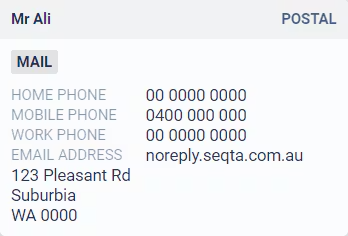
If the report displays the message "An error has occurred. No data matching your criteria could be found. Try expanding your parameters", this indicates there are no absences in the date range for any student OR there are no contacts flagged for postal contact for every student. (The postal contact will display the 'MAIL' icon below the contact name in the SIP). However the report will print (without displaying an error message) for those students who have matching data.
The steps for printing the Absentee followup letter for multiple students are as follows:
- Go to the Administration workspace > Attendance administration > Reporting.
- Select the report Absentee followup or Absentee followup (with periods).
- Set the date range, time range and date repetition.
- Select the students.
- Click Print.
The steps for printing the Absentee follow up letter for an individual student are as follows:
- Select the student name in the SIP
- Click on the View attendance history icon '@' to the right of the SIP
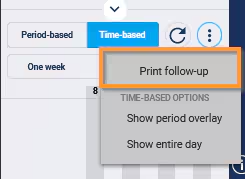
- Click on the ellipsis and choose the Print follow-up item in the drop-down menu.
Printing absentee attendance reports
There are various reports available from the Attendance Administration page that display students with unresolved absences.
Reports with Linear view in the name will display all attendance for the student including those that do not appear under the standard view.
The most commonly used reports are:
- Absences (unresolved)
- Absences (unresolved)(linear view)
Displaying unresolved absences in SEQTA Learn and SEQTA Engage
Unresolved absences can be displayed on the dashboard page in SEQTA Learn and SEQTA Engage for students and parents/guardians. The steps for enabling and configuring the Unresolved absences dashlet can be found in the following article:
Using a Pastoral care note
A Pastoral care note can be created to record communications regarding a student's absences. This also provides the option for the parents, guardians, students and staff to receive a notification email, SMS or Direqt message with the details.
For more information on Pastoral care notes please refer to the following article:
Related articles:
Was this article helpful?
That’s Great!
Thank you for your feedback
Sorry! We couldn't be helpful
Thank you for your feedback
Feedback sent
We appreciate your effort and will try to fix the article