TABLE OF CONTENTS
- Image Requirements
- Obtaining Signatures
- Saving PNG and JPG/JPEG as Scalable Formats
- Aspect Ratio and Orientation
- Software for Saving Images in .svg Format
- File naming
- Saving Signatures for Multiple Staff
- Signatures not displaying in correct location (overlapping and indent Issues)

Each report is customised to expect a specific image type. In most cases, this will be .svg format, which unlike .jpg and .png files can be scaled without losing quality, ensuring they display clearly on reports. File extensions must always be lowercase (i.e. "072.svg" NOT "072.SVG").
A specific naming convention is used to map the signatures to report. Signatures for School values (Pastoral Care) comments use the 'Roll Code'. Whereas, signatures for subjects, use the class teacher's 'Staff Code'. Non-coordinators signatures should be named logically (i.e. principal.svg).
Image Requirements
- Required File Format: Images must be provided in true .svg, as this file type can be scaled without losing quality. Saving a .jpg or .png format as a .svg does not produce a scalable image and will likely result in blurry signatures on reports.
- Aspect Ratio: 2.4:1 (1000px x 400px) is typical. However, any aspect ratio is fine, providing all signatures are using the same aspect ratio.
- Orientation: Landscape is often the preferred orientation (wider rather than higher). However, images can be any orientation providing all images are using the same orientation.
- White Space: Remove excessive white space around the signature, consistent with the note about aspect ratio.
- Transparent Background: Set the background of the image to be transparent.
- Filename: Signatures for roll group need to be named with the roll code. Signatures for non-coordinators need to be named logically (i.e. principal.svg).
Obtaining Signatures
Signatures can be obtained using one of the following methods. Save the signatures in .svg format, ensure the files are named correctly and ensure they are the same size.
- Windows surface pro tablet
- iPad or Android device (Using the Adobe Illustrator Draw App)
- Wacom graphics tablet
- Sign on paper with a clean, sharp pen, then scan the image at 300dpi or greater using a traditional scanner. If possible, it is useful to have teachers sign on the paper inside a box to ensure a uniform size.
Saving PNG and JPG/JPEG as Scalable Formats
There are a number of other programs that will allow vectors to be captured. Search for "Vector Drawing" in the App Store for your device. For example, Adobe Illustrator CC allows the saving of images to be output as .svg.
Opening a .jpg or .png then saving as a .svg, .eps or .ai will not produce a vector image. Non-vector images typically appear blurry and/or pixelated on reports.
Aspect Ratio and Orientation
The easiest way to ensure a consistent and correct aspect ratio and orientation, is to choose a set width and height and have staff sign in this area. In some cases, white space may need to be trimmed or added to the left and right, or top and bottom of the image.
Software for Saving Images in .svg Format
There are many different programs that can save images in the above file type. Some of these programs need to be installed and will require the school to purchase a license (i.e. Illustrator). Others are free and can be accessed online, such as Inkscape.
File naming
The following file naming conventions are required for signatures to display correctly on reports. If unsure as to what the 'Roll' code or 'Staff' code are, check in the Administration Workspace > Data Management.
If your codes contain non-alphanumeric characters, these need to be removed in the signature file names. (i.e. Signature file for the roll group "P5/6" should be named "P56.svg" and roll group "07.2" should be named "072.svg"). File extensions must always be lowercase (i.e. "072.svg" NOT "072.SVG").
- Subjects: Signatures for subjects need to be named with the staff code.
- Roll Group: Signatures for roll group need to be named with the roll code.
- Signatures for non-coordinators need to be named logically (i.e. principal.svg).
Saving Signatures for Multiple Staff
When more than one staff name needs to display for a subject, or roll group, ensure the signatures are saved in one image.
Roll Group Coordinator
If there is more than one staff member for a roll group, then ensure the signatures are in the same order as displayed in Administration Workspace > Data Management > Rolls > Coordinator Salutation.
Class Teacher Names
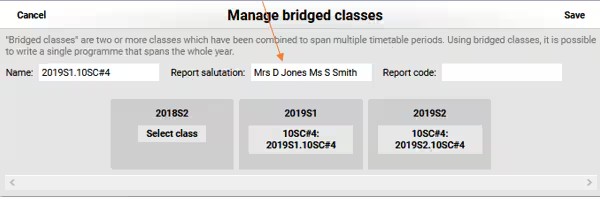
If there is more than one class teacher that needs to appear next to a subject, then ensure the signatures are in the same order as displayed in the Staff Salutation field under the Teaching Workspace > Timetable > My Classes > click Bridge Classes icon.
Signatures not displaying in correct location (overlapping and indent Issues)
The system does not know where the edge of the signature is within an image. Instead it uses the left-hand side of the image, therefore:
- All white space should be cropped from the left-hand side of the image.
- Sufficient white space should be added to the bottom of the signatures to prevent overlapping.
- If there is more then one signature on the row both signatures will need to be added before they will appear in the correct location
Was this article helpful?
That’s Great!
Thank you for your feedback
Sorry! We couldn't be helpful
Thank you for your feedback
Feedback sent
We appreciate your effort and will try to fix the article