TABLE OF CONTENTS
Uploading Signatures for Reports
Signatures for academic reports can be uploaded through the Academic reporting page. The Administrator permission 'ACAD: EDIT' is required to access the Report assets sub-page.
These instructions assume that the signature files have been created and named according to SEQTA requirements. Please see below for more info about this.
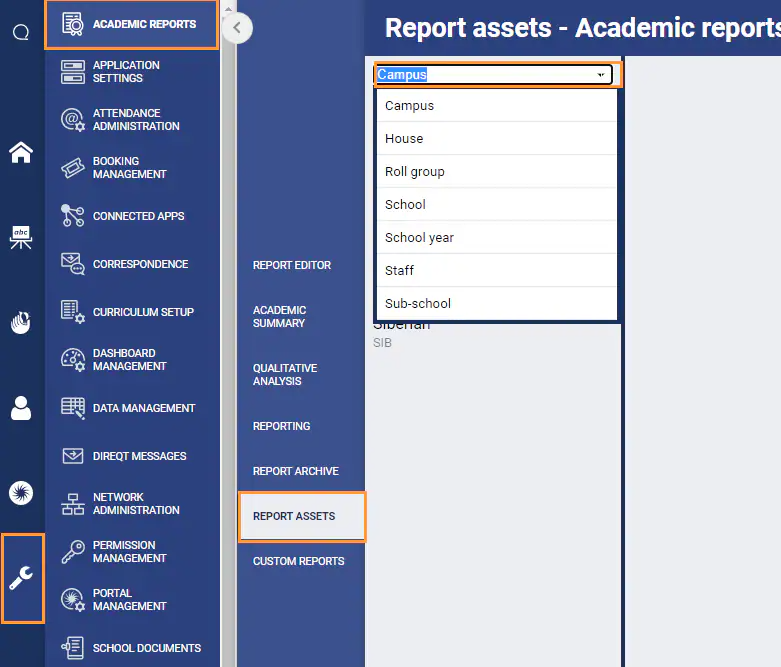
- Navigate to Administration Workspace > Academic Reports > Report Assets
- Click on the drop-down list and select the relevant component (i.e. Staff, Roll group, Campus).
- Choose School for the overall School Principal and for any miscellaneous image requirements.
- Choose Campus, House, Roll Group, School Year or Sub-school for coordinators of those areas.
- Choose Staff for class teacher signatures.
- Existing Report asset entries will appear in the list, based on the data in Data management.
- Click to select the entry to be edited.
- If there is an existing file attached to that selection, it will appear in the pane to the right. Otherwise there will be a notation "No image found".
- To add a file (or add a replacement for the existing file) use the "Add a file" button at the bottom of the screen.
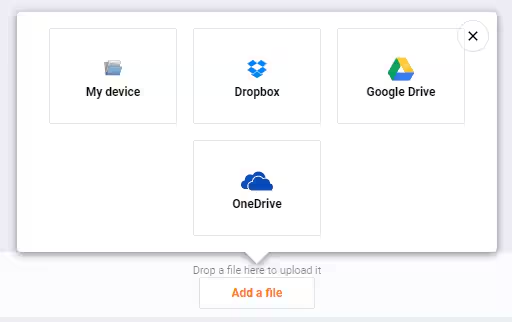
- You can drag and drop onto the button, or click the button to browse for the file. Depending on your school setup you may have a number of places where the required file may be found.
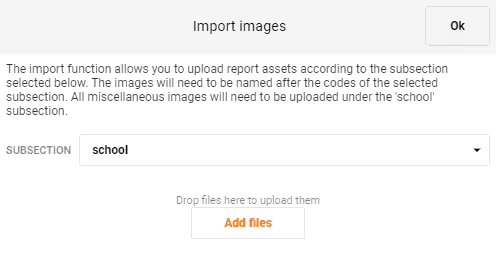
- To add a file that isn't related to an existing entry, you can use the "School" component. The entry will use the file name of the image, so ensure it is named appropriately.
- Choose the "School" component.
- Select the + icon to add a new file to that section.
- Add the file using the "Add a file" button in the pop-up box.
- Drag and drop or navigate to the file location and select the file, select Ok. The system will save automatically.
Signature File Type Requirements and Naming Conventions
Each report is customised to expect a specific image type. In most cases, this will be the .svg format, which stands for Scalable Vector Graphic. Unlike .jpg and .png files, SVG files can be scaled without losing quality, ensuring they display clearly on reports. File extensions must always be lowercase (i.e. "072.svg" NOT "072.SVG").
A specific naming convention is used to map the signatures to the report. In most cases the file will be automatically renamed when it is added to Report assets, to match the code that is being used in SEQTA Data management. If the signature doesn't appear, please check the following points.
- School Values (Pastoral Care) Comments: Typically this would be the Roll Group coordinator, so the signature must use the Rolls code for the roll group.(eg: 7G, SCOR12)
- Subjects: The class teacher's Staff code (eg: jsmith, FoxP.286)
- Year Coordinators: The Years code (eg: Y01)
- Sub-school Coordinators: The Name of the sub-school (eg: Early Learning, Senior Secondary)
- Non-Coordinators: Signatures should be named logically (eg: principal.svg, boarding.svg).
Click here for more detailed information on: How to obtain, create and name Signatures Files.
Was this article helpful?
That’s Great!
Thank you for your feedback
Sorry! We couldn't be helpful
Thank you for your feedback
Feedback sent
We appreciate your effort and will try to fix the article