TABLE OF CONTENTS
Traits allow teachers to record non-academic information, for example 'Uniform' or 'Preparedness'. Traits are aggregated across all classes, and are managed in-house by the school's SEQTA administrator.
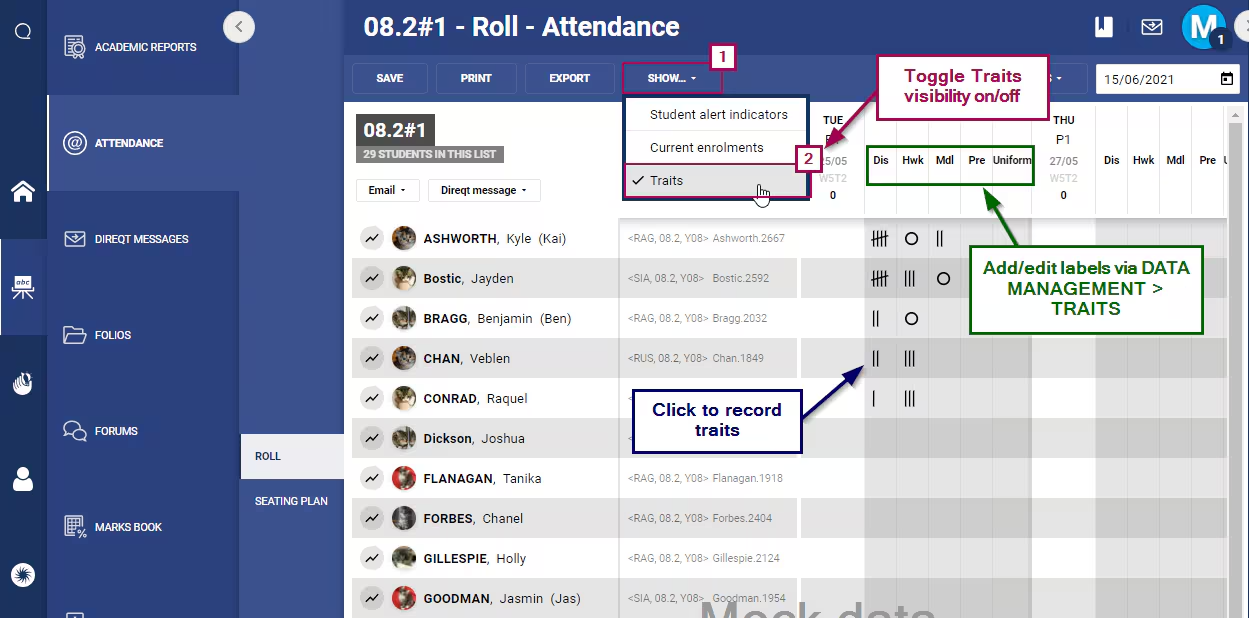
Once setup, traits are entered through the Attendance roll page (see below for steps). Traits work on a scale of 1 to 5. Each time the cell is clicked they will rotate through to the next option.
The permission 'TRAITS' is required to record traits. Without this permission the Traits button will not be visible.
Setting up traits (admin only)
Traits can be set up through the Data management page using the below steps. The admin permission 'DATA:EDIT' is required to set up traits.
The naming of traits is left up to the school, however we recommend using general terms so they can be used for a range of different purposes across different classes. A trait for "Uniform" is more applicable that "PE Uniform", for example.
- Go to the Administration workspace > Data management
- Select Traits from the component menu on the left-hand side
- Click the Add new record button on the toolbar. Alternately, click on an existing record to edit.
- Fill out the fields are required:
- Label: This will be the name of the trait
- Abbreviated label: This will be the abbreviated name of the trait (character limit: 8)
- Summary form: Select average, percentage or sum. This information displays in the furthermost right columns on the Attendance roll page.
- Click Save
Recording traits (teachers and admin)
- Go to the Teaching workspace > My classes and click on the attendance icon for the class
- Toggle on traits by clicking on the Show... menu then choosing the Traits item
- Click in the cell the required number to times to set the Trait level for each student. To save time, click on the top of the column to set the traits for the entire class at once. You can then make any changes to individual student traits by clicking in the cell
- Click the Save button to keep the changes.
Reporting on traits
Traits cannot be included in custom reports. However, they can be viewed and printed, both to a PDF and a spreadsheet through the Quantitative page found in the 'Pastoral care workspace' under the 'Quantitative' tab.
See also this article for Traits permissions.
Was this article helpful?
That’s Great!
Thank you for your feedback
Sorry! We couldn't be helpful
Thank you for your feedback
Feedback sent
We appreciate your effort and will try to fix the article