TABLE OF CONTENTS
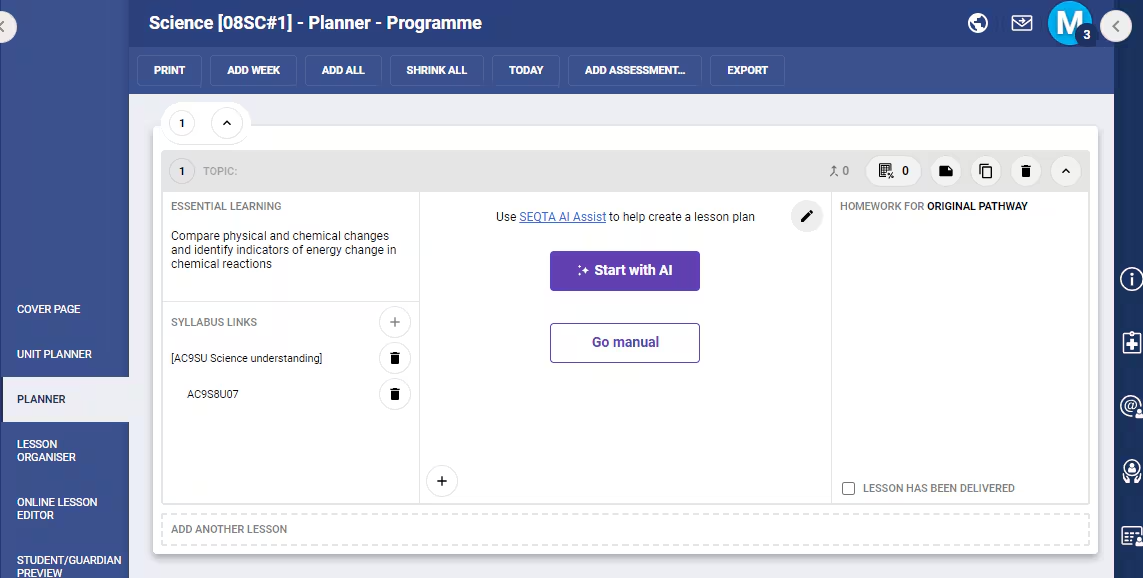
Teachers are presented with an option to use the SEQTA AI Assist functionality within the Planner page when planning their lessons. This functionality is designed to help create a draft lesson plan for the specific lesson they are working on, that can then be reviewed or adjusted as needed.
From this view teachers can:
- Navigate to this Knowledge Base article that describes the feature and how data is handled
- Start with AI - this button helps the teacher generate a lesson plan draft with AI and is described further below.
- Go Manual - this allows the teacher to bypass the AI functionality and create the lesson plan manually as they have always done. Pressing this button opens the Lesson Editor, as does the pencil icon in the top right corner.
- Add Syllabus Links - teachers are able to link Curriculum information to their lessons from this view. Only certain links will work automatically with SEQTA AI Assist. Please refer to the section on Curriculum links below for further details.
- Complete the Essential Learning field - supplying a desired learning outcome for the lesson helps to improve the quality of the draft returned. This can be done either at this stage or later in the process.
Curriculum Links
SEQTA AI Assist is able to include Australian Curriculum version 9 subcodes already associated with a Lesson, either directly or through the programme, to help refine a draft lesson plan. When a teacher launches SEQTA AI Assist, all Australian Curriculum v9 subcodes associated with the Lesson and Programme are listed for the teacher to choose which they wish this lesson plan draft to include. The subcodes and the details of the subcode are shown to allow for easier reference. All subcodes are selected as default and a teacher can choose to deselect any, all or no subcodes to be included in their draft lesson plan. Including one or more subcodes is optional.
Only Australian Curriculum version 9 subcodes
Only Australian Curriculum subcodes are used in this mechanism at the moment. We plan to include all Australian Curriculum versions and state-level curriculum as soon after first release as possible.
Although many SEQTA schools use custom syllabus and curriculum, their limited exposure to the public realm means that the Large Language Model (AI) is unable to consistently return meaningful results against their codes. As AI tooling, and the needs of our schools change over time, we plan to continue exploring how to best meet the needs of quality and reliability in this area and plan to revisit this current restriction.
To create a lesson plan draft for a lesson that is not directly linked to an Australian Curriculum v9 subcode, add the learning outcome details into the Essential Learning or Additional Details field. Be sure to check the results thoroughly.
Example:
| Curriculum item | Suggested entry in Additional Details |
|---|---|
NSW K-10 Curriculum Science (Stage 2) - Knowledge and Understanding Code: ST2-7PW Details: A student describes everyday interactions between objects that result from contact and non-contact forces | “The lesson plan should help students describe everyday interactions between objects that result from contact and non-contact forces” |
WACE 2024.1 Accounting and Finance - Unit 3 Code: ACF-GEN-U3.26 Details: Accepted accounting principles and conventions, including: accounting period | “Students should learn accepted accounting principles and conventions, including: accounting period” |
The subcodes are used in creating the lesson plan drafts, as the level of detail associated with each needs to be useful to the AI. The details listed against subcodes are more descriptive of the desired learning outcome, whereas codes only give an overview.
Details on how to add Australian Curriculum subcodes to a programme can be found here
Starting with AI
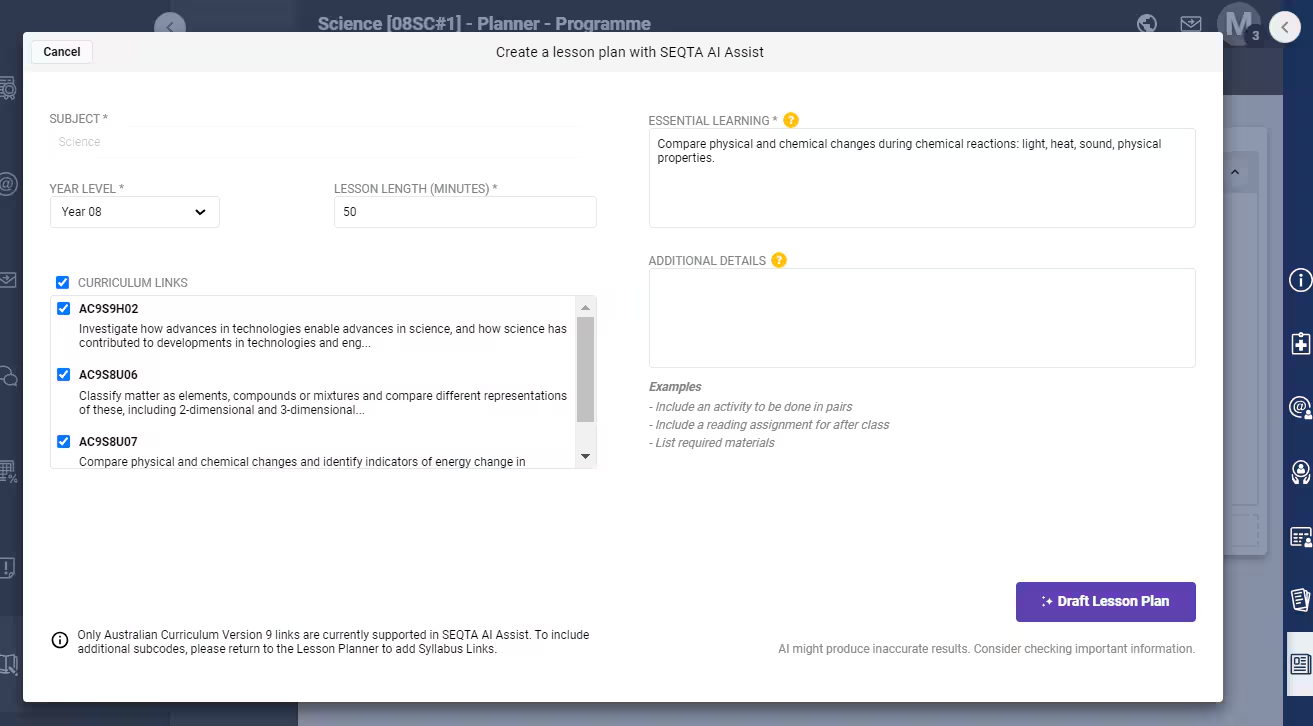
To save teachers time when drafting lesson plans, the SEQTA AI Assist tool will use as much information as possible about the current lesson without the teacher needing to enter it again. This means that if the details are available in the Programme, the following will be automatically populated:
- Subject
- Essential Learning
- Syllabus Links
The teacher will need to make the following adjustments or entries:
- Select the Year Level of the students taking the lesson
- Adjust the Lesson Length if needed. The default is 50 minutes
- Select/Deselect the curriculum links that apply to this lesson
- Add Essential Learning details if none were included in the lesson already
- Add any further Additional Details they may want to include. This is where a teacher can add their particular flavour to the lesson plan draft, for example “Include a group activity”
Note: If a Programme is not attached to a class, the Subject will not be populated. Add a Subject in the field available, but note that this value will not be saved in the Programme when the lesson draft is saved. Once the Programme is associated with a Class, it will be attached to the Class’s subject as normal.
Once the teacher believes they have supplied all the details they want to populate their lesson plan draft, they need only click the Draft lesson plan button and wait for SEQTA AI Assist to draft their lesson plan.
Finalising a draft
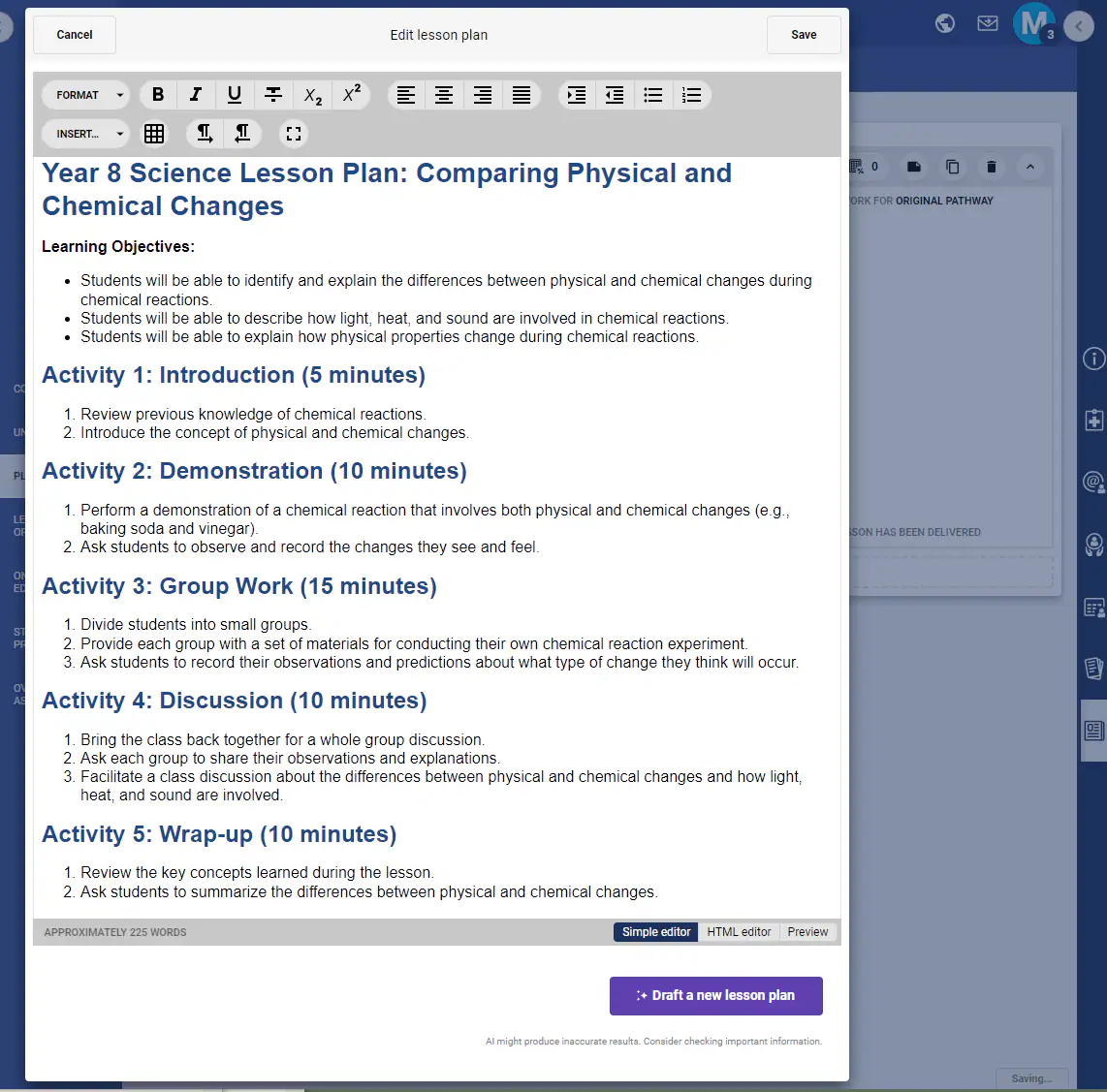
SEQTA AI Assist delivers the draft lesson plan into the SEQTA Lesson Editor so that teachers are able to review and edit the returned draft before saving. All of the current functionality of the Lesson Editor is available, including inserting components, changing format and so on.
AI might produce inaccurate results. Consider checking important information.
Draft a new lesson plan will delete the current draft, and any edits made to it, and return the teacher to the previous page where they can adjust their inputs to SEQTA AI Assist.
Cancelling out of this page will delete the lesson draft, and return the teacher to the Planner page
Saving will save the lesson plan (including any edits made by the teacher) as well as the Essential Learning field, if this was changed, or entered when the teacher first crafted their draft. The teacher is returned to the Planner, with the details associated with the lesson.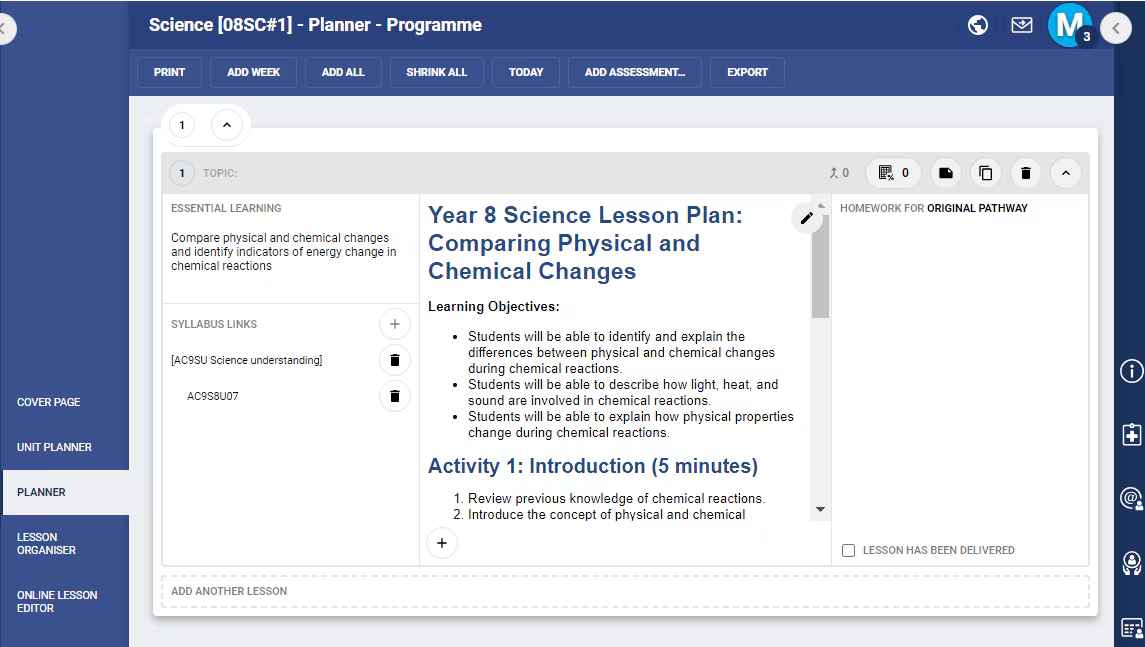
Getting the most out of SEQTA AI Assist
Large Language Models (AI) work best with as much context as possible for the task you are asking them to perform. The more you give them, the better the result is likely to be.
For SEQTA AI Assist, a teacher can improve the quality of the draft they receive by ensuring that the Essential Learning field has a complete learning outcome objective, helping to describe what students will have learnt by the end of the lesson. The Additional Details field allows for further personalisation of the lesson itself, giving a way for the teacher to add specific details they feel could add to their students' learning progression.
Limitations
SEQTA AI Assist cannot automatically process lesson plans against curriculum codes that are not included in the Australian Curriculum. However, there are ways to still use SEQTA AI Assist to create lesson plan drafts in these cases. Refer to the section above for more details.
SEQTA AI Assist is not currently available for Unattached Programmes (programmes not associated with a class). This is due to the validation of subjects associated with the programme, but we are working on changes to be able to add SEQTA AI Assist to unattached programmes in the near future. To use SEQTA AI Assist, attach the Programme to a class through the Collaboration Tool described here.
Another limitation, not specific to SEQTA AI Assist, is the Dedicated resources URL setting which determines how resources are delivered. Unless setup correctly, if this settings is Enabled, Lesson Planner content will not be visible.
Was this article helpful?
That’s Great!
Thank you for your feedback
Sorry! We couldn't be helpful
Thank you for your feedback
Feedback sent
We appreciate your effort and will try to fix the article