TABLE OF CONTENTS
- Attaching a Resource to a Lesson Through the Planner
- Hyperlinking to Resources in the Lesson Outline
- Adding Resources to Online Lessons
Attaching a Resource to a Lesson Through the Planner
Resources can be attached to lessons through the Planner.
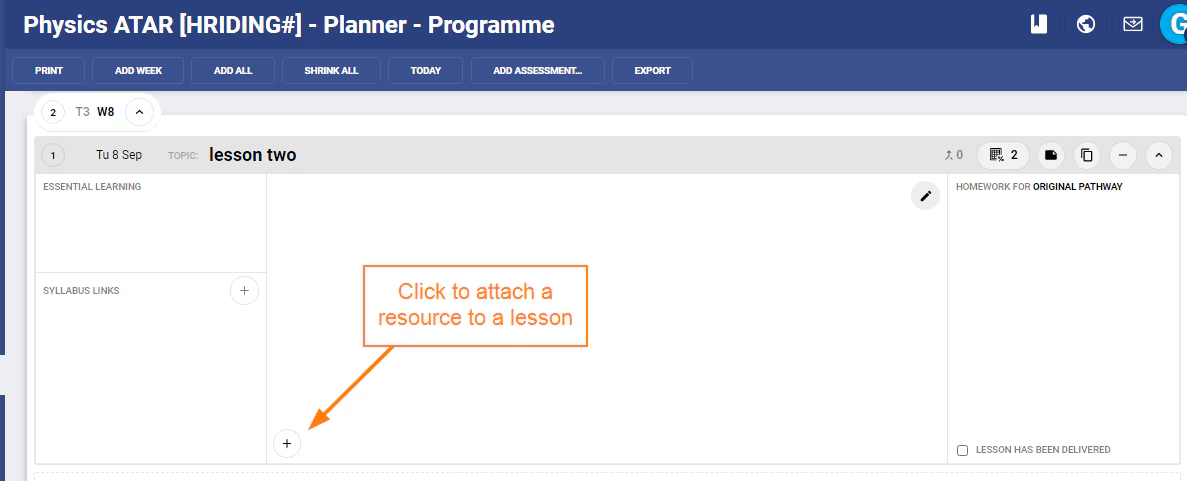
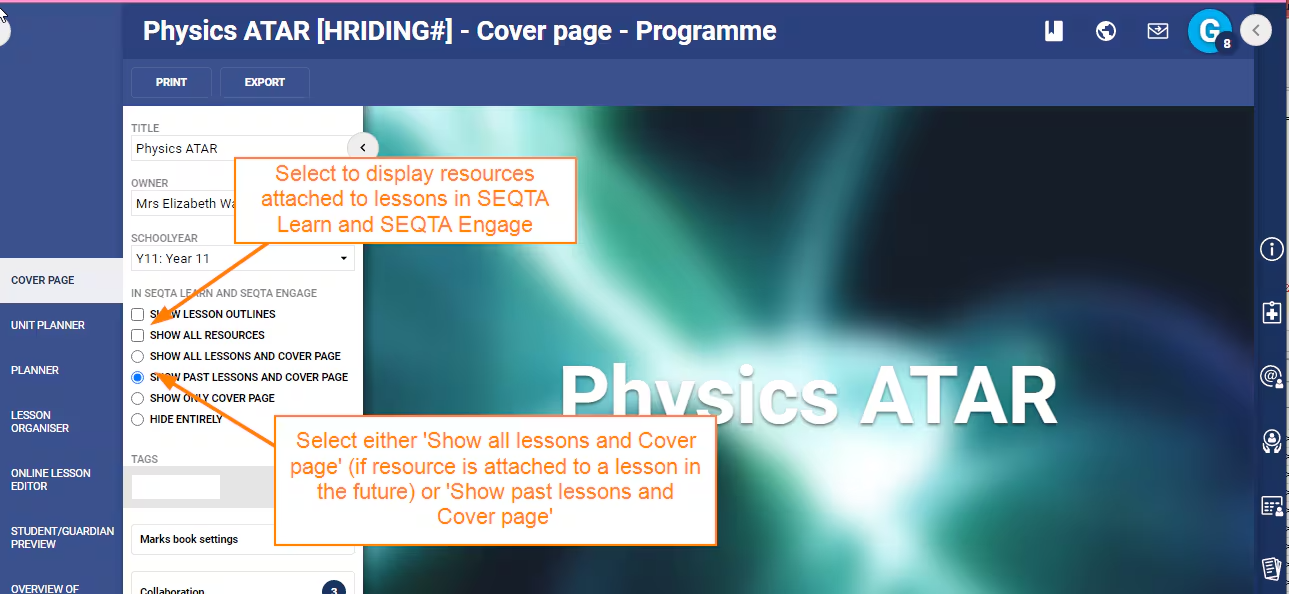
To display an attached resource in SEQTA Engage and SEQTA Learn the setting 'Show All Resources' needs to be selected on the 'Cover Page'.
If the lesson is in the future the option 'Show All Lessons and Cover Page' needs to be selected. If on a past lesson the option 'Show Past Lessons and Cover Page' needs to be selected.
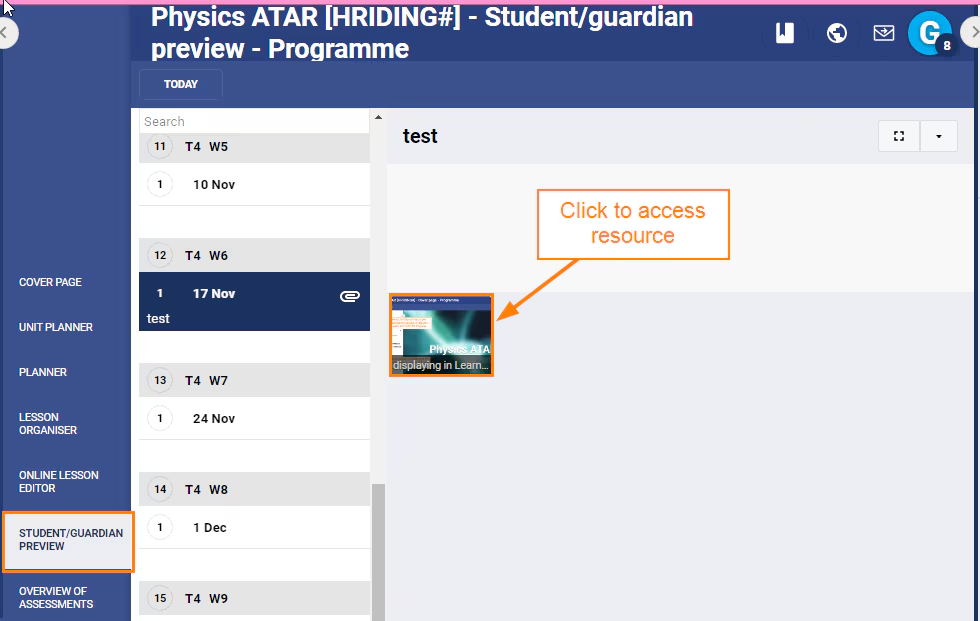
Resources attached to lessons display in 'Parent/Guardian Preview' if enabled as per above 'Cover Page' settings.
Resources added through the 'Planning' page automatically embedded into an Online lesson as such they will not show in the 'Online Lesson Editor'.
Hyperlinking to Resources in the Lesson Outline
Resources cannot be added or embedded into the Lesson Outline. However, if the resource is stored on an externally facing web server they can be added as a Hyperlink.
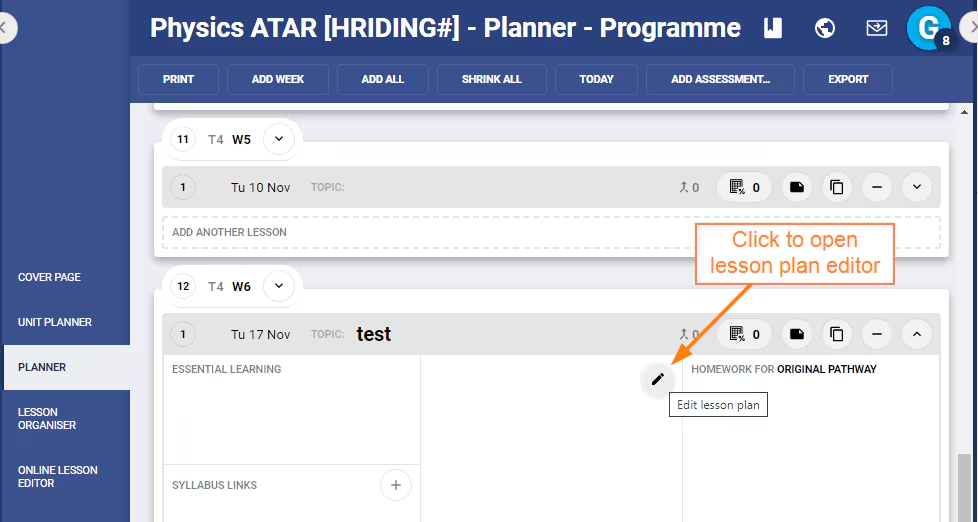
To add a Hyperlink to a Lesson Outline click on the 'Edit Lesson Plan' icon (the pencil).
Next, select the option 'Hyperlink'.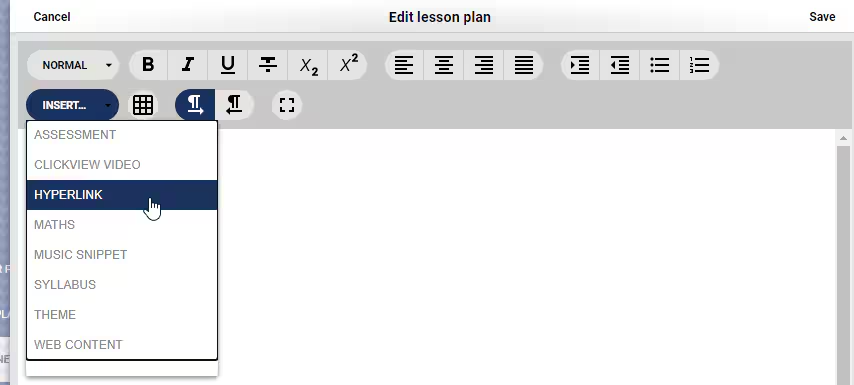
Enter the Web Address (URL) to the resource and the Link Text and click 'OK'.
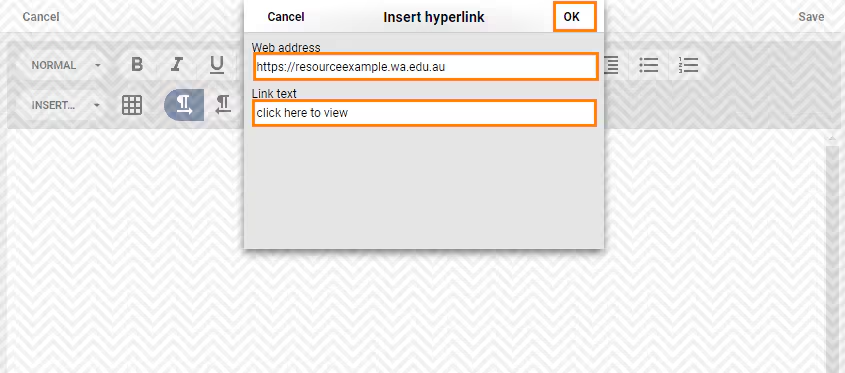
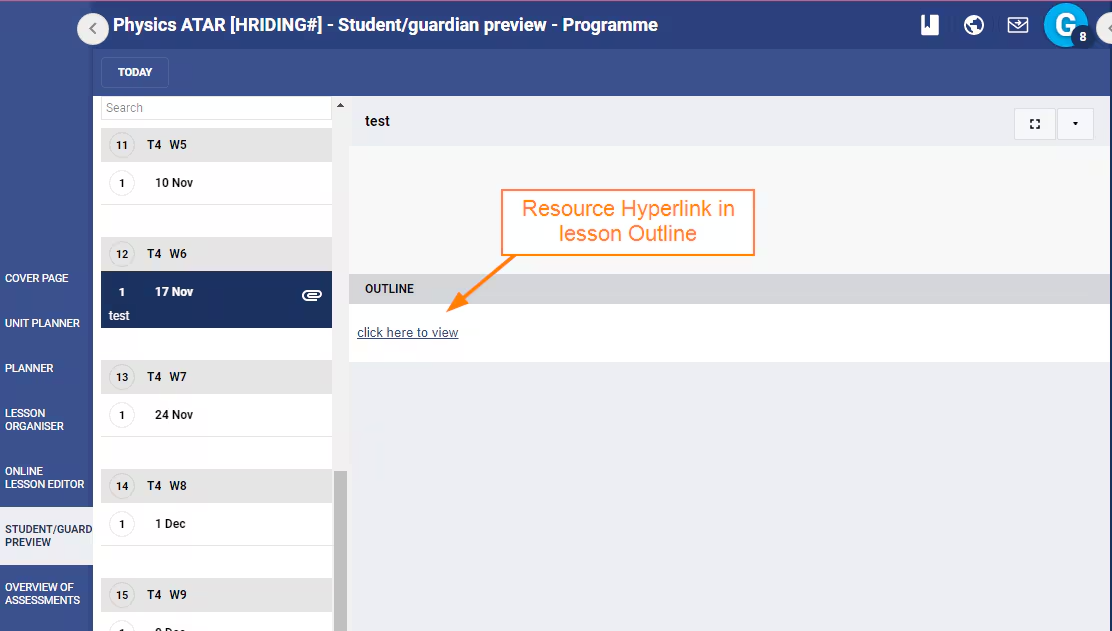
This will then display as a text link in the Lesson Outline.
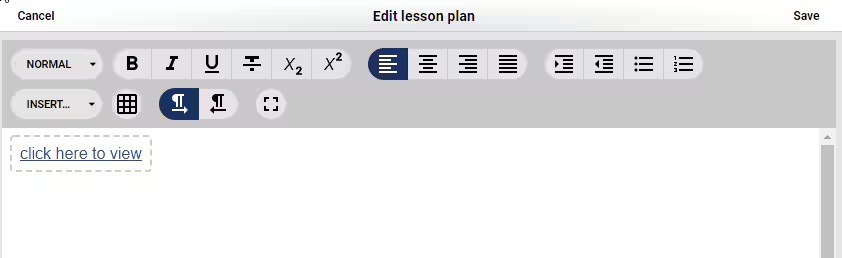
To display the Lesson Outline and Linked resource in SEQTA Learn and SEQTA Engage ensure 'Show Lesson Outlines' is selected.
If the lesson is in the future, the option 'Show All Lessons and Cover Page' needs to be selected. If on a past lesson, the option 'Show Past Lessons and Cover Page' needs to be selected.
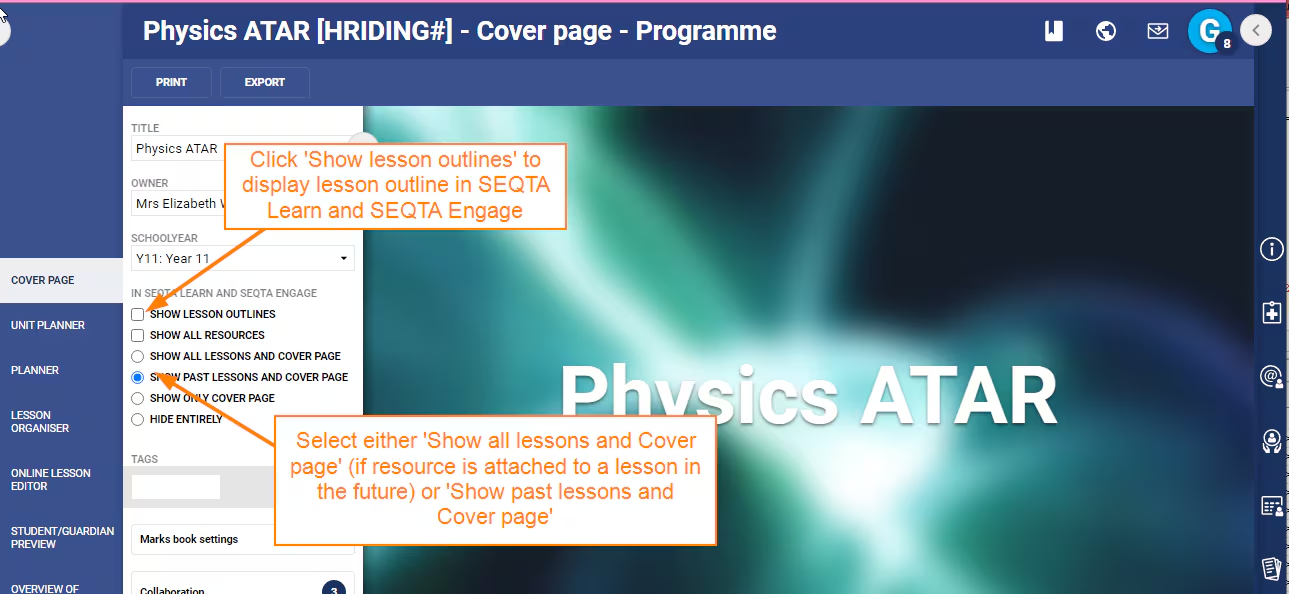
The resource Hyperlink displays in the Student/Guardian preview and SEQTA Learn and SEQTA Engage if enabled in the Cover Page Settings.
Adding Resources to Online Lessons
Was this article helpful?
That’s Great!
Thank you for your feedback
Sorry! We couldn't be helpful
Thank you for your feedback
Feedback sent
We appreciate your effort and will try to fix the article