TABLE OF CONTENTS
- Create or edit a Course type
- Course type cutoffs
- Entering Labels for Values
- Specifying Allowed Values
- Course set
- Marks book calculation algorithms
- Related Articles:
It is recommended that schools work with their SEQTA CSM (Customer Success Manager) when creating new Course types or making changes to existing Course types. It is essential that Course types be set up correctly, to ensure the required information is displayed on Academic reports.
For assistance, please contact the SEQTA Support team via the Help portal, or email EH-customersuccessteam@tes.com.
Course types define the basic ways in which the Marksbook will calculate grades and scores. They also provide control over what is displayed in the Marksbook. Changing or creating a Course type is done in the Curriculum setup page, whilst setting the chosen Course type is done in the Programme page. Please see below for the details.
Create or edit a Course type
- Go to Administration workspace>Curriculum setup>Course types.
- Select New course type to create a new Course type. Alternately, select an existing Course type to Edit.
- Set the Course type settings as required (see below for explanation of fields).
- Click Save.
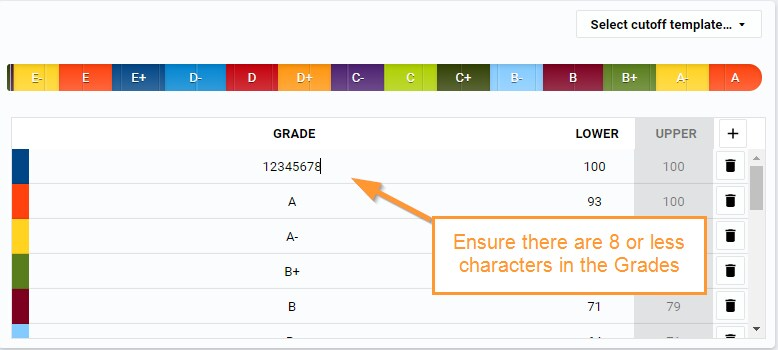
Image below: Ensure the Grade labels are 8 characters or less.
Course type cutoffs
- Enter a short set of characters in each row as a code for each grade level. The characters can be selected from letters, numbers or emoji.
- Set the percentage score that will be the lower bound of that grade row (decimal values are accepted).
- Continue to set all grades that you need for this Course type' one per row.
- The last row should have a lower bound of zero.
- The cutoff will be represented graphically in that pane of the page.
NOTE: The Course type cutoff is one of a number of places where a cutoff schema can be defined. See the related article listed below.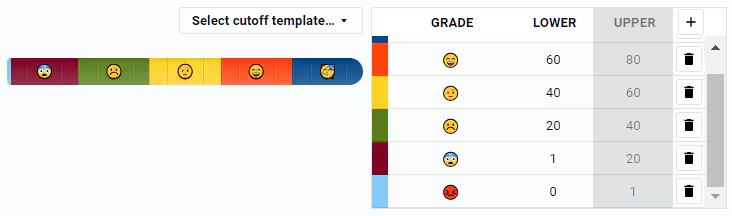
Entering Labels for Values
Each Course type can have a number of extra custom fields added (up to 20). These can be used to record specific values in the Marks book. In some cases, reports are customised to draw data from specific fields in the Course type, so it is important that the Label be entered into the correct numbered field, as determined in the academic report planning. Additionally, it can be helpful to add an explanation for the field name which will display as 'Hover-Over' text in the Marks book.
The following table outlines some example mappings:
| Row Number | Label (Value to display) |
|---|---|
1 | Exam Score |
5 | Exam Grade |
6 | Practical Mark |
13 | Progress % |
20 | Standardised Grade |
Specifying Allowed Values
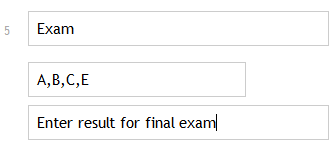
Allowed Values provides a restriction on what values can be entered into that field when seen in the Marks book. The allowed values will also display in a drop-down list which allows staff to select a value from the list in the reporting section in the Marks book. Separate values with commas and it is recommended that no spaces be used after the comma.
The Explanation allows for more information about the usage of that custom field.
Course set
This provides specific behaviour related to academic reports. In many cases it can be left blank, but your school's curriculum head may advise you to enter a code if the Course type is to be used for a Course of study or VET outcomes.
Marks book calculation algorithms
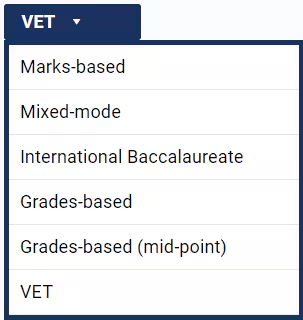
- Marks-based
- Grades-based
- International Baccalaureate
- VET
In addition the available checkboxes will change to reflect the chosen algorithm. For each choice you are able to use the checkboxes to show or hide various types of information in the Marksbook, depending on the policies and processes at your school.
Related Articles:
Was this article helpful?
That’s Great!
Thank you for your feedback
Sorry! We couldn't be helpful
Thank you for your feedback
Feedback sent
We appreciate your effort and will try to fix the article