TABLE OF CONTENTS
- Changing the Expectations and Reflections Option for an assessment
- Entering Feedback for a Whole Assessment
- Entering Feedback for Individual Criterion
There are two options available for managing feedback for an assessment. One is to enter overall feedback for the whole (entire) assessment, the other is add feedback for each criterion. See below for screenshots showing how these appear under Focus mode.
Note that switching between the two options will hide previously entered feedback, changing the setting back will make the feedback visible again. If it needs to be changed the correct process is to print the comments, change the setting, then copy-paste them back in.
Changing the Expectations and Reflections Option for an assessment
- Go to the Teaching Workspace > Timetable > My Classes (or preferred sub-page).
- Click on the Load Programme icon.
- Select Overview of Assessments.
- Select the assessment from the list on the left-hand side.
- Scroll down to find the section 'Expectations and Reflections'. Alternatively, use the Jump to button in the top-right corner and select 'Expectations and Reflections'.
- To enable the option to enter one, overall set of feedback, select Whole Assessment. To enable the option to enter a set of feedback for each criterion, set to Individual Criteria.
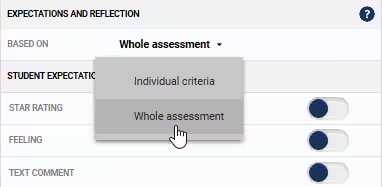
- Click Save
Entering Feedback for a Whole Assessment
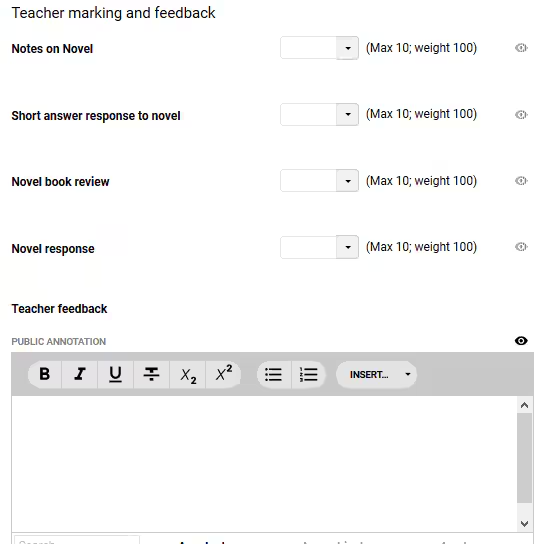
The image below shows how the feedback section appears in Focus mode when the option Whole Assessment is selected.
Entering Feedback for Individual Criterion
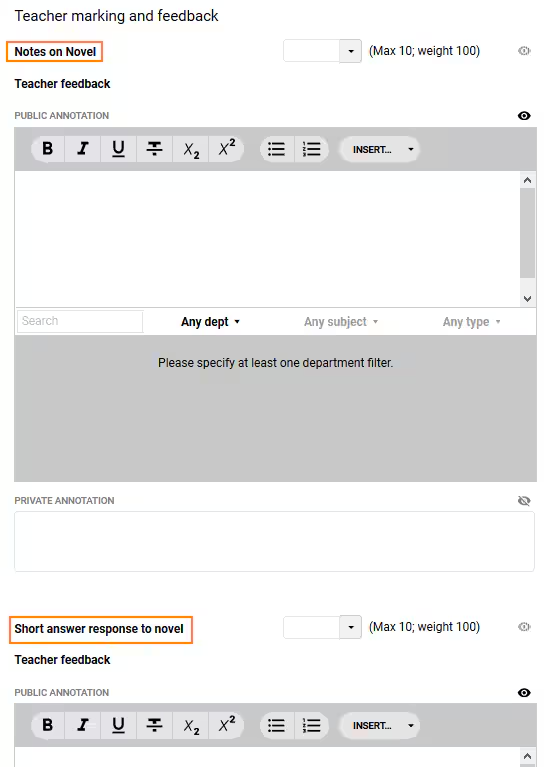
The image below shows how the feedback section appears in Focus mode when the option individual criterion is selected.
Was this article helpful?
That’s Great!
Thank you for your feedback
Sorry! We couldn't be helpful
Thank you for your feedback
Feedback sent
We appreciate your effort and will try to fix the article