TABLE OF CONTENTS
- Uploading and Managing Login Page Background and Logo
- Background Image and Logos File Recommendations
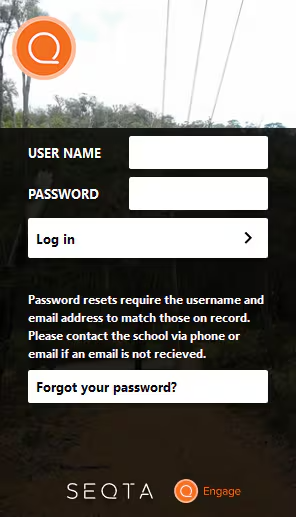
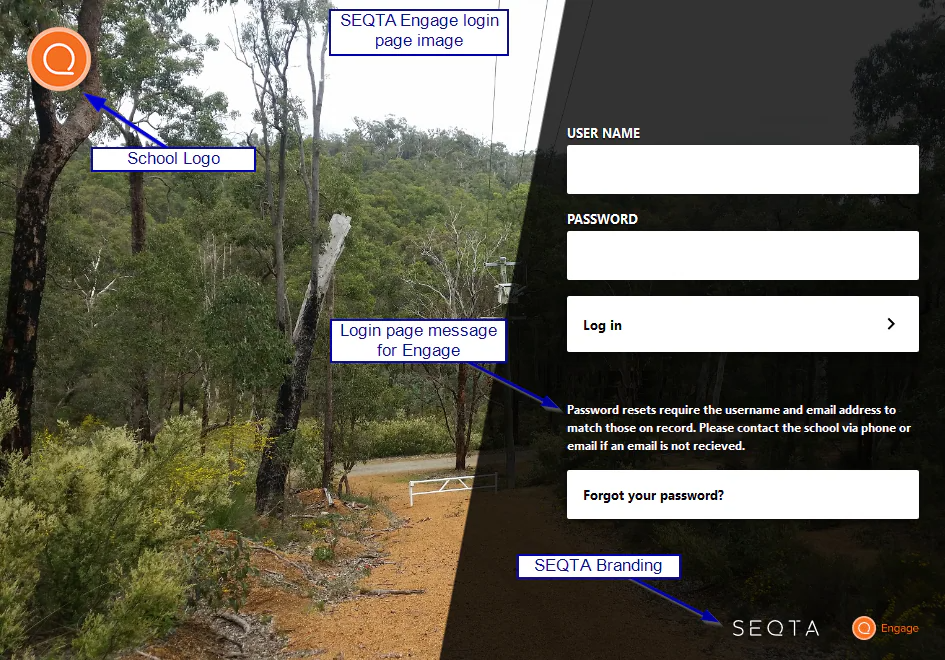
The login page for each SEQTA Product can be customised to display with a background, or backgrounds and a school logo.
Uploading and Managing Login Page Background and Logo
- Go to the Administration Workspace > Application Settings > Branding Settings.
- Click Add Files and add one or more backgrounds. Click on the bin icon to remove a background.
- Click Save.
Background Image and Logos File Recommendations
Please refer to the article Image File Type Requirements for steps on how to upload Logos and Backgrounds for the login pages.
Test your image across multiple screen sizes to ensure your key content remains visible and legible.
- File type: .png format
- Background image: Scale the image to 1920x1080 - Images smaller than 1024x768 will be blurred.
Tips:
- For photographs, use .JPEG images and dial up the compression as high as possible without losing quality.
- If your image is mainly solid colours and has text or crests on it, consider using .PNG, as it more effectively compresses large areas of solid colour.
|
|
Was this article helpful?
That’s Great!
Thank you for your feedback
Sorry! We couldn't be helpful
Thank you for your feedback
Feedback sent
We appreciate your effort and will try to fix the article