TABLE OF CONTENTS
The Student Information Pane can be configured to display the default SEQTA News pane or the school's own custom News pane. Alternately, it can be disabled entirely.
Disabling or enabling the SIP News pane
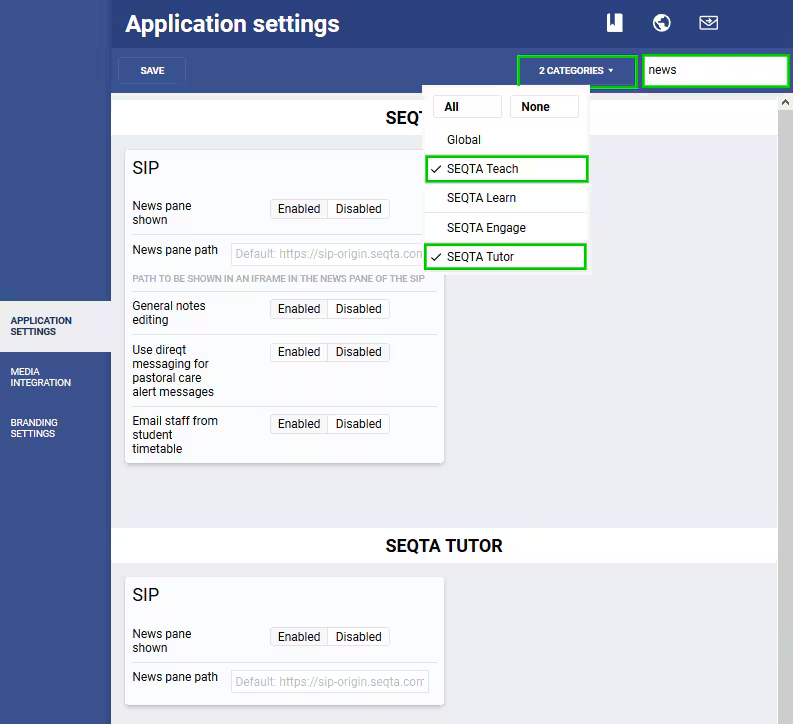
- Go to the Administration workspace > Application settings > Application settings
- Search for 'news' (without the quotes), next select the Category SEQTA Teach and/or SEQTA Tutor
- Set the 'News pane shown' to Enabled to display pane. Alternately, set to Disabled to hide the pane; the 'General info' pane will be displayed in it's place.
- Click SAVE
Configuring the SIP News pane to display a custom page
- Go to the Administration workspace > Application settings > Application settings
- Search for 'news' (without the quotes), next select the Category SEQTA Teach and/or SEQTA Tutor
- Enter the URL/Link to school's field 'News pane path'. Alternately, leave the field blank to display the default SEQTA News pane.
- Ensure the setting 'New pane shown' is Enabled
- Click SAVE
Was this article helpful?
That’s Great!
Thank you for your feedback
Sorry! We couldn't be helpful
Thank you for your feedback
Feedback sent
We appreciate your effort and will try to fix the article