For staff to be able to record within SEQTA Teach there are certain conditions that need to be met. Most of these conditions are outside of SEQTA Teach and will need to be managed by your school's IT staff. To access Application settings the staff member will most likely need SEQTA administrator permissions.
The below conditions are required to access the online media recording:
- SEQTA Teach needs to have a valid SSL Certificate.
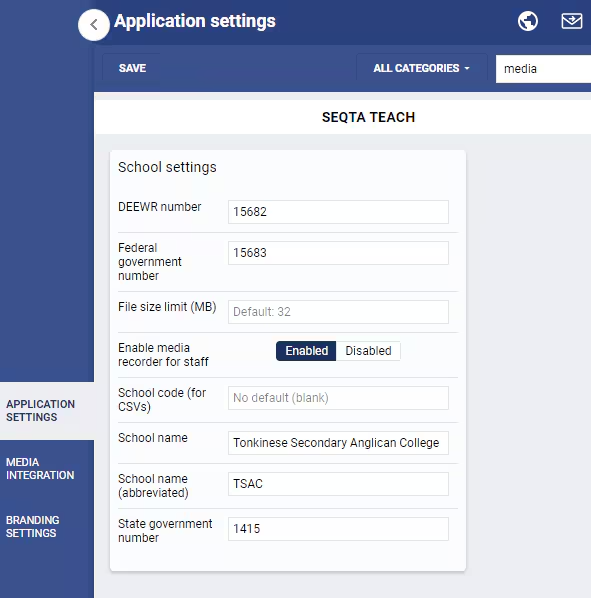
- The Application setting Enable Media Recorder for Staff needs to be selected.
- The browser permissions to use your microphone, screen capture and camera need to be set to ON.
- A microphone must be plugged into your computer for the browser to detect.
To set the Application setting:
- Go to Administration workspace>Application settings>Application settings.
- In the search box in the top-right corner, enter the word media.
- In the SEQTA Teach section, the pane for School settings should be visible.
- Set Enable media recorder for staff to Enabled.
- Click Save.
Further assistance
Should there be any issues with the recording process please contact the SEQTA Support team via the Help portal, with as much information as possible. Some information that will be of help is as follows:
- Please provide an example (even if it doesn't seem to work anywhere).
- The class code, teacher name, assessment name or lesson number.
- Name of the Portal page.
- Details of other area you are trying to use recording from.
- Provide the details of the device, such as type, age, browser and version used.
- Please indicate which step the process fails on.
- Test on at least two devices, preferably with different browsers (eg: Firefox, Safari or Chrome). Note the results and add them to the case.
- Note the staff name and date/time of the attempt so we can check the log files.
Was this article helpful?
That’s Great!
Thank you for your feedback
Sorry! We couldn't be helpful
Thank you for your feedback
Feedback sent
We appreciate your effort and will try to fix the article