TABLE OF CONTENTS
- Changes to the Timetable Structure
- Applying Start and End Date Changes to the Calendar (Convert Calendar)
- Changes to the Calendar
- Changes to period order and time (ie: period swaps)
- Changes to the Group number
- Managing non-teaching days
- Timetable changes overview
Please ensure changes to the timetable, including the Calendar (Manage days) are made in advance at least the day before they are required. Should there be any issues please raise a case with the SEQTA Support team on the day to report the issue. If database changes are required to repair or backdate timetable changes they will be chargeable. These include but are not limited to: retrospective changes to start and end dates; changes to non-teaching days; day swaps and changes to be made to the timetable structure under Cycle/Period setup.
Please contact the SEQTA Support team prior to making any changes during a timetable period, to class, period or cycle codes. This is to ensure the changes do not negatively impact the sync process.
Changes to the Timetable Structure
The steps for making changes to the timetable structure are as follows, but please pay close attention to the important notes in the following section:
- Go to the Administration Workspace > Timetable Management > Cycle/Period Setup.
- Select the Timetable period.
- Edit the timetable structure as required. The following changes can be made to the timetable structure:
- Timetable start and end dates
- Timetable description
- Period times and details (order, name, code, abbreviation)
- Cycles details (order, name, code, exceptional days). If changing order, please follow the steps in the article: Changing the cycle (day) order for a timetable
- Group number
- Click Save.
- If changes have been made to the cycles, start or end dates, the calendar will need to be configured then redeployed. Internally managed classes may need to be resaved.
- Some changes may require a sync to be run for the changes to show on the timetables.
IMPORTANT: Adding and Deleting cycles and period
If the timetable has been rolled out and classes have commenced, it’s recommended the school raise a request via the SEQTA Support team for a Sync/timetable review before making changes. This allows for checks and planning for additional support to ensure the schools timetable/sync are not impacted during critical times.
Please do not delete parts of the Timetable structure (cycles/periods) unless it’s been determined safe to do so. Any data restoration required as a result will need to be a chargeable task performed by Professional Services.
Applying Start and End Date Changes to the Calendar (Convert Calendar)
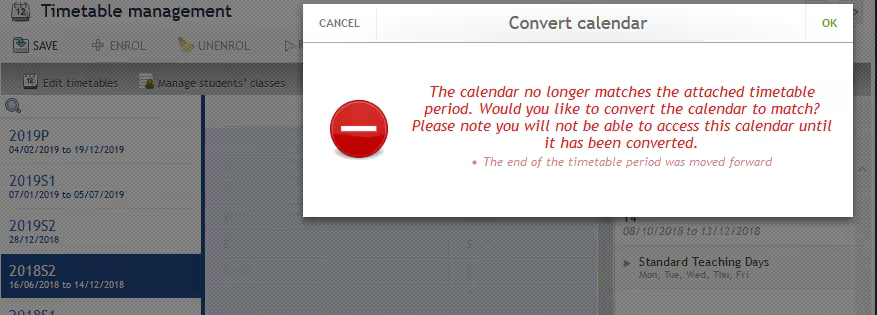
When a change is made to the start or end date of the timetable, the Convert calendar message displays. When this shows, click OK and check in the work area to ensure all the days have been assigned.
Changes to the Calendar
- Go to the Administration Workspace > Timetable Management > Manage Days.
- Select the Timetable period.
- Edit the calendar as required. The following changes can be made to the calendar:
- Term number
- Term start and end dates
- Term start week (for school with two week cycles)
- Non-teaching days
- Applying changes made to start and end dates
- Ensure all the teaching days are set correctly and display in colour.
- Click SAVE to redeploy the calendar which will apply changes.
Changes to period order and time (ie: period swaps)
When changing the period order and period time it's best to create a new period for both periods being swapped.
Do not delete periods which have been in use. Rather, if they need to be excluded from the sync as they have been replaced then change the code to one not used in the synced timetable data.
- Create two new periods
- Set the code so they sync in the correct lessons
- Assign unused codes to the existing periods (codes which are not being used elsewhere or in the synced data)
Changes to the Group number
The Group number associated with the timetable can be changed at any point without affecting the timetable setup or the sync. It is essential the group number be set correctly to prevent bridging issues.
Refer to the following article for information and steps for changing the group number:
Managing non-teaching days
The Timetable is managed in-house by the school. This includes the entering of non-teaching days which needs to be done in advance - at latest the day before. They cannot be added on or after the date in question.Note: Adding a non-teaching day takes a few minutes to add to a timetable. Once added, non-teaching days are available to other timetables for selection, so that you don't need to enter the dates and labels multiple times.
If the school forgets to enter a non-teaching day in advance there are a few options available. Note that some options may not change the number of enrolled days that is recorded for the student.
Option A: The Professional Services team can add the non-teaching days directly in the database. This is a manual data change and is managed by the Professional Services team as a chargeable service.
Option B: Enter a Not required to attend Attendance solution for the entire school at high (overwrite priority). This option can be done by the schools Attendance officer and typically only takes a couple mins as it can be done for the whole school at once. The steps are available here: https://seqta.help.tes.com/support/solutions/articles/75000141281-managing-attendance-for-students-not-required-to-attend
- If the Attendance type doesn't appear under the drop-down, the schools SEQTA Admin may need to go into the Attendance administration>Type manager to edit the attendance type and set it as active.
- This option does not remove the classes form the timetable. However, it does ensure that the student's reporting and attendance data is accurate.
- Schools that use programming with SEQTA and have lesson content set on specific days may need to notify staff to reorder their lessons. Eg. add an extra week to their programme with a blank lesson, then drag that lesson to the non-teaching day.
Option C: Do not enter any attendance for those dates. Adjust any programmes as required to ensure lessons are on the correct days.
Timetable changes overview
Please check with the SEQTA Support team before deleting any components from the timetable (particularly periods and cycles).
| Component | Where data appears on the timetable | Example data | Notes | When changes can be applied |
| Timetable Code | The timetable 'code' is displayed anywhere in SEQTA that stores data specific to a timetable period i.e. the reporting section of the marks book, as a selectable option when printing reports. |
| Schools with external timetabling systems will need to ensure their SEQTA timetable codes match those in the timetabling system. Schools that manage timetables directly in SEQTA can create their own code. | The timetable 'code' cannot be changed once the timetable has been rolled out/synced. |
| Timetable Description | The full name of the timetable. |
| Changes can be made at any point and will update when the Save button is selected. | |
| Period Name | Displays on the left hand side of timetables when viewed in Traditional view. |
| The period name should be meaningful and easy to understand, for example Period 1, Home room, Lunch | Changes can be made at any point and will update when the Save button is selected. |
| Period Code | The period 'code' is used to specify which periods match with that in the timetable system. |
| Schools with external timetabling systems need to ensure this matches the period code in their timetabling system. If the cycle codes are not set correctly the sync may fail. | Changes can be made at any point. To apply changes, click on the Manage days sub-page, select the timetable period, then click Save and OK. |
| Period Times | Appears on staff and student timetables |
| Changes can be made at any point and will apply for future periods. To apply changes click on the Manage days sub-page, select the timetable period, then click Save and OK. | |
| Period Short Name | On the Day-by-day sub-page in the Attendance administration page, on the attendance pane in the SIP, when Time-based is not selected. |
| It is recommended this be no more the 3 characters in length to ensure there is no overlap when viewed in the SIP or Attendance administration page. | Changes can be made at any point and will update once saved. |
| Period Order | This is the order the period displays on the teacher and student timetables |
| If there are multiple timetables the order number will apply across all timetables | Changes can be made at any point and will update when saved. The period order also applies retrospectively. |
| Cycle Code | Only visible under the Cycle period setup sub-page in the Timetable management page |
| Schools with external timetabling systems need to ensure this matches the period code in their timetabling system to ensure the classes are pulled into the correct periods. If the cycle codes are not set correctly the sync may fail. | Changes can be made at any point. To apply changes, click on the Manage days sub-page, select the timetable period, then click Save and OK. |
| Cycle Name | Displays across the top of timetables. |
| Changes can be made at any point and will update when the Save button is selected. | |
| Group Number | Only visible under the Cycle/period setup sub-page in the Timetable management page |
| This determines which timetable periods show in the bridging drop-down to ensure classes are bridged between timetables in the same reporting period (ie: Semester 1 classes bridged to Semester 2 classes). It is important the group numbers are set correctly to prevent bridging and programme set up issues. For more information please refer to the article Setting the Group Number to Prevent Bridging Issues | Changes can be made at any point and will update when the Save button is selected. |
| Year | The year the timetable references. |
| Changes can be made at any point and will update when the Save button is selected. | |
Timetable Visibility
| The Visible to students and Visible to parents will hide the timetable and courses/assessments related to those classes from SEQTA Learn and SEQTA Engage. The Visible in marks book setting will not hide classes from teachers. Rather it will hide the timetable period from the drop-down selection box in the reporting section of the marks book and under school values. | Selection box | Changes can be made at any point and will update when the Save button is selected. | |
| Timetable Runs from Start Date to End Date | Sets the reportable period. classes will show on all days except non-teaching days (as specified under Manage days sub-page). | 01/02/2021 | See the article Timetable day management for detailed steps for making changes to the Calendar. | Make changes in Cycle/period setup sub-page. Next, under Manage days, edit the dates for the Terms (if required) and set the days in the main work area where the colours display. |
| Changes to Non-Teaching Days | See the article Timetable day management for detailed steps for making changes to the Calendar. | Make changes in Cycle/period setup sub-page. Next, under Manage days, edit the dates for the Terms (if required) and set the days in the main work area where the colours display. | ||
| Changes to term and holiday dates as well as day swaps | See the article Timetable day management for detailed steps for making changes to the Calendar. | Make changes in Cycle/period setup sub-page. Next, under Manage days, edit the dates for the Terms (if required) and set the days in the main work area where the colours display. |
Was this article helpful?
That’s Great!
Thank you for your feedback
Sorry! We couldn't be helpful
Thank you for your feedback
Feedback sent
We appreciate your effort and will try to fix the article