TABLE OF CONTENTS
- Setting the days for a timetable (Calendar deployment)
- Setting the week number to continue on from the previous timetable
- Checking the calendar has been successfully deployed
- Managing exceptional days and day swaps
- Attachments (step-by-step screenshot)
This article steps through how to set and change the non-teaching days, terms, day swaps and exceptional days for a timetable period. This process will deploy the Calendar which is required for timetable roll out and to apply changes after the timetable roll out.
Setting the days for a timetable (Calendar deployment)
Before starting this process please ensure the date and time (i.e. time-zone) has been set correctly on the device being used.
- Click on Administration workspace > Timetable management > Manage days
- Select the Timetable period from the list on the left-hand side.
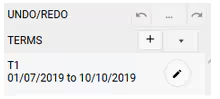
- Under Terms click on the '+' symbol to add a term. If some or all of the terms have been added for another timetable period, select the down arrow 'v', then select the timetable period to copy them from. Make any adjustments required.
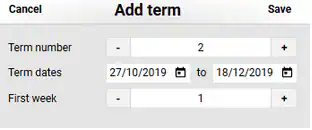
- Set the term number, start date and end date and the first/starting week. Repeat this process for each term in the timetable period. See below for additional information on the first week setting
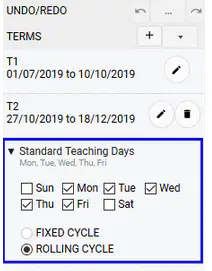
- If the timetable does not have a fixed cycle (e.g. Mon-Fri) then click on Standard teaching daysand set the days as required.
- Under 'Non-teaching days' click on the '+' icon to add non-teaching days. If some or all of the non-teaching days been added for another timetable period, select the down arrow 'v', then select the timetable period to copy them from. Make any adjustments required. NOTE: Please ensure term breaks have been entered as non-teaching days.

- In the main work area, select the day from the drop-down list for the first day of the term. Schools with more then a one week cycle can choose to start a term on a specific week. For example, If the school has more then one cycle, and the term needs to start on a different week (eg. week B), select the applicable day from the drop-down, then click the lightning bolt icon.
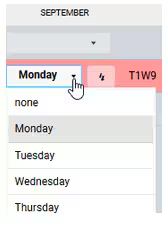
- Click on the lightning bolt/arrow symbolnext to the day. The calendar will then display with colours as the cycle from that day onward until the end of the term.
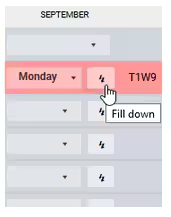
- Repeat steps 6 and 7 for each term in the timetable period. You may need to scroll to the right to view the other terms.
- If there are any Day Swaps or Exceptional days, select them from the drop-down menu for the appropriate date.
- Click SAVE to keep changes. Then OK
- Click the OK button to close the confirmation box.
- Continue on to the next step in the timetable setup process.
- Create the Internally managed timetabled classes (internally managed directly in SEQTA)
- Cloning a Sync UI input for a new timetable period (exported timetable files uploaded into Sync UI)
- Setup the Term Alias (dependent on timetable and sync setup)
- Rolling Out a Timetable (externally managed timetables)
Setting the week number to continue on from the previous timetable
The "First week" option can be used to set a continuation of the previous term if required. This way, when it comes to term 2, etc., the weeks continue in order from the last week in the previous term. This setting determines the term and week number in the teacher's programmes (T1W1, T1W2,...T1W10, T2W11, T2W12, ... etc) and does not affect the sync process.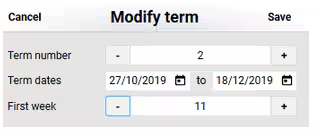
Checking the calendar has been successfully deployed
This can be done through the Timetable management pages. The steps to access this are as follows:
- Click on Administration workspace > Timetable management > Manage days
- Select the timetable period, this will display the calendar for the selected timetable.
Check the following items:- Ensure the terms, standard teaching days and non-teaching days have been specified on the right-hand side.
- In the main work area, all of the teaching days should display in colour. If they are not, follow steps 6 and 7 of the Calendar setup process.
- Click SAVE to make doubly sure the Calendar is rolled out, and if the timetable is externally managed then run another sync.
Managing exceptional days and day swaps
Day Swaps, or Exceptional days, can be used to managing days where the period times, or classes differ from those typically scheduled for that day. It important to adjust the timetable accordingly to allow roll marking and so as not to put out the lesson order in the teachers programmes.
- Day swaps: these are used to change one day's timetabled classes to those normally scheduled for a different day.
- Exceptional days: these are used for days that do not follow an existing class schedule (eg. sport carnivals or other special event).
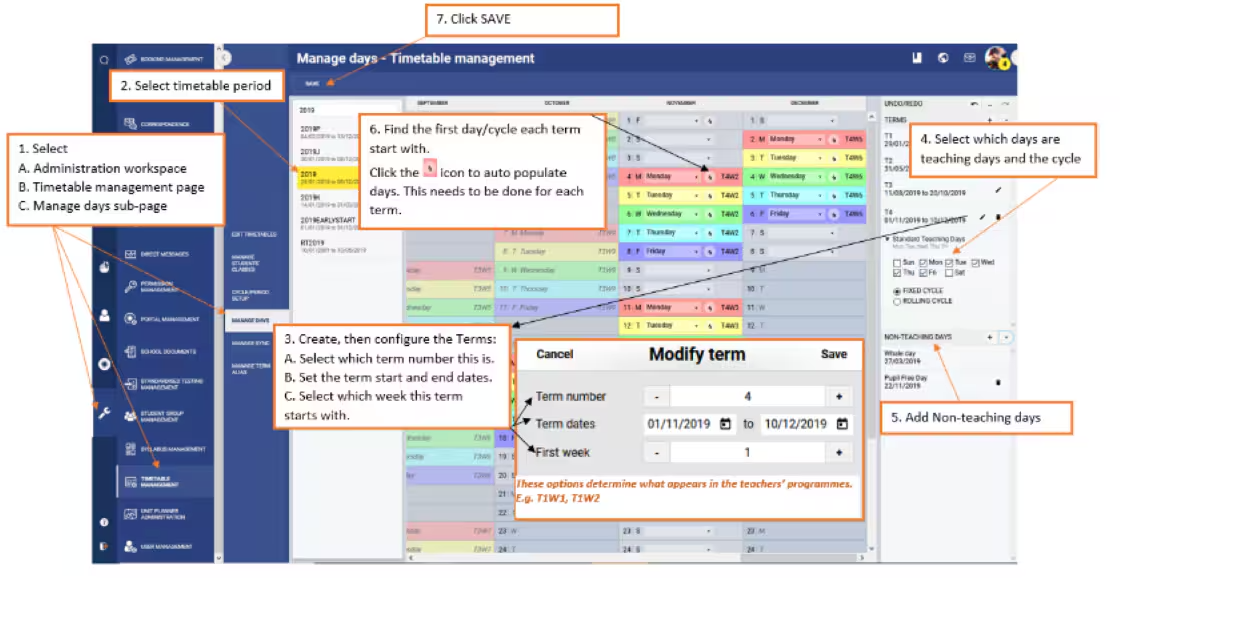
Attachments (step-by-step screenshot)
Was this article helpful?
That’s Great!
Thank you for your feedback
Sorry! We couldn't be helpful
Thank you for your feedback
Feedback sent
We appreciate your effort and will try to fix the article