The sync cannot unenroll students from classes once the student record has been archived. Due to this, students leaving mid-timetable may require this additional step to ensure that, should they return, their enrolments are correct.
This process is only required for schools whose timetable and admin syncs are from a different data source or are in separate sync profiles. Bespoke configurations of sync profile times may be an option for some schools to have the timetable sync run before and after the admin sync to negate the need for this process.
If the timetable is synced, this process must be completed on the student's last day.
For internally managed timetables, this can be done in advance (providing the Effective date is set correctly on the first attempt) as once the student is unenrolled, they cannot be unenrolled again.
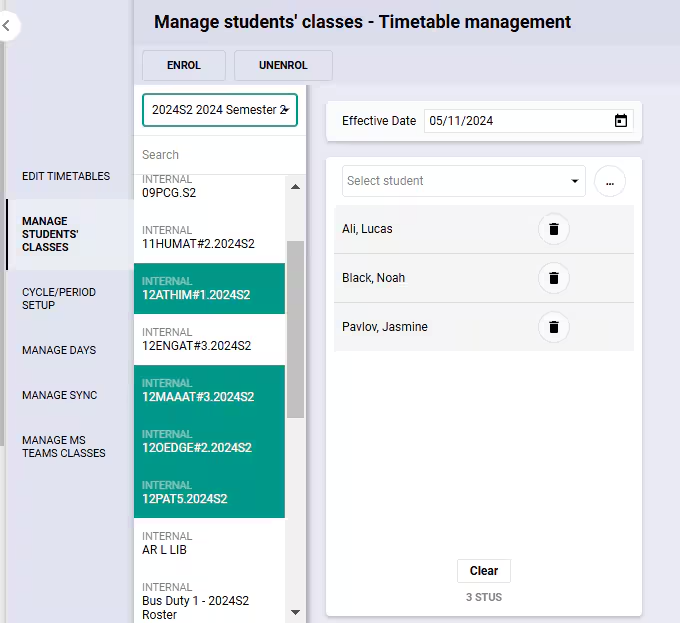
- Go to Administration workspace > Timetable management > Manage students' classes.
- Select the applicable Timetable Period from the drop-down list.
- Select the Class or Classes from which you wish to unenrol the student (or students). Selecting all classes will also work (click on each class to select it)
- Select the student that needs to be unenrolled.
- Set the Effective Date to the date the student needs to be unenrolled from.
- Select Unenrol. The dialog box will show the status of the action. Click OK to dismiss the message.
- Please check the status message carefully to ensure that there are no errors.
- Refresh the page and then check the students timetable.
Was this article helpful?
That’s Great!
Thank you for your feedback
Sorry! We couldn't be helpful
Thank you for your feedback
Feedback sent
We appreciate your effort and will try to fix the article