TABLE OF CONTENTS
Attendance Administrator Interaction
This section describes the functionality available to Attendance Administrators and suggests how they might incorporate this feature into their existing Attendance Management workflows. If further information on Attendance Administration is needed, consider one of our training courses: https://educationhorizons.arlo.co/w/upcoming/
The Requested Absences feature creates an additional channel through which parents and guardians can inform the school of a student’s absence. This does not replace any existing functionality and is intended to be used alongside a school’s current workflows and configuration, rather than replacing any of them. Our intent with this feature is to create an easy-to-use, fast-to-review method for Attendance Administrators to check and process the multiple absence notifications they receive daily. In this way, they have more time to tackle the more pressing issues of locating children not accounted for or highlighting patterns of concern to other members of staff.
Navigation
The new Parent Notified Absences tab within the Attendance Administration module houses all of the absence notifications received from SEQTA Engage. On entering this page, the following information and functionality are available:
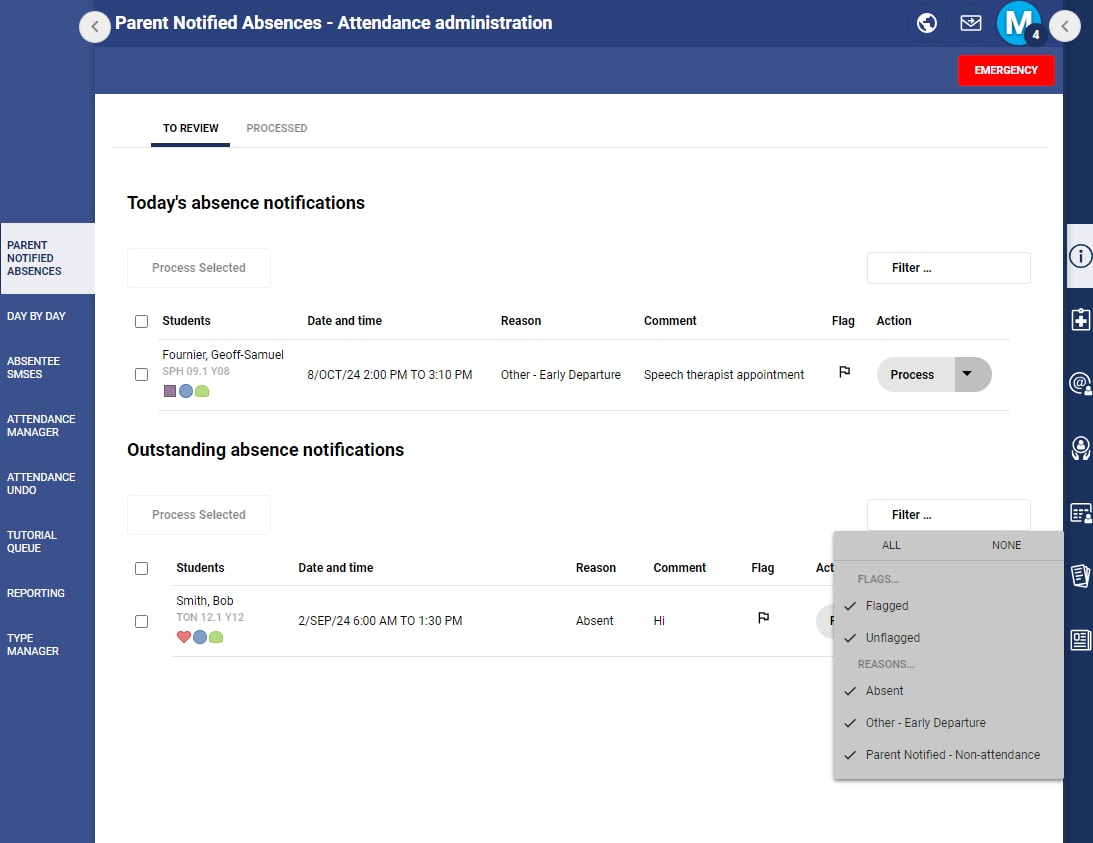
A tabbed view of current Absence Requests: those that need to be reviewed ("To review") and those requests that have been processed on the day ("Processed").
All details submitted by the parents/guardians are shown. No further clicking is needed
Additional context for the student (student alerts, roll/year group, etc) is displayed to help the decision-making process
Single and multi-select capabilities for performing actions
To Review
This view shows all requests that have been submitted that have not yet been actioned by an Attendance Administrator. To speed up the review process, the list is split into “Today’s Absence Notifications” which includes a list of all requested absences that fall on today’s date, and “Outstanding Absence Notifications” which is a list of any other requested absences not falling on today’s date, and therefore not as pressing in the start-of-the-day rush.
The listed absence notifications include all of the details of the notification as submitted by the parent or guardian, including who they are, their relationship to the student, and any comment they may have submitted. This means that administrators can review a notification at a quick glance and more easily make decisions about the actions they need to take.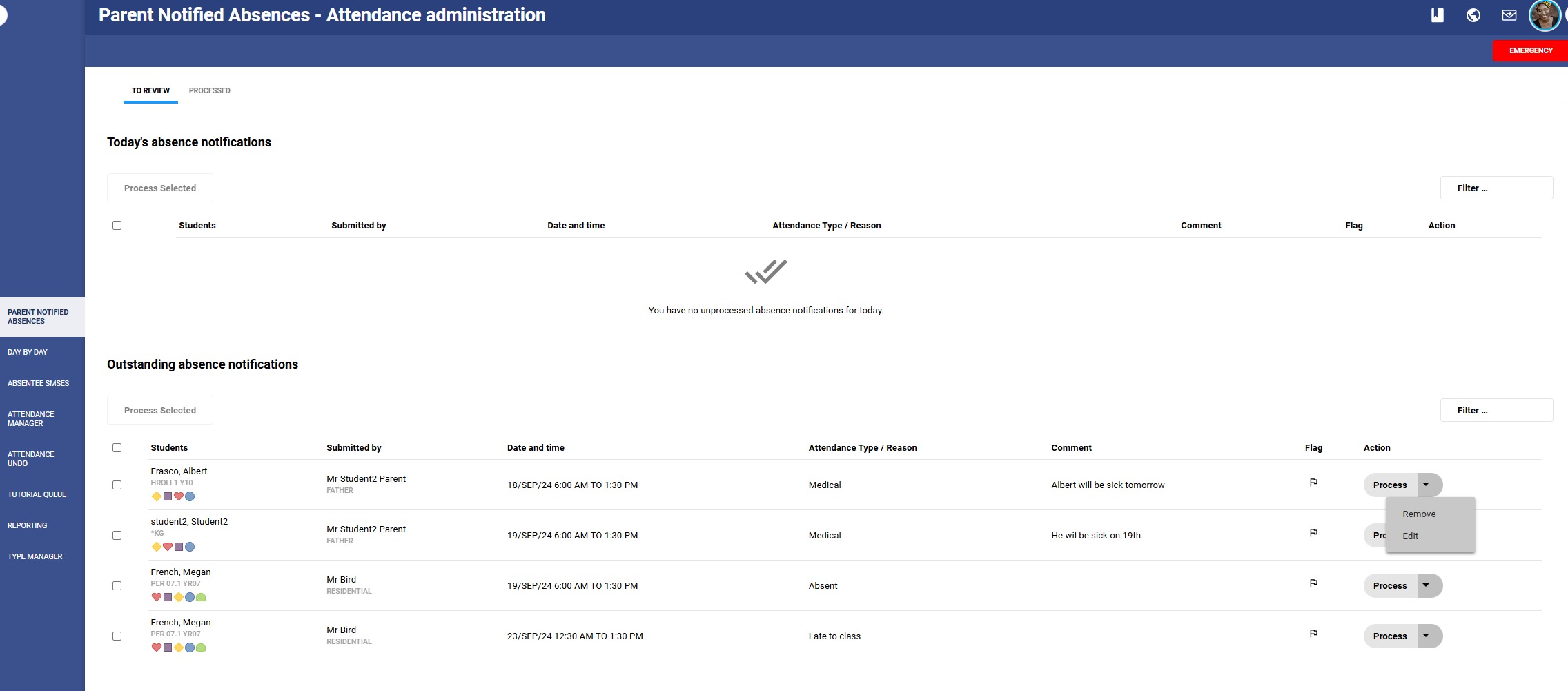
Attendance Administrators are able to take several actions from this view:
Process - this action authorises the absence and processes it in the system in the same way it would be dealt with if entered through Attendance Manager, that is, the student’s Attendance stack is updated and can be viewed in the SIP, their class rolls are updated and the absence is counted in their attendance summary reports. The absence is processed at the "Overwrite" priority of 100.
Edit - if a change needs to be made to a notification, the attendance administrator is able to adjust the Attendance Type. This can be used to mark a notification as an Unapproved absence, i.e. one that the school may not sanction or agree with as it violates the school’s Attendance Policy. This action, as are all the others, is logged along with the changes made for auditing purposes.
Remove - This action allows Attendance Administrators to remove or cancel a notification from a parent or guardian. This is similar to the current Attendance Undo action, but happens before the request is authorised.
Flag - In some schools certain requests, such as those for extended leave or for athletic or performing arts representation, require specific processes to be followed. This action marks the request as “Flagged” to help administrators identify which requests they have reviewed, but have not yet authorised. They could use this feature to highlight which notifications require follow-up with parents, escalation to department heads, or any other school-specific process
Note: this action only marks the notification, but no further action happens within the system. As each school has unique but similar escalation processes, we intend to review what further functionality may be most useful to attendance administrators in the future.
Filter - Attendance Administrators each have their own workflows and preferred ways of working. Their tasks also change throughout their day, and their priorities. The filter allows Attendance Administrators to filter by flag status, and one or more Attendance Types (the Reason that Parents have chosen when submitting)
Multi-select / Process Selected - Attendance Administrators are able to select multiple absence requests at a time and Process them as a batch. This allows administrators to quickly process requests based on their experience and knowledge of the students involved. When one or more absence requests are selected, the only action available is to process them. “Today’s Absence Notifications” and “Outstanding Absence Notifications” are treated as two separate lists and the “Process Selected” button will need to be clicked to process each of these lists. This is to safeguard against accidental selection and processing without full review.
Once an action has been taken from this page, the request will be removed from this view as its status will have been changed. It can be located again by navigating to the Processed tab.
Suggested daily workflow for Attendance Administrators
To ensure all absence notifications have been processed before the task of locating any students with an unexplained absence begins, we suggest the following workflow:
Process any absence notifications received:
By phone and voicemail
By email
Direct into SEQTA via the parent portal
Run your Incomplete Roll reports and ensure all teachers have marked their students correctly, then run your Discrepancy reports to highlight any inconsistencies with what has been marked and entered
Notify parents via the Absentee SMS system of any unexplained absences
Monitor the Parent Notified Absences page in SEQTA to process those absences as parents lodge them. Refresh (F5 or Cmd-R) the web browser page regularly to pull through any new notifications.
Was this article helpful?
That’s Great!
Thank you for your feedback
Sorry! We couldn't be helpful
Thank you for your feedback
Feedback sent
We appreciate your effort and will try to fix the article