TABLE OF CONTENTS
- Key points
- Creating new Direqt message folders
- Moving Direqt messages to a different folder
- Deleting Direqt message folders
As of the 2019.6 release, the options to create additional Direqt message folders is available. Please see the steps below on how to create and manage Direqt message folders.
Key points
- New folders require at least one Direqt message to be added at the time of creation to enable the new folder to save.
- If all Direqt messages are removed from a folder, the folder will automatically be removed.
- Multiple messages can be moved at a time by clicking on the messages with <shift>, <control>, or <cmd> held down
Creating new Direqt message folders
- Go to the Teaching workspace (or Home workspace)
- Select Direct messages
- Under the list of folders select Add folder
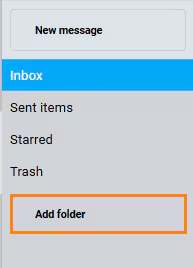
- Type in a name for the Folder
- Add at least one message to the folder (see below steps)
- The process is now complete. If required complete steps 3 - 5 to create additional folders
Moving Direqt messages to a different folder
To move a single message:
- Select the folder with the Direct message that needs to be moved
- Select the Direqt message that needs to be moved
- Click the '...' button in the top-right corner
- Select the newly created folder
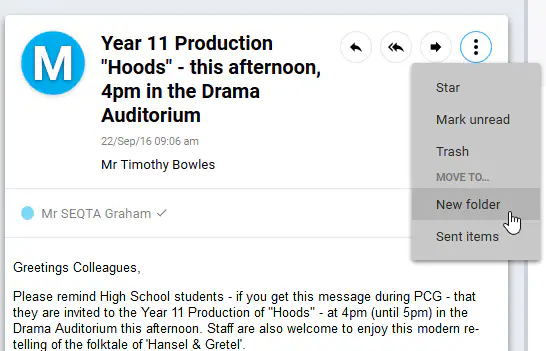
To move multiple messages at once:
- Select the folder with the Direct messages that need to be moved
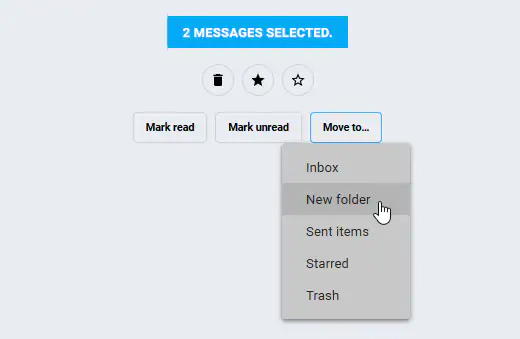
- Select the Direqt messages that need to be moved. To do this click on the messages with <shift>, <control>, or <cmd> held down
- Select Move to... then the folder name
Deleting Direqt message folders
- Go to the Teaching workspace (or Home workspace)
- Select Direct messages
- Click on the Folder you would like to delete
- Select all the messages in the folder. To do this click on the messages with <shift>, <control>, or <cmd> held down
- Select Move to... then the folder name
- Once the folder is empty, the folder name will no longer appear under the list of folders available.
Messages can now also be marked as read or unread.
Was this article helpful?
That’s Great!
Thank you for your feedback
Sorry! We couldn't be helpful
Thank you for your feedback
Feedback sent
We appreciate your effort and will try to fix the article