TABLE OF CONTENTS
- Importing Lessons
- Tips for Finding and Ordering Lessons (These Would Need to be Completed Prior to Importing)
- Using the Filters in the Lesson Browser to find Lessons
- Reporting Issues with the Lesson Browser Not Finding Lessons
Lessons (along with their resources and syllabus links) can be imported from other Programmes through the 'Organise Lessons' tab using the 'Import lessons' tool. Once the required lessons have been imported they will be placed in the 'Unused Lessons' folder, where they can be dragged on the planning.
Importing Lessons
Prior to importing lessons, it may be beneficial and time-saving to edit the lesson topics and/or the programme title to assist with finding and ordering lessons.
- Go to the Teaching Workspace > Timetable > My Classes/Traditional/Calendar Classes.
- Click on the 'Load Programme' icon for the class you would like to import the lessons into.
- Select the 'Lesson Organiser' in the left sub-page menu.
- Click on the 'Import Lessons' button in the toolbar at the top of the work area.
- Select the timetable period with the class the lessons need to be imported from.
- Type in the keyword.
- Select the lessons that need to be imported.
- Note: If unable to find a lesson go into the Programme with the lesson you want to import and add a word after the lesson topic which you can use to search for the lesson (i.e. your initials)
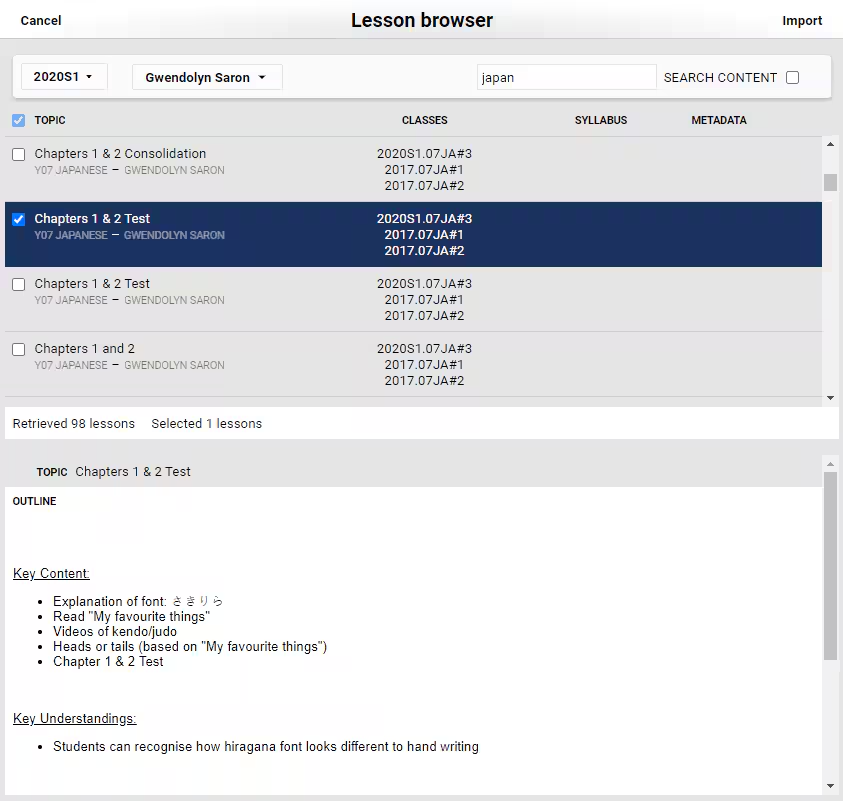
- Note: If unable to find a lesson go into the Programme with the lesson you want to import and add a word after the lesson topic which you can use to search for the lesson (i.e. your initials)
- Click 'Import'
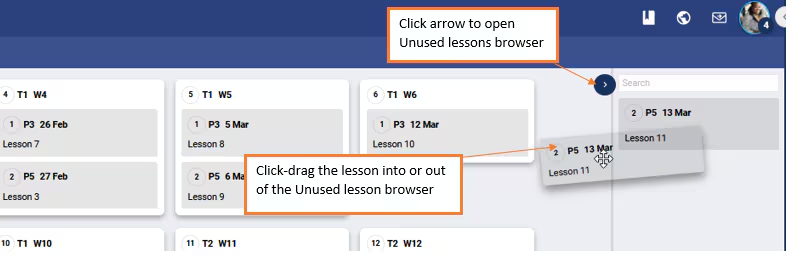
- Open the 'Unused Lesson' browser by clicking on the black arrow in the top-right corner.
- Find the required lessons, then click-drag it onto the applicable week in the main work area.
- Click Save
Tips for Finding and Ordering Lessons (These Would Need to be Completed Prior to Importing)
When lessons are imported they will go into the 'Unused Lessons' browser. There is no indication as to the order the lessons are taught in or which pathway the lessons are on.
Entering a number and keyword after the lesson topics in the Programme, or entering a keyword after the Programme title is the best method for finding lessons. This would need to be done prior to importing the lessons.
- Finding all the Lessons for a Specific Programme (By Editing the Programme Title)
- Establishing the Correct Order for Imported Lessons (By Editing Lesson Topics)
- Finding Lessons from a Specific Pathway (By Editing Lesson Topics)
Finding all the Lessons for a Specific Programme (By Editing the Programme Title)
If unable to find the required lessons due to multiple programmes with the same name, add a search word after the Programme Title. This can then be used to find the lessons when importing them.
The steps are as follows:
- Go into the Programme with the required lessons, to do this:
- If the class was in a previous timetable period, change the date back.
- If the teacher is not the current teacher, change the staff members name.
- Click on the 'Load Programme' for the class.
- Enter a keyword after the programme title (i.e. ## or your initials).
- Follow the import process outlined in the top of this article using the keyword to search for them.
Establishing the Correct Order for Imported Lessons (By Editing Lesson Topics)
When lessons are imported they will go into the 'Unused Lessons' browser. There is no indication as to the order the lessons are taught in. Entering a number and keyword after the lesson topics in the Programme, is the best method for finding them.
The steps are as follows:
- Go into the Programme with the required lessons, to do this:
- If the class was in a previous timetable period, change the date back.
- If the teacher is not the current teacher, change the staff members name.
- Click on the 'Load Programme' for the class > select 'Planner'.
- Add a number to allow them to be easily ordered once imported. Add a search term to make it easier to find the lessons (i.e. ##, "Drama Study ##").
- Follow the import process outlined in the top of this article.
Finding Lessons from a Specific Pathway (By Editing Lesson Topics)
When searching for lessons, there is no indication as to which Pathway they belong to. Entering a number after the lesson topics in the Programme, is the best method for finding them.
The steps are as follows:
- Go into the Programme with the required lessons, to do this:
- If the class was in a previous timetable period, change the date back.
- If the teacher is not the current teacher, change the staff members name.
- Click on the 'Load Programme' for the class > select 'Planner'.
- Type a keyword in after each of the the lesson topics. You may also want to add a number to allow them to be easily ordered once imported. Add a search term to make it easier to find the lessons (i.e. ##, "Drama Study ##").
- Follow the import process outlined in the top of this article.
Using the Filters in the Lesson Browser to find Lessons
There are various filters available to assist with finding the required lessons. It is not necessary to use all filters, only enough to narrow down your search to find the lesson you are after.
- Timetable Period Selector - Choose the timetable periods in which you are interested.
- Staff Selector - Select the staff member who is the programme owner.
- Free-Text Search - Enter key words from the programme title or lesson topic.
- Search Within Lesson Content - Toggles searching within lesson content.
- Matching Lessons - A maximum of 100 lessons will be displayed. Tap/Click a row to select a lesson and show its preview.
Reporting Issues with the Lesson Browser Not Finding Lessons
Please contact the SEQTA Service Desk for assistance if unable to find the required lessons in the Lesson browser. When reporting issues please include sufficient information to allow testing to be carried out. If possible
This includes the following:
- Which timetable periods are selected in the Lesson Browser?
- Which teacher's names are selected in the Lesson Browser?
- The Class Code and Teacher Name for one of the Classes the Programme with the required lesson is attached to.
Was this article helpful?
That’s Great!
Thank you for your feedback
Sorry! We couldn't be helpful
Thank you for your feedback
Feedback sent
We appreciate your effort and will try to fix the article