TABLE OF CONTENTS
- Copying or Sharing a Programme to a Class that Already has a Programme Attached
- Creating Multiple Copies of a Programme Instead of one Shared Programme
- Bridging Classes with Different Students
The following Article provides an overview of the common pitfalls when setting up programmes and how to avoid them. This information may be of help for SEQTA Administrators, department heads and other staff at the school assisting with the programme setup process.
This information applies to most subjects and most schools. It may differ slightly depending on reporting requirements, for example, reporting on rotating classes or musical instruments.
Copying or Sharing a Programme to a Class that Already has a Programme Attached
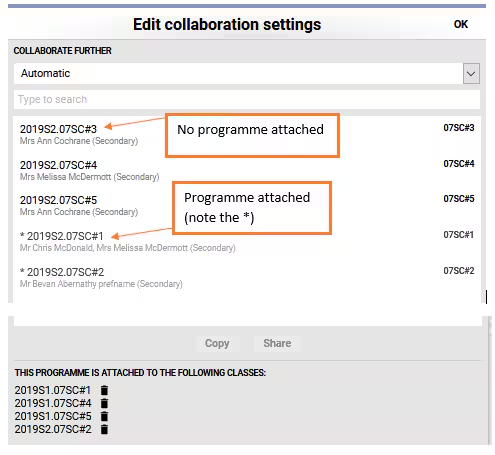
Only 'Copy' or 'Share' a programme to a class that has no programme attached. If there is already a programme attached and it's not the correct one, then you can un-attach it.
If there is more than one class in the cohort, check to see if it is shared with the other classes and if required 'Share' the programme to the other classes in the cohort.
Creating Multiple Copies of a Programme Instead of one Shared Programme
Only 'Copy' the programme to one of the classes that will be sharing the programme. Then 'Share' that programme to the other classes. If multiple classes are selected when clicking the 'Copy' button, the result will be multiple programmes being created (one for each class).
If teachers would like to work independent of other teachers then the programme should be shared and then create and assign Pathways
Bridging Classes with Different Students
Classes should only be bridged if the same students are continuing on from one timetable period to the next. Typically, this means classes are only bridged in the middle of the year (i.e. Semester 1 class bridged to the Semester 2 class). If there is a new group of students, another programme will need to be set up using the option to 'Copy' or 'Share'.
The resulting issue, is that the results for the previous group of students will be in the programme. This will lead to the assessments being locked, making them un-editable.
In addition, if this occurs and the issue is not caught before the teacher has entered results for the current students, then these results will need to be re-entered after the bridge has been removed and a new programme set up using the correct method.
The option to bridge across certain timetable periods can be disabled by the School's SEQTA Administrator by changing the 'Group' number for the new timetable period in SEQTA.
Was this article helpful?
That’s Great!
Thank you for your feedback
Sorry! We couldn't be helpful
Thank you for your feedback
Feedback sent
We appreciate your effort and will try to fix the article