TABLE OF CONTENTS
Online lessons and WISP submissions where designed for online delivery, as such there is no function to print them through SEQTA Teach. However, the following workarounds may be of help should a print out or PDF be required.
Masquerade permissions are required to complete the below steps.
Printing an Online Lesson
- Select one of the students in the class in the Student information panel on the right-hand side.
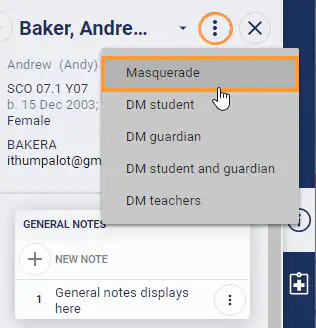
- Select the Ellipses button (the 3 vertical dots) then select Masquerade. This should open SEQTA Learn.
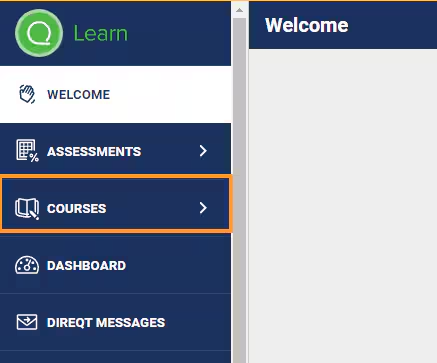
- Select Coursesfrom the left-hand menu.
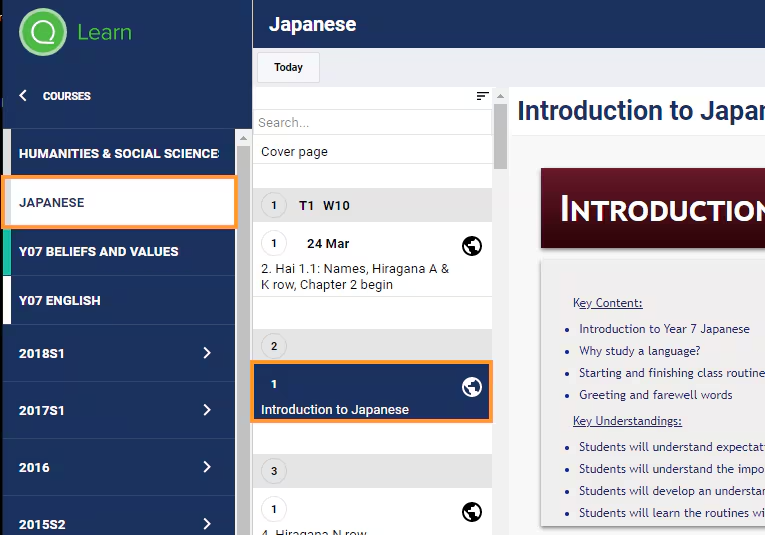
- Select the Subject Name, then select the lesson you would like to print.
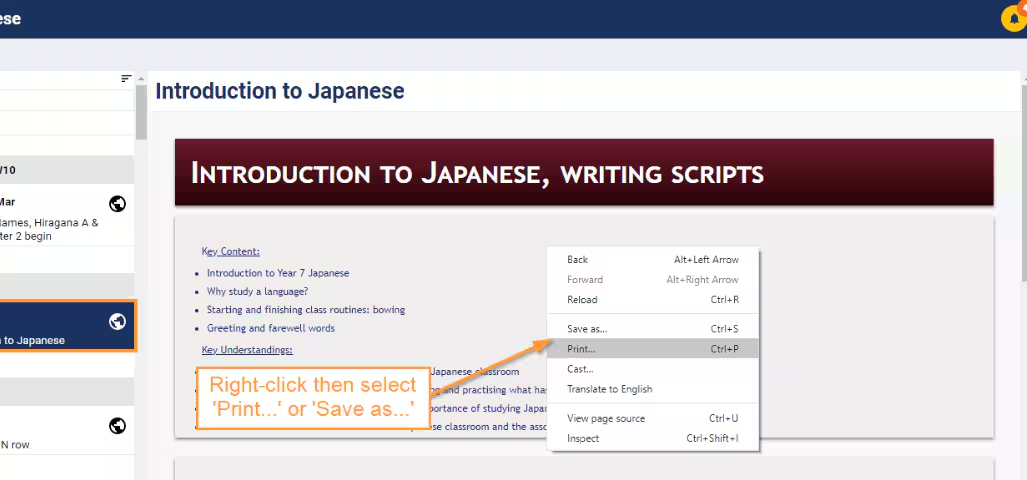
- Right-click in the main work area where the lesson is.
Printing a WISP Submission
- Select the student whose WISP you would like to print in the SIP on the right-hand side.
- Select the Ellipses button (the 3 vertical dots) then select Masquerade. This should open SEQTA Learn.
- Select Assessments from the left-hand menu.
- Select the Subject Name.
- Click on the assessment you would like to print.
- Select Submissions click on the WISP.
- Right-click in the main work area where the submission content displays and select Print.
- Click Print for a printout. Or for a PDF copy change the destination printer Save as PDF and click Save.
Was this article helpful?
That’s Great!
Thank you for your feedback
Sorry! We couldn't be helpful
Thank you for your feedback
Feedback sent
We appreciate your effort and will try to fix the article