There a step required before creating the pathways which is to add enough weeks and lessons for the entire length of the course (i.e. the entire year). If this step is missed, the system will add lessons for next timetable period (i.e. Semester 2) when the class is bridged none of these lessons will be shared.
How to Check if a Lesson is Shared: Go into the 'Planner' and 'Hover-Over' the 'Pathways' icon on the lesson topic bar.
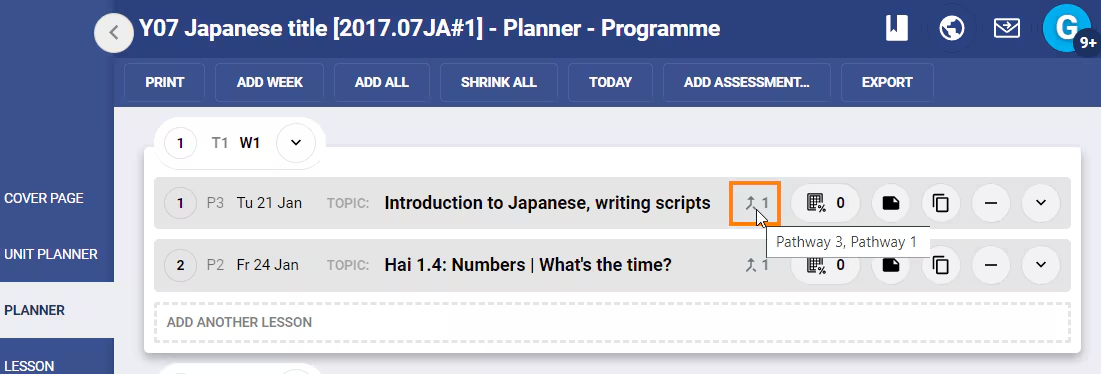
Resolution: This can be corrected and will take around 5-10 mins. It's only a once off as next the programme will likely reuse the programme and once added to the applicable pathways the lessons will remain shared.
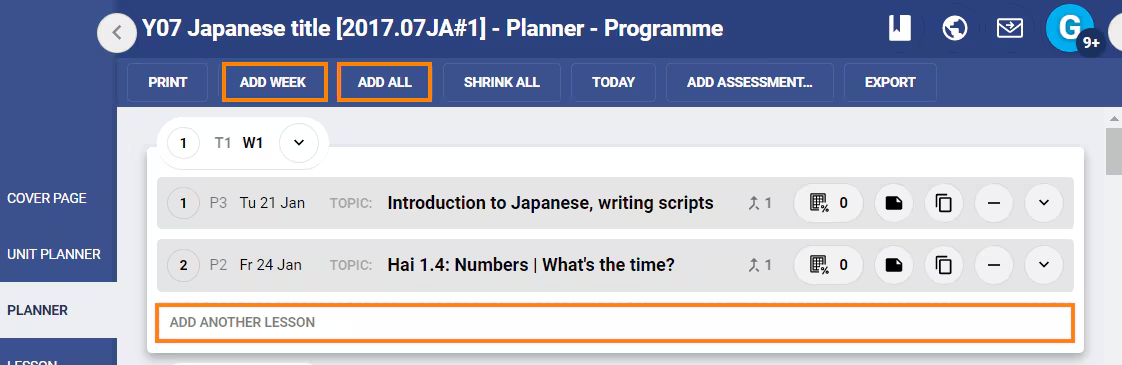
- Go into one of the classes in the programme share (let's call this class 'A'), go to the 'Planner' and ensure there are enough lessons to cover the entire course. To do this click on 'Add Week' so there are enough weeks, or for one lesson per instance of the class click 'Add All'.
- Number all the lessons so you can ensure they remain in the correct order. To do this, add the numbers in front of the lesson topic.
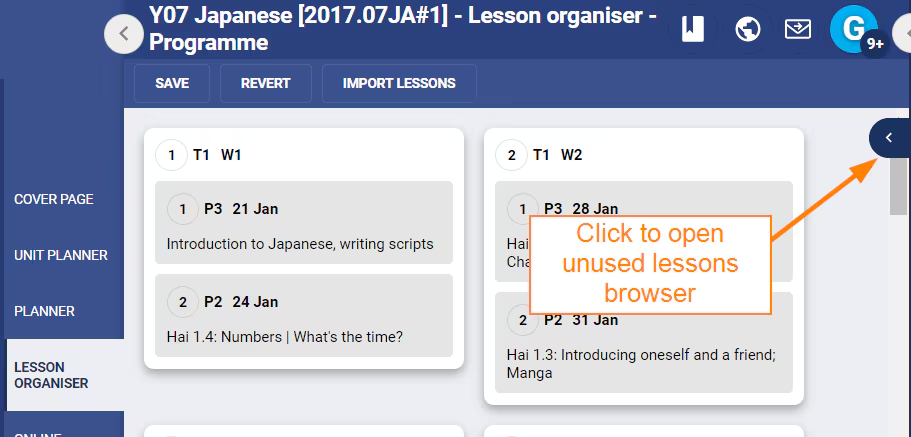
- Go into the programme through one of the other classes (let's call this class 'B' and select the 'Lesson Organiser'. Open the 'Unused Lessons Browser' by clicking on the arrow in the top-right corner. Next, click-drag the lessons onto the correct weeks in the correct order. Ignore the extra blank lessons for now.
- Select 'Planner', remove all the lessons which are not shared by clicking on the minus icon "-" on the lesson topic bar.
The lessons should now all be shared.
Was this article helpful?
That’s Great!
Thank you for your feedback
Sorry! We couldn't be helpful
Thank you for your feedback
Feedback sent
We appreciate your effort and will try to fix the article