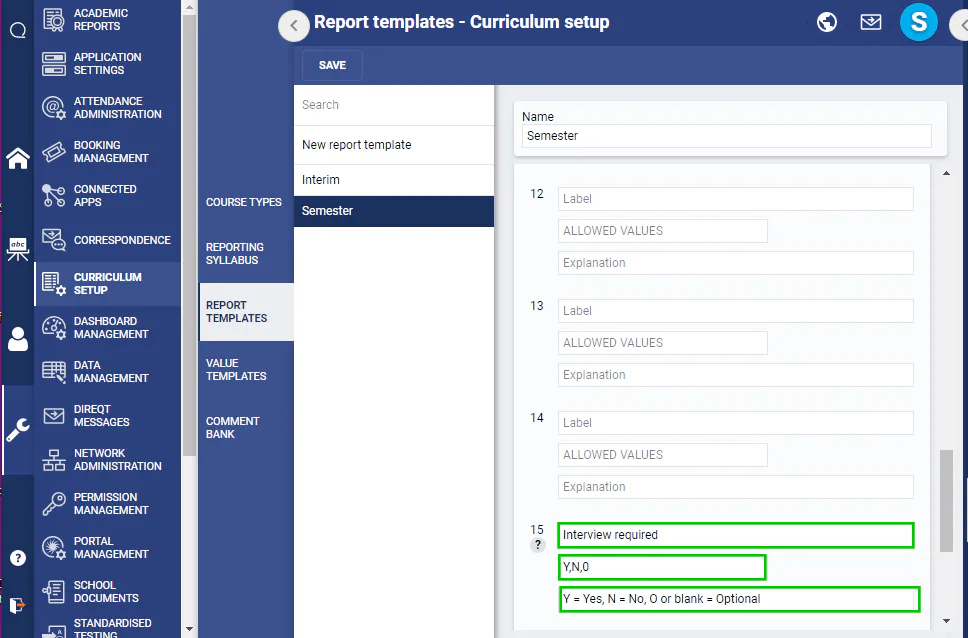
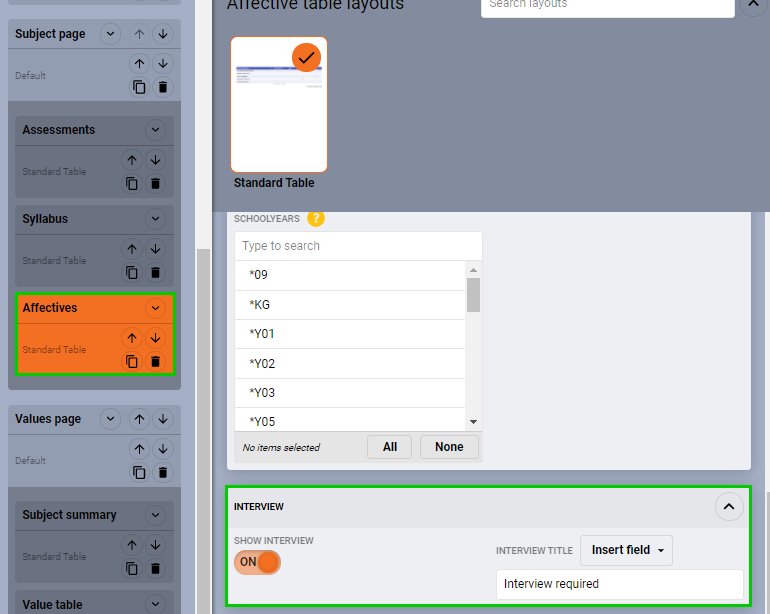
To display 'Interview required' on report created using the Custom reports editor first enter a Label into affective 15 of the Report template, then toggle on the 'Show interview' option in the Custom report. See below for steps.
There are only three mappings available for the Interview required field, these are 'Y' = Yes, 'N' = No and 'O' (or blank) = Optional.
Enter a value into the Report template field value 15
- Go to the ADMINSITRATION WORKSAPCE > CURRICULUM SETUP > REPORT TYPE
- Select the Report template you want to use
- Type 'Interview required' (or words of your choice) into 'Label' 15. Click on the "?" next to the label for description of field.
- Click SAVE
Toggle on the Interview option in the Custom report
- Go to the Administration workspace > Academic reports > Custom reports
- Select the report
- Select Affectives
- Toggle on Show interview
- Click SAVE
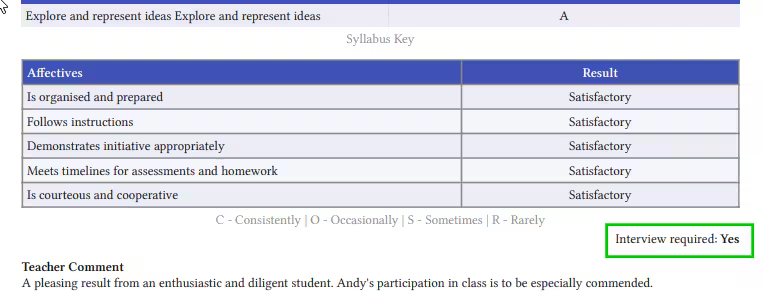
Example report
Was this article helpful?
That’s Great!
Thank you for your feedback
Sorry! We couldn't be helpful
Thank you for your feedback
Feedback sent
We appreciate your effort and will try to fix the article