TABLE OF CONTENTS
- Adding an additional account to the SEQTA Engage app (Android)
- Adding an additional account to the SEQTA Engage app (Apple)
Please see the steps below to setup the SEQTA Engage app and how to switch between accounts. This makes it easier for a parent to use Engage when they have children at more than one SEQTA school.
Adding an additional account to the SEQTA Engage app (Android)
- Open the SEQTA Engage app.
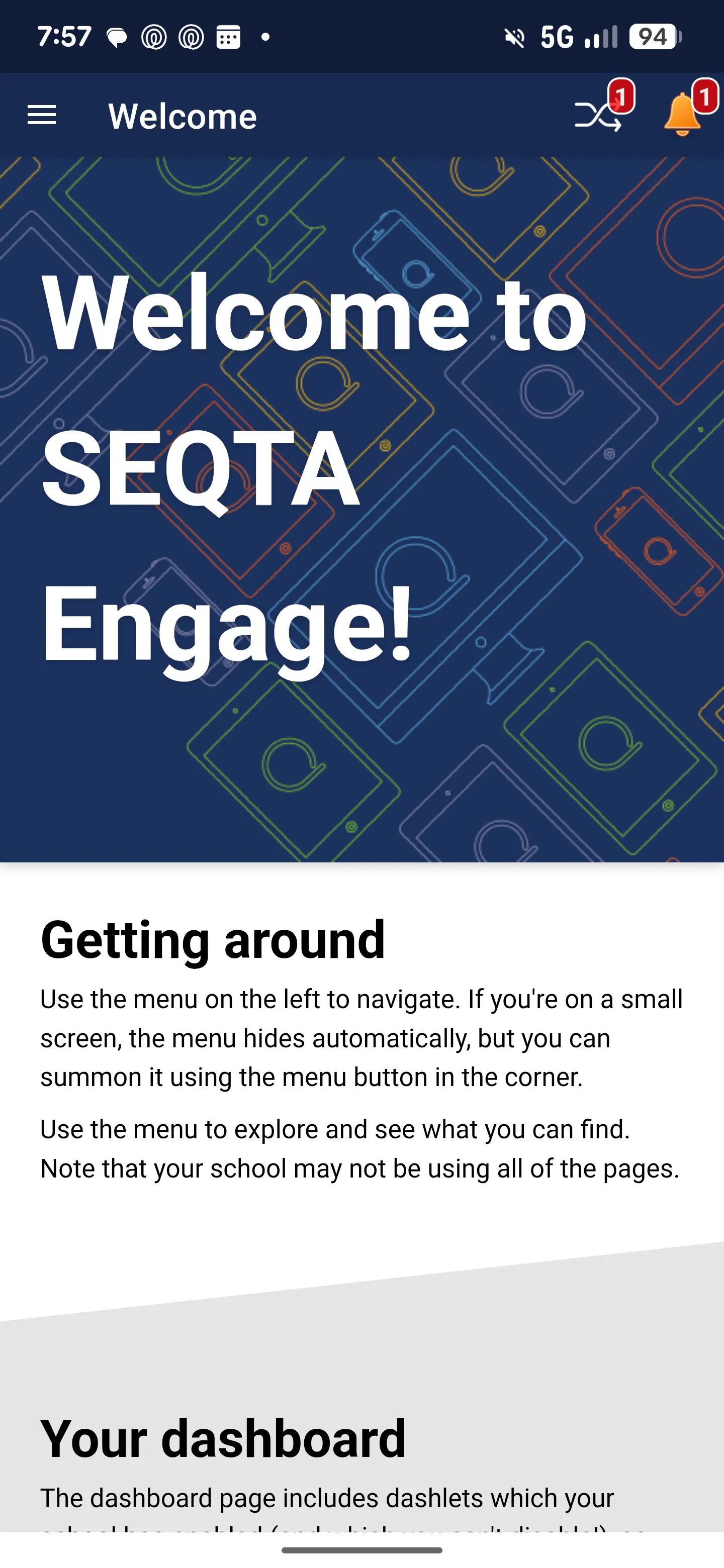
- Select the menu icon
 in the top-left corner.
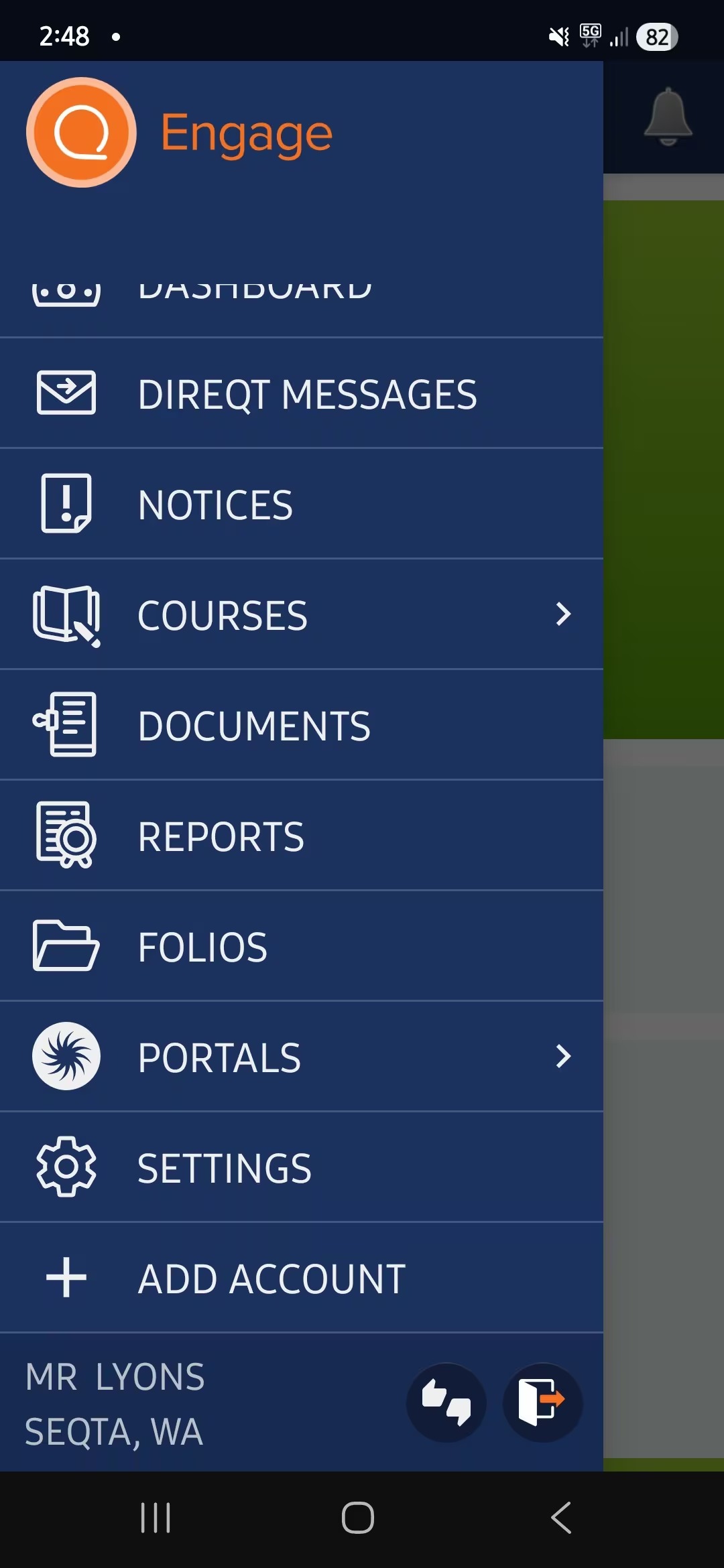
 - Scroll down and select Add account.
- If the app is already setup for more than one account, choose Select account instead (as Add account will no longer display).
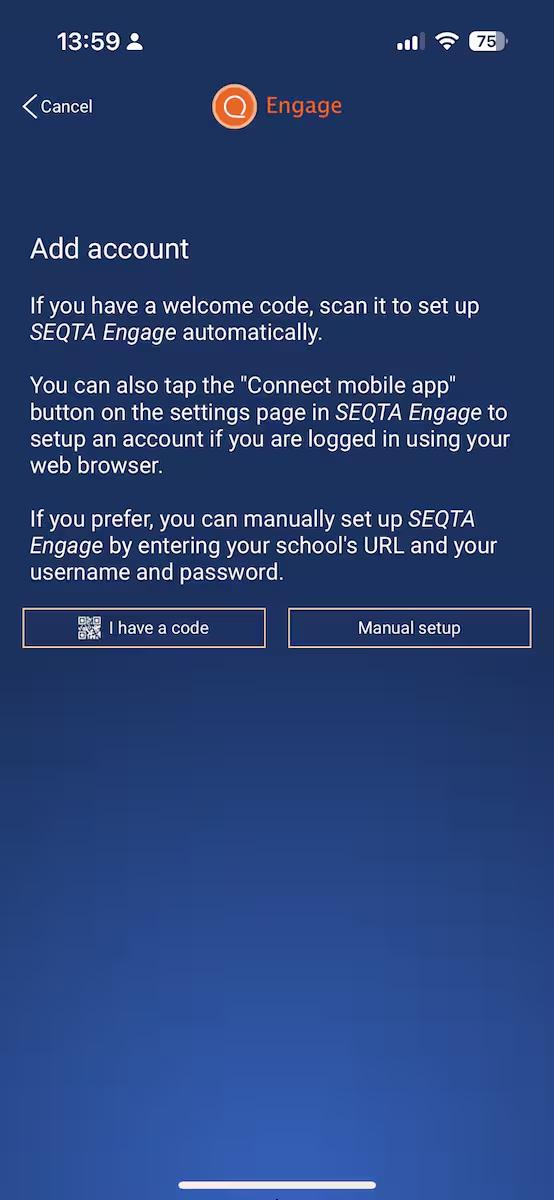
- If you have a Welcome email with a QR code, select I have a code, then scan the code and it will log you in.
- If you don't have a QR code, or the QR code has expired, choose Manual setup.
- Enter the URL for SEQTA Engage for the new school, as well as your username and password.
- Once the account has been added, the Select account option will display at the bottom (instead of Add account).
- To swap from one school account to another, use the crossed arrows icon at the top-right corner.
Adding an additional account to the SEQTA Engage app (Apple)
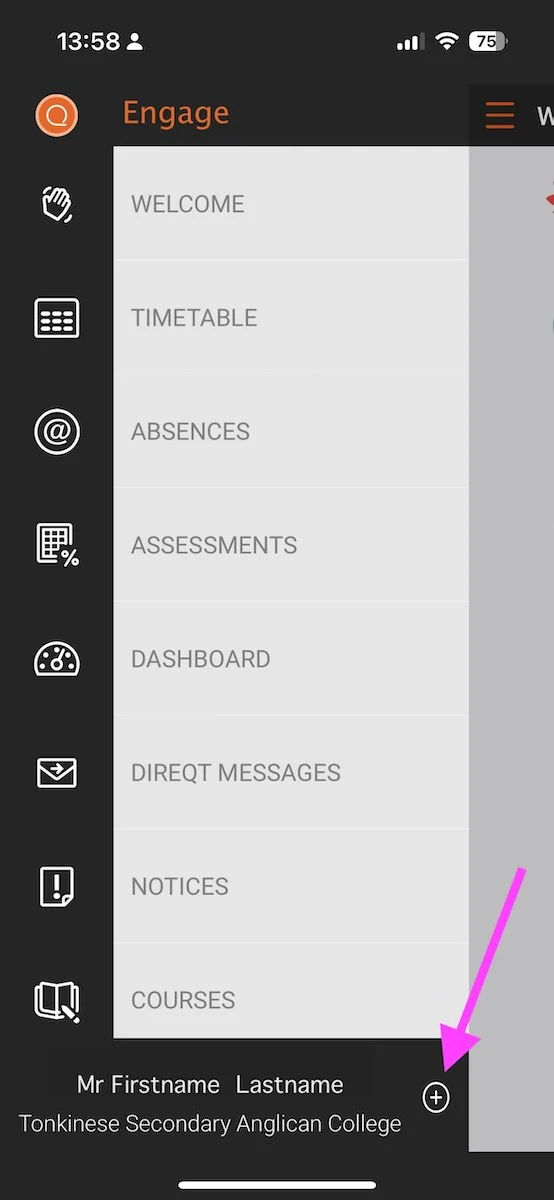
- Click on the Menu icon to open the menu (top-left corner)
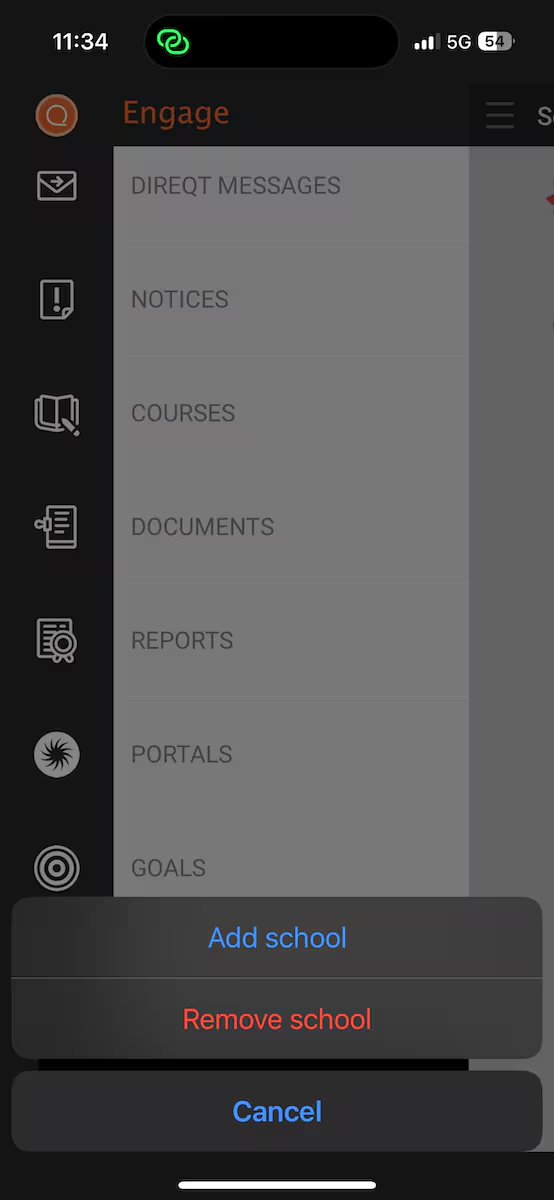
- Tap on the plus icon located to the right of your name at the bottom of the screen.
- Choose Add school
- If you have a Welcome email with a QR code, select I have a code, then scan the code and you're all done.
- If you don't have a QR Code, or the QR Code has expired, choose Manual Setup.
- You'll then need to enter the URL for SEQTA Engage for your new school, followed by your username and password.
- You can now switch accounts between schools.
- To swap from one school account to another, use the crossed arrows icon at the top-right corner.
Was this article helpful?
That’s Great!
Thank you for your feedback
Sorry! We couldn't be helpful
Thank you for your feedback
Feedback sent
We appreciate your effort and will try to fix the article