TABLE OF CONTENTS
- Installing the SEQTA App using the Welcome email
- Installing the SEQTA Engage or SEQTA Learn App using a web browser
- Manually Installing the App on a device
- Logging out of the SEQTA App
- Compatible Apple iOS and Android versions
To install and set up the SEQTA Learn or SEQTA Engage apps, students and parents will need to complete some or all of the following steps. This article provides information about the various possibilities and options. Additional support information is available in the article Resolving SEQTA Engage and SEQTA Learn App Setup Issues .
This article contains the following sections:
Installing the SEQTA App using the Welcome email
This method steps through setting up SEQTA Learn or SEQTA Engage using the Welcome email.
Step 1: Download and install the SEQTA Learn App (Student) or SEQTA Engage App (Parents)
- Open the Welcome email on the device onto which you would like to install the app.
- Click on the App Store or Google Play button and download and install the app.
- Steps for installing from 'App Store': Click Get, then Install. If prompted, authenticate using the setup you have configured for your phone, eg: type access code or use thumbprint/face ID. Click Open.
- Steps for installing from 'Google Play': Click Install, click Open.
Step 2: Configure the App using the QR code
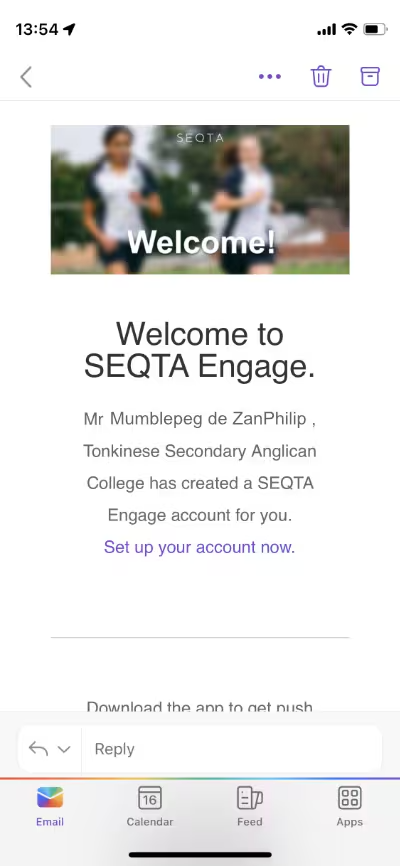
- Open the Welcome email and tap the QR Code - this will automatically open the app and prompt you to set a username and password. If the account is already setup it will log you in straight away.
- If the QR code does not do anything when selected, this indicates the email client is blocking it. Where this is the case, set up the account by clicking the link in the email ("Set up your account now"). Then complete the steps below to manually configure the app.
Installing the SEQTA Engage or SEQTA Learn App using a web browser
These steps assume that the parent/student already has an account provisioned (i.e. has a username and password) and that they are able to log into the web version of SEQTA on the device on which the app needs to be installed (as per Step 2 below).
The option to setup the app via the web-browser is not available in cases where the app's setup information has been requested to be hidden. See below for more information on hiding/displaying these options.
Step 1: Download and Install the SEQTA Learn App (Student) or SEQTA Engage App (Parents)
- Click on the App Store (for an Apple device) or Google Play (for an Android device) button and download and install the app.
- Steps for installing from 'App Store': Click Get then Install. If prompted, authenticate using the setup you have configured for your phone, eg: type access code or use thumbprint/face ID. Click Open.
- Steps for installing from 'Google Play': Click Install, click Open.
Step 2: Log into SEQTA using a web browser on the device on which the App needs to be installed
- Log into the school's SEQTA Engage or SEQTA Learn website using the device the app needs to be installed on.
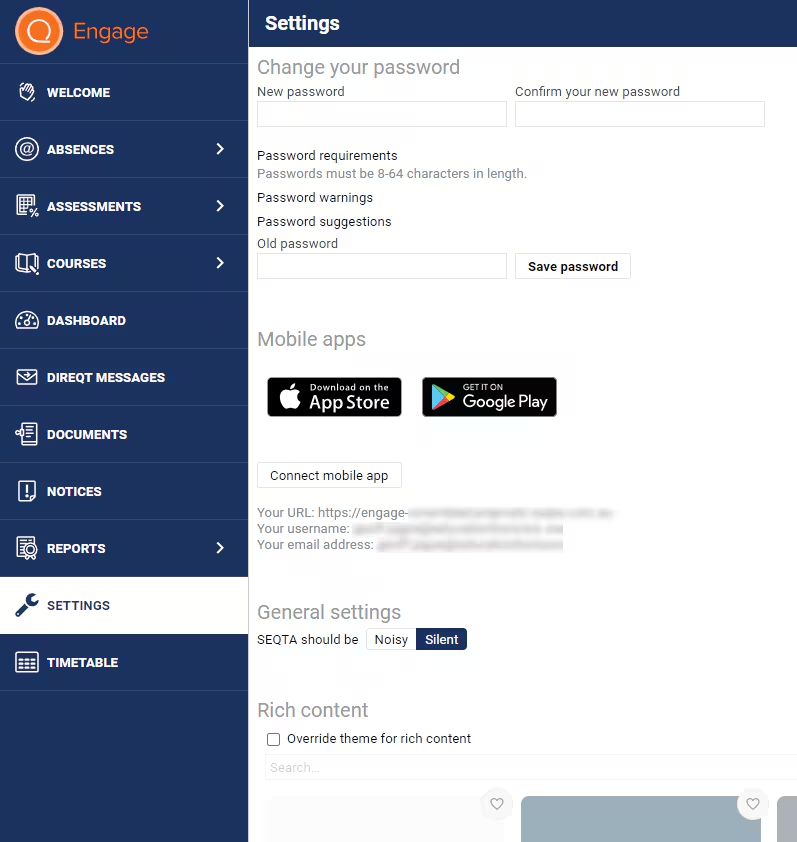
- Select Settings from the left-hand menu. The setup information should then display under the heading Mobile Apps.
- If the setup information does not display it might be disabled; go to Step 3.
Step 3: Configure the App Using the 'Connect Mobile App' Button
- Go back to the website version and select Settings.
- Click the Connect Mobile App button. This should log you into the app automatically.
Manually Installing the App on a device
These steps assume the parent has set up their account (i.e. has a username and password). In addition, that they have obtained the school URL via the 'Settings' page in the web version or SEQTA, or have been provided with the URL by the school.
Step 1: Download and Install the SEQTA Learn App (Student) or SEQTA Engage App (Parents)
- On the device you want to install the app, go to the App Store or Google Play. Download and install the app.
- Steps for installing from 'App Store': Click Get then Install. If prompted, authenticate using the setup you have configured for your phone, eg: type access code or use thumbprint/face ID. Click Open.
- Steps for installing from 'Google Play': Click Install.
Step 2: Configure the App by Manually Entering the Required Information
- Open the app, click Open.
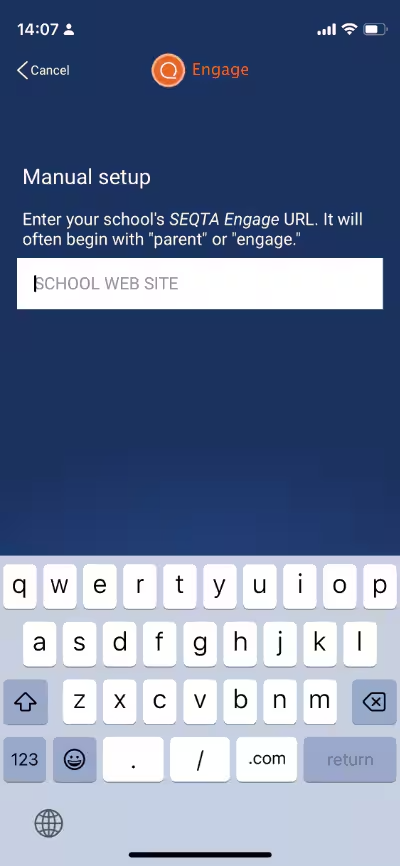
- Click Next until the Manual Setup option displays (if it doesn't appear automatically).
- Enter the school's website URL, eg: https://parent.schoolname.wa.edu.au.
- If you do not have the URL, this can be obtained from the school or accessed through the 'Settings' page in the web browser version of SEQTA.
- The app will search for the school website (Probing will display on screen)
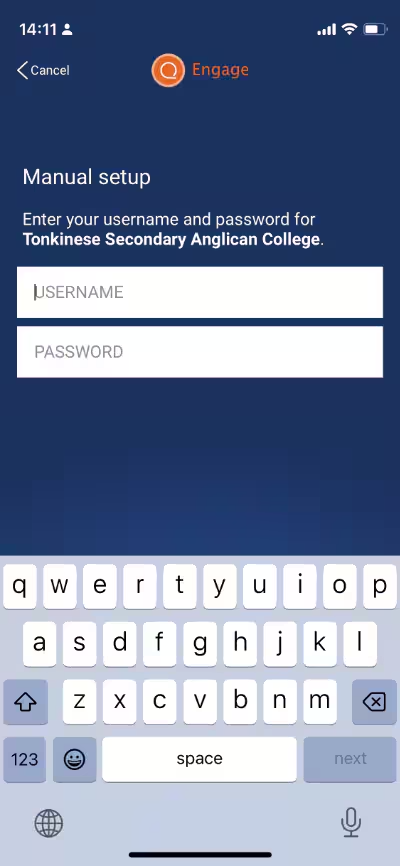
- If the website is found, click Continue, then enter your 'Username' and 'Password' and click Log In.
Logging out of the SEQTA App
The logout process is different depending on the device being used.
Logging out Using an Android Device
- Click on the menu button.
- Scroll down and click the Log out button.
Logging out Using an iPad or iPhone
- Uninstall, then reinstall the app.
Compatible Apple iOS and Android versions
- Apple iOS - Requires iOS 11.0 or later.
- Android - Requires 5.0 or later.
Related articles
Was this article helpful?
That’s Great!
Thank you for your feedback
Sorry! We couldn't be helpful
Thank you for your feedback
Feedback sent
We appreciate your effort and will try to fix the article