TABLE OF CONTENTS
- TABLE OF CONTENTS
- Can I have my own set of lessons when sharing a Programme?
- Can I plan lessons before the timetable has been rolled out?
- How do I add in missing lessons?
- How do I delete lessons?
- Why are only some of my lessons shared after Bridging?
- How can I share a lesson with a different Pathway?
- How can I tell if a lesson is shared with another Pathway?
- How can I restore a lesson that has been deleted and is not in Unused lessons or in another Programme?
- When do Untimetabled Lessons appear in SEQTA Learn and SEQTA Engage?
- How can I get the lessons back into sync with the other classes?
- Why is there only one lesson a week?
- How do I manage lessons for relief classes where the standard lessons are not used?
- How can I add a lesson back onto my Pathway?
- Why are there lessons missing from the Programme?
- How can I set a lesson to cover multiple sessions?
- I have extra lessons for a week which have no period or date assigned. When will these show in SEQTA Learn and SEQTA Engage?
- How does the system determine which term and week numbers to assign to a lesson?
- How can I view information about students at academic, medical, mental or other risks?
Can I have my own set of lessons when sharing a Programme?
Yes, teachers can have their own set of lessons, or make changes to existing lessons without affecting other staff. For this option to be available, Class pathways will need to be setup for the programme.
Can I plan lessons before the timetable has been rolled out?
Yes, however the lessons will not display with the date until the programme has been copied to the class on the timetable (if starting out fresh), or, until the class is bridged (if continuing on from Semester 1).
Adding Semester 2 Lessons
Continuing on from a Semester 1 class, and the Semester 2 timetable is not ready, follow the below steps:
- Go to the Teaching Workspace>Timetable>My Classes.
- Click the Load Programme icon for the class, then select Planner.
- Check if there are untimetabled lessons down the bottom. If there aren't any click on the Add Week button until enough weeks have been added for Semester 2.
- If you have more than one lesson you want to plan for a week click on the Add Another Lesson button on each of the weeks you need to add extra lessons to.
Planning Ahead for a New class
When preparing a programme for a new class, an Untimetabled class can be created to which a new, or copy of a programme can be attached. When the timetable is ready, you can copy the programme to the new class, then un-attach the programme from the Untimetabled class, and delete the Untimetabled class.
Alternatively, if it won't cause issues with the current class then you could update the current programme and copy it to new class once the timetable is ready.
How do I add in missing lessons?
Missing lessons can be added through the Planner sub-page as follows:
- Go to the Teaching Workspace>Timetable>My Classes.
- Click the Load Programme icon for the class, then select Planner.
- If you want to add in all the lessons for the timetable period, click Add All at the top of the page. Take care: if you change your mind the lessons need to be removed individually!
- Alternatively, if you want to plan only one lesson per week, click on the Add Week button until all the weeks have been added. If you need to add additional lessons for a specific week, click on the Add Another Lesson text button on the lesson topic bar.
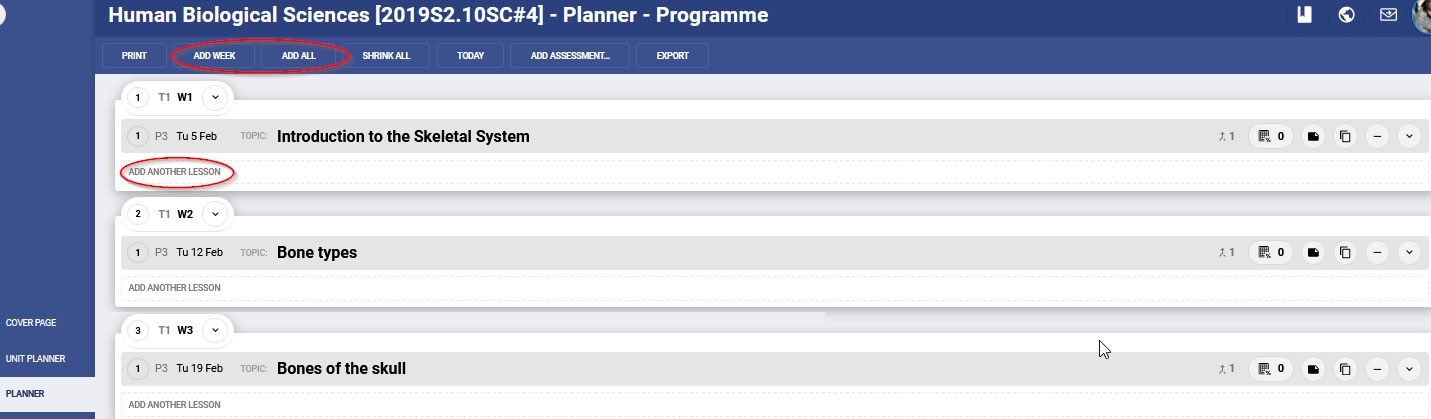
Lessons may need to be added in the following situations:
- When a Programme created in Semester 1 is bridged to Semester 2, the system will automatically add only one lesson per week.
- If using a copy of a Programme from a previous year, there may be a different number of lessons in a week in the previous year due to a public holiday or the like.
- There was a change made to the start-date or end-date of the timetable period after the Programme was set up.
Incorrect timetabling can also be an issue. This cannot be fixed through the Programme, rather the class may need to be added to the timetable. If the classes do not appear on the teacher's timetable please contact your school's timetabling staff for assistance.
How do I delete lessons?
To remove a set of unused lessons from a programme which has multiple pathways, the following steps can be used:
- The programme owner should create a temporary pathway, using the Create new lessons option.
- Name the pathway something like Lesson cleanup, so there is no confusion about its function.
- Switch a class to temporarily point to this Lesson cleanup pathway.
- Move unused lessons onto the pathway.
- Check the lessons to confirm they can be deleted.
- Delete the whole Lesson cleanup pathway.
Why are only some of my lessons shared after Bridging?
If a class is Bridged to another timetable period and there are not sufficient lessons, then the system will automatically add one lesson in per week. These will be shared with all pathways, but any lessons added after that point will not be shared.
How can I share a lesson with a different Pathway?
Drag the shared lesson back onto the pathway using the steps below. This is a once-off process and the issue will not reoccur the following year if using a copy of the programme.
- Go to the Teaching Workspace>Timetable>My Classes>Load Programme>Lesson Organiser
- Click the Arrow in the top right corner to open the Unused Lessons Browser
- Find the lesson, then drag the lesson onto the correct week and Save the change.
Note: If you can't find the lesson, ask the teacher that created the lesson to number them to make them easier to find (i.e. add a number in front of the lesson topic).
Note: Blank lessons often appear at the top of the list. Please scroll to ensure you are seeing all of the unused lessons.
How can I tell if a lesson is shared with another Pathway?
- Click on the Teaching Workspace>Timetable>My Classes>Load Programme>Planner
- If the lesson has a number other than '0', this indicates it is shared. To see which pathways are sharing the lesson hover-over the number.

How can I restore a lesson that has been deleted and is not in Unused lessons or in another Programme?
If a lesson has been completely deleted and a significant amount of work has been lost, please contact the SEQTA Support team via the Help portal and request the lesson be restored. The following information will assist with finding the lost lesson:
- Programme URL
- Lesson Topic
- Quote From Text in Lesson Outline
When do Untimetabled Lessons appear in SEQTA Learn and SEQTA Engage?
Unlike the lessons for Timetabled classes and Calendar classes, Untimetabled classes do not have any lesson instances for specific dates.
- If the option Show Past Lessons and Cover Page is selected, the lessons will not show until the end of the week.
- If the option Show All Lessons and Cover Page is selected all lessons are displayed.
How can I get the lessons back into sync with the other classes?
There may be situations where one or more of the classes sharing a Programme have a different number of lessons, (eg: if one class falls on a Public Holiday). If the classes are on different Pathways, this is not an issue, as the extra lesson can be removed. However, if the classes are on the same Pathway, or Pathways have not been setup for a Programme, removing a lesson will affect the lesson order for the other classes.
The only way to avoid issues in this situation is to set up Pathways, selecting the Use Existing Lessons option when creating the Pathway. Once a class is on its own Pathway, lessons can be removed and the the lesson order can be changed without affecting the other classes. Before removing the lesson, the content can be copy and pasted into another lesson (if it will be taught); if not, just remove the lesson.
Why is there only one lesson a week?
Having one lesson per week when a Programme is initially created was by design as part of the SEQTA workflow. It allows for teachers who want to place all their lesson content for the week into one lesson. Without this, it would be very time-consuming for them to delete the other lessons should they not want them.
Teachers who would like to plan content for each individual lesson will need to add the lessons by clicking on the Add All button at the top of the Planner page. This takes one click and will need to be done for each Programme. Take care: if you change your mind the lessons need to be removed individually!
- Go to Teaching Workspace>Timetable>My Classes>Load Programme>Planner Sub-Page.
- Click Add All to add all missing lessons for a Programme.
How do I manage lessons for relief classes where the standard lessons are not used?
There are various options available for managing lessons for relief classes in situations where the standard lessons will not be used. The best option to use will depend on how much access the relief teacher has been granted.
If the relief teacher has:
- No access to SEQTA, then print the Relief Form from the class Attendance page. This can then be used by the relief teacher to make notes. The class teacher can then update their programme accordingly.
- If the relief teacher has access to SEQTA but the class teacher does not want changes made to their programme, see Restricting Edit Access to Programmes, Marks Books and Unit Plans
How can I add a lesson back onto my Pathway?
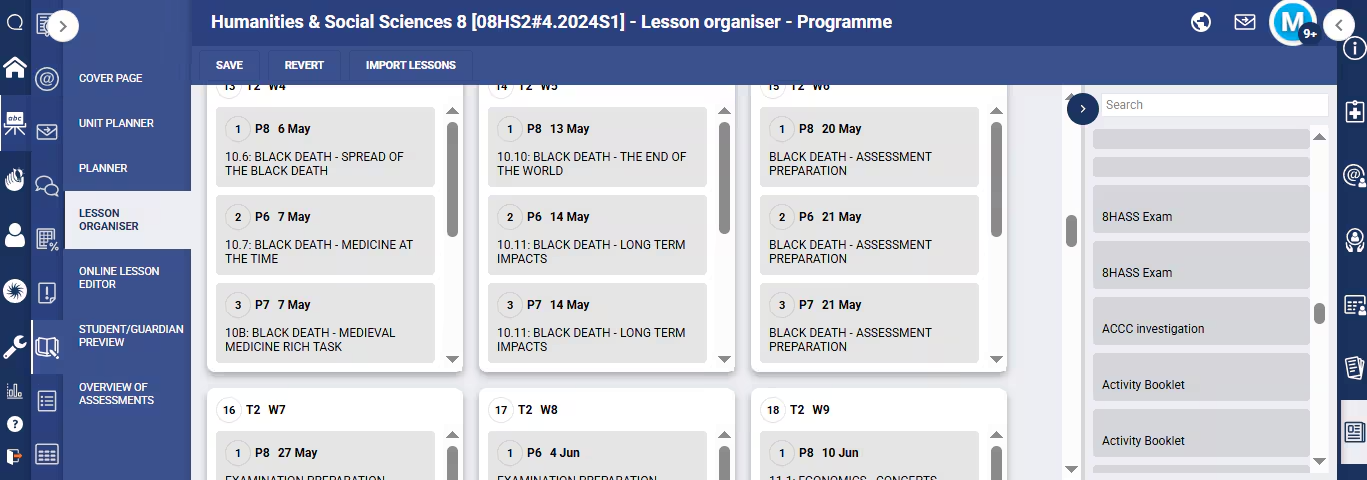
If a lesson is appearing in one Pathway or class and not others, this indicates Pathways have been set up in the Programme and that the classes are on different Pathways. Basically, if a lesson is cloned or created in one Pathway, it will appear on the Lesson Organiser sub-page in the Unused Lessons browser in the other Pathways. It will not automatically appear under the Planner sub-page unless the two classes are on the same Pathway. If a teacher on another Pathway wants to use that lesson, they would need to go into the Unused Lessons browser where it can be dragged onto a week.
The other main cause of a lesson not showing is when the lesson has been deleted from the Pathways. When this occurs, the only way to retrieve it would be to go into one of the other Pathways, then clone the deleted lesson from there. This will create another copy of the lesson and place it in the Unused Lessons browser where the teacher can retrieve it.
To access the Unused lessons browser:
- Open the programme view and go to the Lesson organiser
- Click on the small arrow in the top-right corner and the Unused lessons browser will slide out from the right
- Lessons can then be dragged into the Term/Week panes
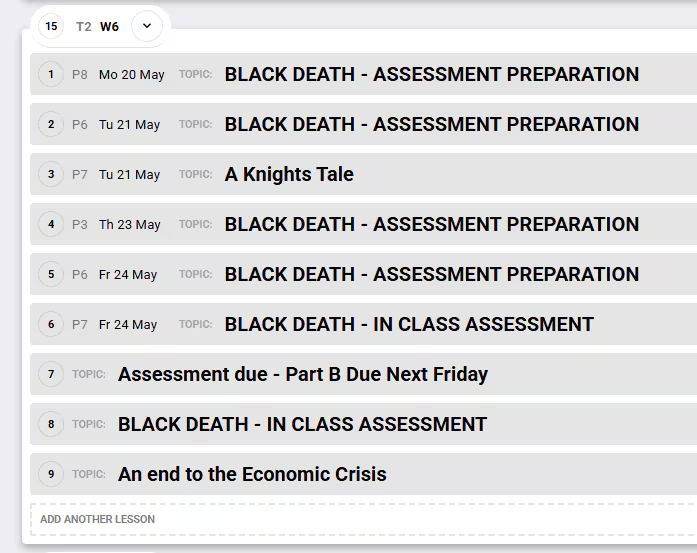
- If a timetabled period exists with an empty week, the lesson will be added to that timetabled lesson. Otherwise it will be shown as an extra, unallocated lesson for that term and week.
Why are there lessons missing from the Programme?
In most cases, when there are weeks missing, this indicates that previously the Programme had less lessons than that in the current timetable period. To correct this, click on the Add All button at the top of the Planner sub-page. Take care: if you change your mind the lessons need to be removed individually!
How can I set a lesson to cover multiple sessions?
Options available when using lessons that cover multiple periods are:
- Put the content into the first lesson of the week and ensure there are no lessons following on after for the rest of that week. The My Day lesson rollover function will present this lesson throughout the week.
- Use the Clone option to make additional copies of the lesson to use for the other lessons.
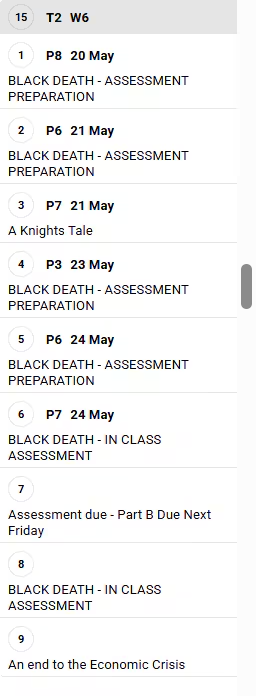
I have extra lessons for a week which have no period or date assigned. When will these show in SEQTA Learn and SEQTA Engage?
Lessons will appear to students and parents at the end of that week.
How does the system determine which term and week numbers to assign to a lesson?
This is based on the Calendar underlying the timetable. The Terms are based on the start and end dates set in the Timetable structure, whereas the Week is determined by the week to which that instance of the class is assigned. For example, if the first instance of the class falls on the second week of the timetable, it will display as W2.
How can I view information about students at academic, medical, mental or other risks?
- Go to Pastoral care workspace>Qualitative analysis.
- Choose the class, year group, etc that you are interested in.
- Set the date range.
- Choose the Pastoral care type that your school uses for the relevant risk factor.
- Click the Play button.
Was this article helpful?
That’s Great!
Thank you for your feedback
Sorry! We couldn't be helpful
Thank you for your feedback
Feedback sent
We appreciate your effort and will try to fix the article