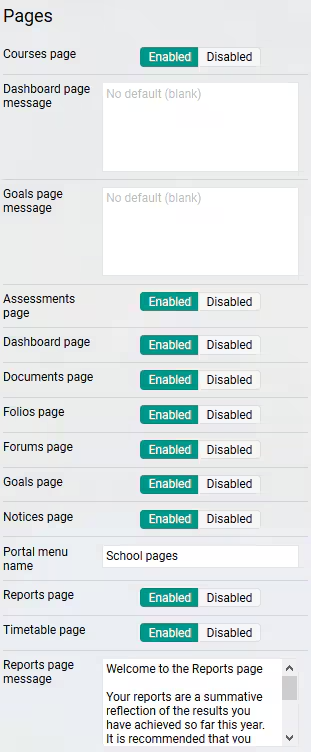
The menu options in SEQTA Learn and SEQTA Engage are referred to as 'Pages'. These can be enabled or disabled through the 'Application settings' page.
The steps are as follows:
- Go to the Administration workspace > Application settings > Application settings
- Type 'page' in the search box in the top-right corner
- Under the sub-section 'Pages' select Enabled to display the page in SEQTA Learn and SEQTA Engage (these can be set independent of each other). Select Disabled to prevent them from showing.
- Click SAVE
Was this article helpful?
That’s Great!
Thank you for your feedback
Sorry! We couldn't be helpful
Thank you for your feedback
Feedback sent
We appreciate your effort and will try to fix the article