TABLE OF CONTENTS
Introduction
Single-Sign on through your identity provider of choice makes authentication and auditing much more convenient and efficient. SAML is our recommended authentication method due to the many security benefits it brings, including MFA, geo-locking and the convenience of not having to remember multiple passwords.
SEQTA will work with most SAML2 implementations, and further, will allow different authentication systems (including different SAML vendors) between the SEQTA Teach, Learn, Engage, and Tutor applications. Lastly, SAML can be added as a secondary authentication type to sites currently using LDAP, meaning a seamless and orderly migration is often possible and change management is easier on your IT staff.
We do require schools to provide some information and understand the caveats before continuing:
- Schools should confirm how the SEQTA usernames are stored in SEQTA's data management.
Usernames may be based on sAMAccountName, user principal name (UPN), email, employee ID, student code, or another detail we sync from your School Management System. Our preference is the data source we use for SEQTA, should be the source-of-truth for usernames. SEQTA cannot be an authentication source for other systems. - Schools will need to pick the one and only hostname for each of the SEQTA applications to get SAML.
Since SAML relies on a unique Entity ID for each application, other hostnames will not work at the same time. This includes if you mean to rebrand or rename services from a legacy TA, Coneqt-S, and Coneqt-P hostnames, across to the Teach, Learn, and Engage URLs. Both URLs cannot easily be used at the same time. - Only one SAML Identity Provider can be enabled (per SEQTA Application) at a time.
While you can have LDAP & SAML, or LDAP & Google, or Google & SAML, you can not have two SAML Identity Providers enabled at the same time. This includes ADFS. We can disable ADFS (for example) to allow for rolling back if there are issues, but there is no mechanism for gradual change with two IdP's - Testing requires a working account for the SEQTA Applications to have SAML enabled.
While we're able to configure SAML, we're unable to confirm a working setup as the final information is only provided by your SAML provider once someone successfully logs in and is redirected back to the relevant SEQTA application. - Schools should download the SEQTA metadata files for each of their sites to have SAML enabled.
To speed the process up, schools should browse to their site's SEQTA URL and append "/saml2". For example, visiting "https://teach.example.wa.edu.au/saml2"" should start the download and allow you to save the resulting file as "teach-saml.xml". This is an example site, and you should use whichever URL(s) you chose in the step just above this.
Note: At this time, the SEQTA Learn and SEQTA Engage mobile apps support device-specific biometric ID, but do not support SAML natively. In those cases, we can leave LDAPS enabled and force everything else to SAML. The QR code generated by the "Connect mobile app" button in a users Settings works regardless of authentication scheme.
Setting up SAML for common Identity Providers
Microsoft AzureAD
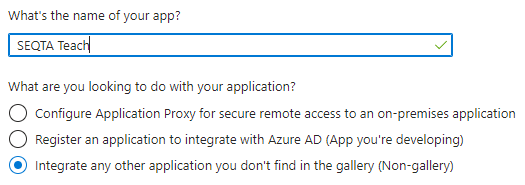 Once created, choose a SAML single sing-on method, under "Single sign-on", then the Edit icon under Basic SAML Configuration, which should give you a screen like this:
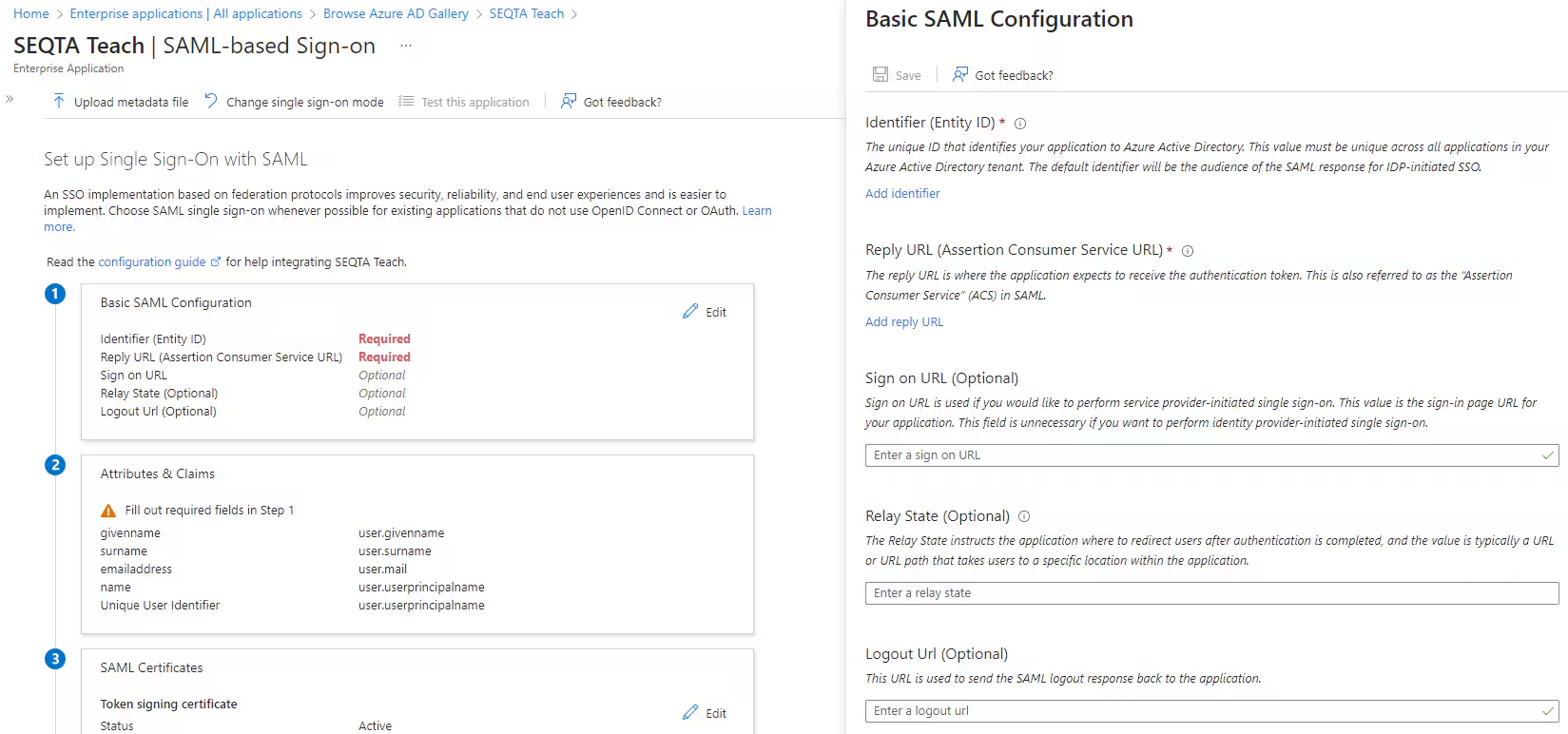 At this point you should click on "upload metadata file" and provide the relevant XML file you downloaded before. The fields should autofill the Entity, Reply and Logout URLS.
For SEQTA Teach, you may want to include your SEQTA Teach mobile URL as an additional (but not default) Entity and Reply URL like below. SEQTA Learn, Engage, and Tutor do not require a second entry.
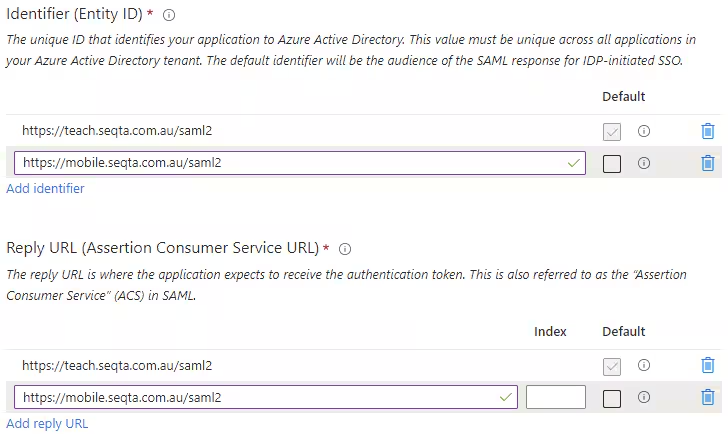 Double check and save.
If SEQTA usernames are not in user principal name format, you will need to expose that claim to SEQTA by editing Attributes & Claims, and adding a new claim. The common NetworkLogon or sAMAccountName attribute is:
Source: Attribute
Source Attribute: user.onpremisessamaccountname (easily searched by using "sam")
and Save.
Copy the App Federation Metadata URL by clicking on the copy icon on the right:
 At this point, send us the Federation Metadata URL, and you can continue on to configuring Users and Groups, and if your license allows, Conditional Access can be used to enable multifactor authentication and block access my location.
Once complete, please contact Support to confirm a cutover and testing schedule.
KeyCloak
We assume you already have the user and groups configured, just leaving the Client setup and linking.
From Clients, you can Import Client directly, and load the relevant SEQTA XML file.
 It should pre-fill the following (example) fields, leaving you to type in the Name and Description.
You will need to toggle "Client signature required" off, before saving
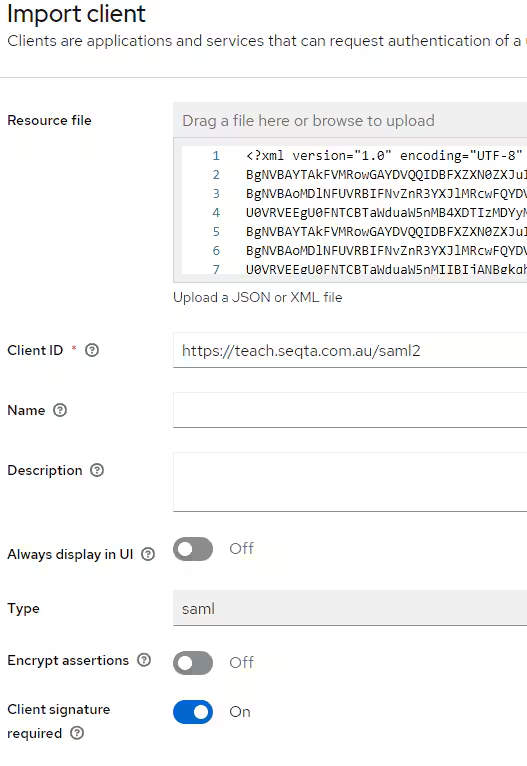 After this, you should only need to move down to SAML capabilities, and choose the Name ID format that matches the username fields in SEQTA. UPN is the default format it will use. Check and Save.
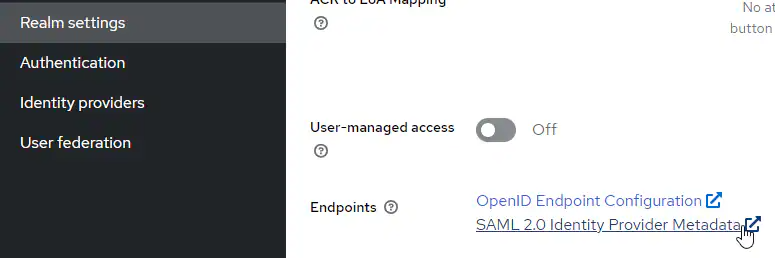
Since KeyCloak's Realms use the Entity ID to manage which Client is used, we only need the SAML Identity Provider Metadata for the realm. Send us the URL from this link (Like https://{server}/realms/{realm}/protocol/saml/descriptor):
Once complete, please contact Support to confirm a cutover and testing schedule.
Authentik
Creating a new Provider application, will prompt for options. At this stage you should choose SAML Provider from Metadata:
 Provide an Application Name, the preferred Application flow, then choose and upload the SAML XML file from the beginning and hit Finish:
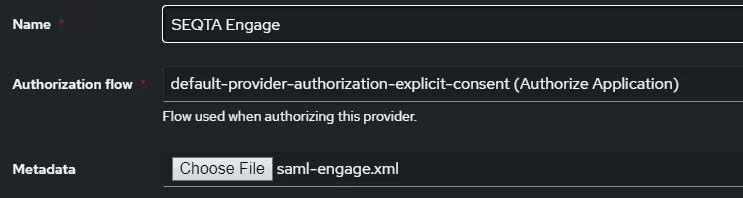 at which point the provider should be assigned to an Application.
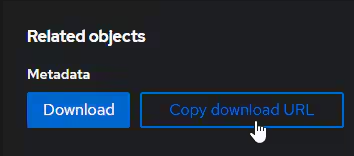
You'll then need to go back to the SEQTA Provider you just configured and send us the copied Metadata download URL that has now appeared:
(looks similar to https://{authentick server}/api/v3/providers/saml/{Application ID}/metadata/?download )
Once complete, please contact Support to confirm a cutover and testing schedule.
For assistance with any other SAML identity provider, please contact our Support Team who will be happy to help.
Also, see our Knowledge Base article on Authentication-types-and-account-management
Was this article helpful?
That’s Great!
Thank you for your feedback
Sorry! We couldn't be helpful
Thank you for your feedback
Feedback sent
We appreciate your effort and will try to fix the article