TABLE OF CONTENTS
- Accessing Focus Mode
- Focus Mode Panes and Toolbar
- Focus Mode: Toolbar
- Focus Mode: Achievement Pane
- The Submission Pane
Focus mode replaces the edit annotation/comment popup and WISP annotation page.
Focus mode allows teachers to:
- View Details About an Assessment and its Visibility Status
- Enter Results and Teacher public or private Annotations (Comments)
- Use Rubrics
- View and Annotation Student Submissions
Accessing Focus Mode
- Go to the Teaching Workspace > Timetable > My Day/Traditional/Calendar.
- Click on the 'Marks Book' icon for the class.
- Click on the 'Focus Mode' icon in the 'Focus' column for the assessment/student.
Focus Mode Panes and Toolbar
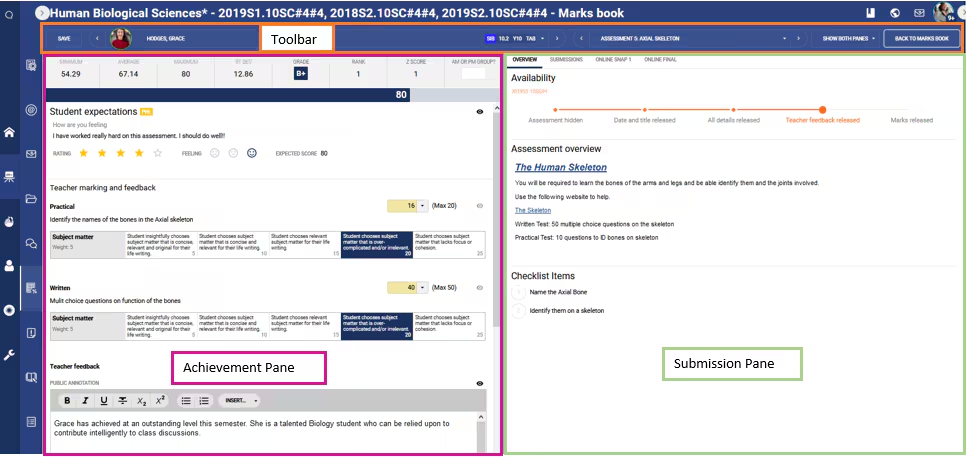
Focus mode consists of three main areas which are outlined below (see screenshot).
Focus Mode: Toolbar
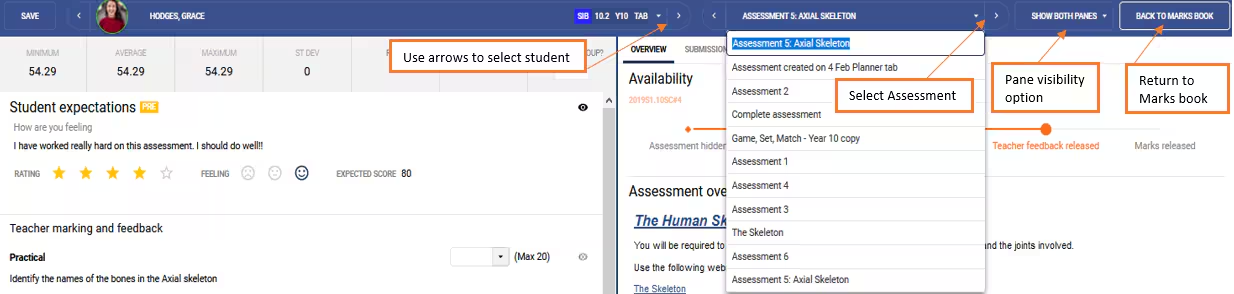
The Focus Mode toolbar allows teachers to select and scroll through students and assessments, close out of Focus mode, hide the Focus mode panes and Save results.
Focus Mode: Achievement Pane
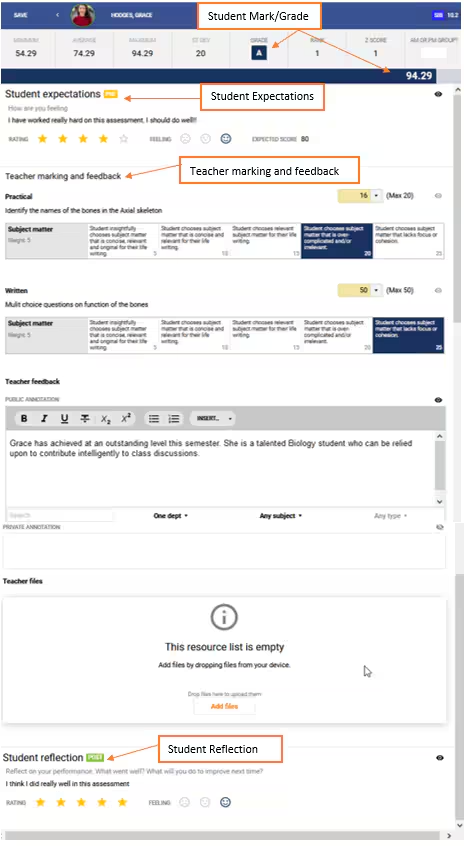
The inclusions in the Achievement Pane are dependent upon what has been enabled in the Assessment and whether the student has entered expectations and reflections.
The Submission Pane
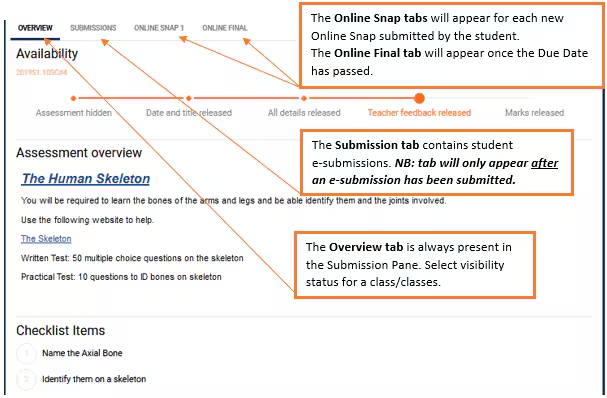
The following tabs are available in the Submissions Pane:
- Overview: Overview of the Assessment and Assessment display options are visible here.
- *Submissions (E-Submissions)
- *Online Snap 1...2...3. etc. (WISP Snaps)
- *Online Final (Final WISP): Created after Due Date has Passed.
*Please note that the 'Submission', 'Online Snap' and 'Online Final' tabs will only become visible AFTER the student has made a submission.
Was this article helpful?
That’s Great!
Thank you for your feedback
Sorry! We couldn't be helpful
Thank you for your feedback
Feedback sent
We appreciate your effort and will try to fix the article