TABLE OF CONTENTS
The Copy option is typically used when setting up a Programme for a new class. When a Programme is copied, a separate Programme is created with the exact same content as the Programme being copied. However there is no data entered (results, comments etc.) from the students in the class the Programme is being copied from.
If the Class is continuing on from the previous Timetable period (term or semester timetables) the Class should be Bridged (and the Programme not Copied or Shared). Please review the articles Bridging Classes and When to Bridge, Copy and Share.
Sharing and the Copying Process
A Programme should only ever be copied to one class. If there is more then one class in the cohort, there is a second step that needs to be completed which is to Share the (new) Programme with the other classes in the cohort. For example, a Programme can be copied onto 7MAT#1, then it can be shared with other classes in the cohort (7MAT#2, 7MAT#3). For more info, see the articles linked above. If teachers would like to work independently, Pathways can be set up once the sharing process has been completed.
Creating a Copy of a Programme
- Go to Teaching workspace>Timetable>My Classes/Traditional view/Calendar.
- Find the class with the programme you would like to make a copy of. This can be done using one of the following methods:
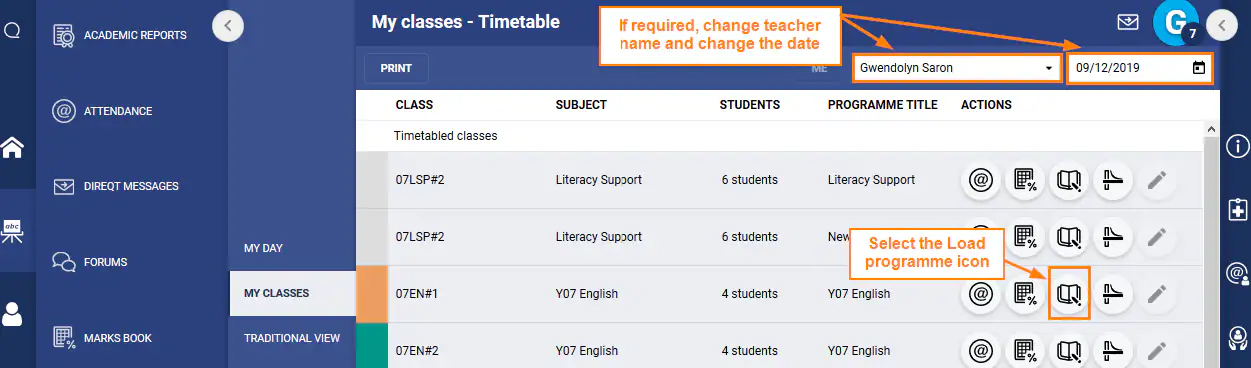
- * Recommended Method * Change the date back to when the subject was last being taught (eg: the previous year), select that class teacher's name. Click the Load Programme icon for the class.
- Click on the current class that doesn't have a programme attached. Next, select List of Programmes. Use the filters at the top of the page to find the programme then select the Edit Programme icon on the class.
- * Recommended Method * Change the date back to when the subject was last being taught (eg: the previous year), select that class teacher's name. Click the Load Programme icon for the class.
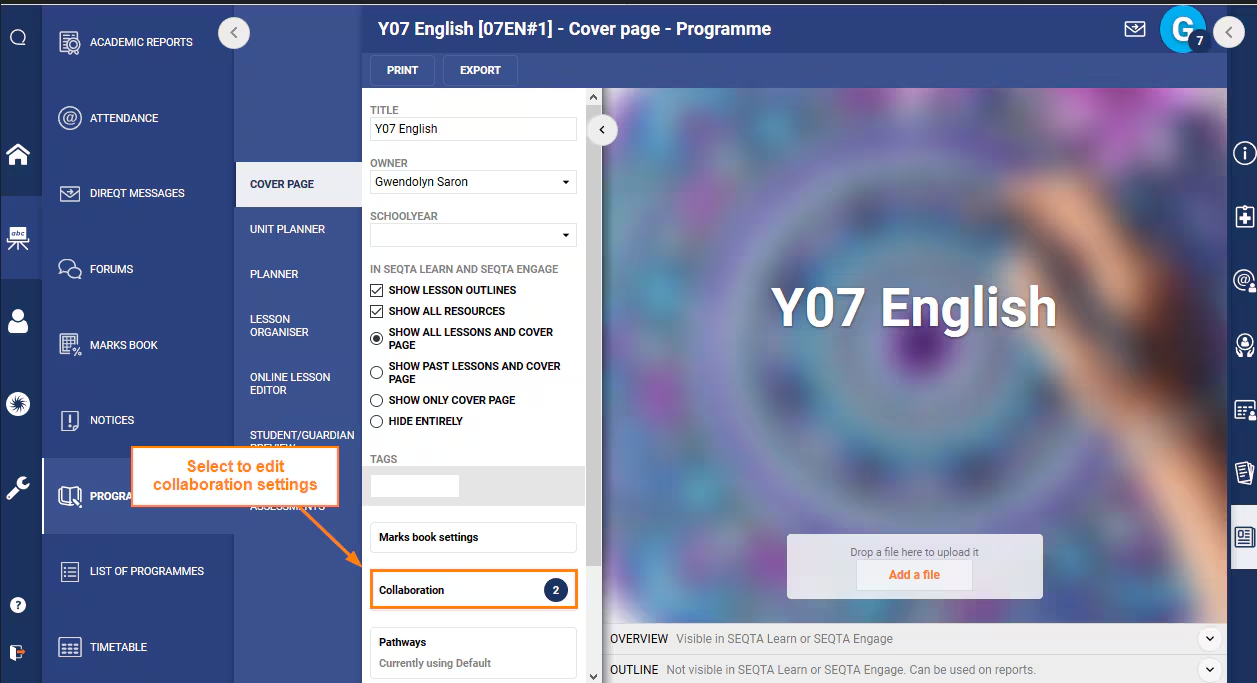
- On the Cover Page, click the Collaboration button. If this option doesn't show this indicates access is restricted - please contact the Programme owner for assistance.
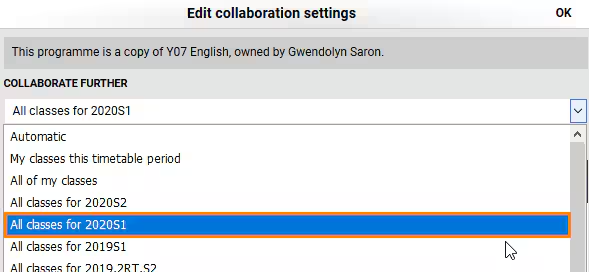
- Under Collaborate Further change Automaticto the new timetable period (with the class you would like to copy the Programme to).
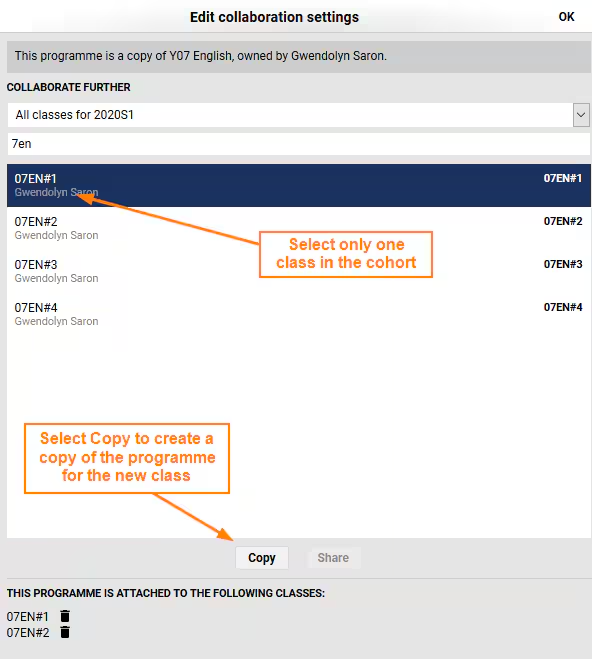
- Select the class you would like to copy the Programme to.
- In general a Programme should only ever be copied to one class in the cohort.
- If there is an asterisk (*) next to the class, this indicates another Programme is already attached. Click cancel then check the programme attached to the class.
- Click Copy > Yes > OK.
- If there is more than one class, the new copy of the programme will need to be shared with the other classes. Please go to Sharing Programmes and related aerticles to get more information.
Was this article helpful?
That’s Great!
Thank you for your feedback
Sorry! We couldn't be helpful
Thank you for your feedback
Feedback sent
We appreciate your effort and will try to fix the article