TABLE OF CONTENTS
This article outlines the process for setting up a Programme ready for classes to commence (in most cases, this will be the start of the year). These steps apply to most schools. However, if unsure as to whether this process is suitable for your school, please contact your school's Education Contact or curriculum adviser.
Classes continuing on from another semester or term within the same academic time frame typically do not require Copying or Sharing. A different process called Bridging is used to extend the programme across the semesters or terms.
Programme Setup Process Summary
- Create a new Programme, or create a Copy of an existing one for the new class. Only set up one Programme per course even if there are multiple classes in the cohort.
- Go into the class with the Programme setup in step one, then Share the Programme with other classes in the cohort.
- *Optional* Setup or assign Pathways - Pathways are only required if teachers would like to:
- Manage their course content independent of others sharing the Programme (i.e. create new lessons).
- To re-order lessons without affecting the lesson order for other classes (i.e. use existing lessons).
- Teachers would like there own copy of lessons, they can then edit these without affecting other teachers sharing the Programme (i.e. copy all lessons).
Step 1: Create a Copy of a Programme or Create a New Programme
Go into the programme you want to make a copy of, then copy it to ONE of the classes in the new timetable period. The steps are as follows:
- Go to the Teaching workspace>Timetable>My Classes/Traditional view/Calendar.
- To create a New programme (with no content), click on the class and select New programme in the pop-up. Then skip to the next section below (Step 2) for steps on sharing the programme.
- To create a copy of an existing programme, find the class with the programme you would like to make a copy of. This can be done using one of the following methods:
- *Recommended method* Change the date back to when the subject was last being taught (i.e. the previous year), select that class teachers name. Click the Load programme icon for the class.
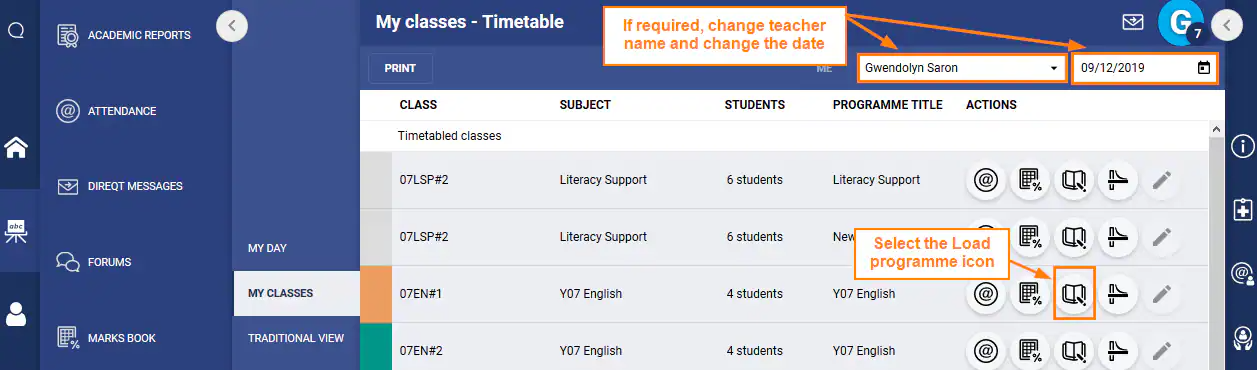
- (Alternative method) Click on the current class that doesn't have a programme attached and select List of programmes. Use the filters at the top of the page to find the programme. If working through List of programmes select the Edit programme button.
- *Recommended method* Change the date back to when the subject was last being taught (i.e. the previous year), select that class teachers name. Click the Load programme icon for the class.
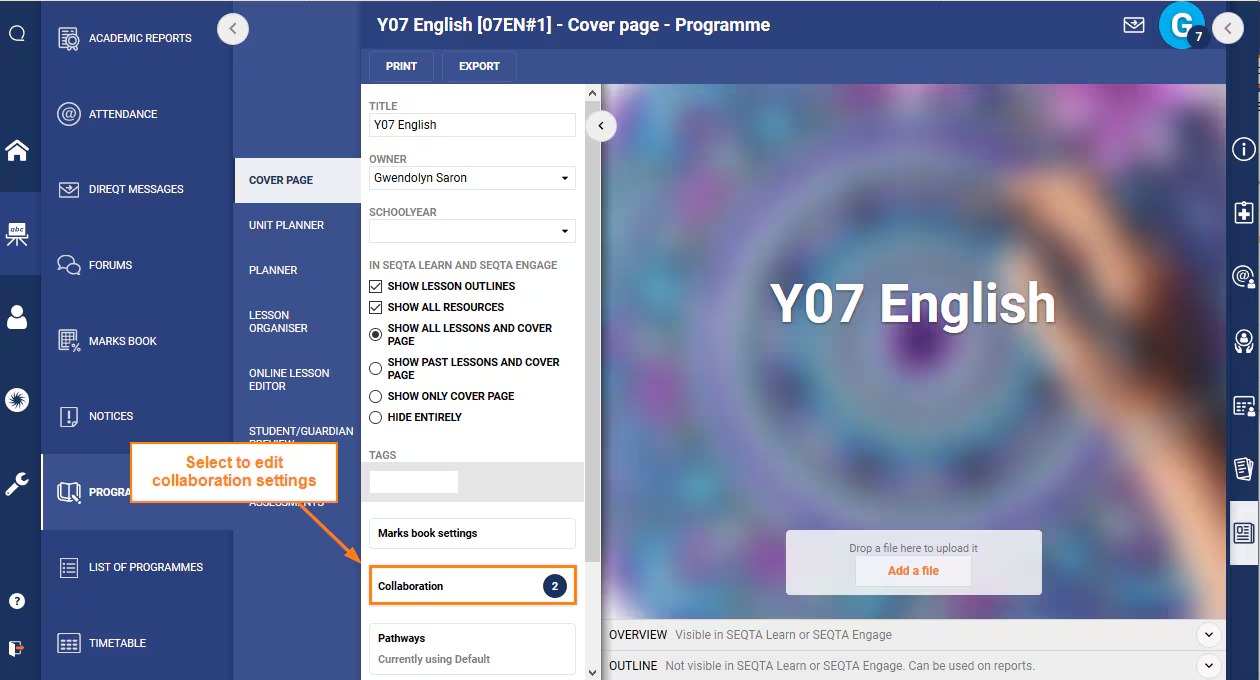
- To copy the programme, go to the Cover page, then click the Collaboration button to open the settings pane.
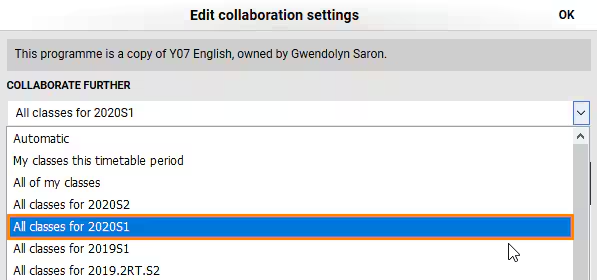
- Under Collaborate further change Automatic to the new timetable period (with the class you would like to copy the programme to).
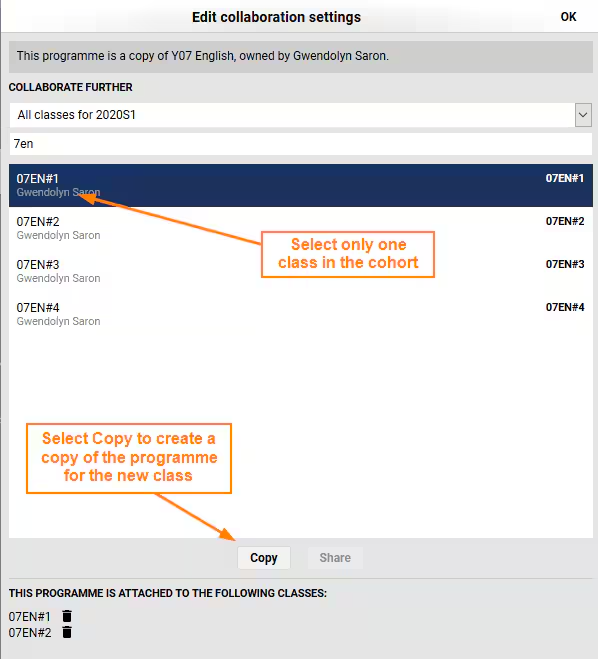
- Select the class you would like to copy the programme to.
- In general a programme should only ever be copied to one class in the cohort.
- If there is an asterisk (*) next to the class, this indicates another programme is already attached. Click cancel then check the programme attached to the class.
- Click Copy > Yes > OK.
- If there is more then one class in the cohort continue on to step 2 below.
Step 2: Share the Programme with other classes in the cohort
Go into the class with the programme attached and Share it with the other classes.
Sharing a programme gives every teacher the same lessons and assessments. Ensure the programme is fully set up before sharing.
To allow teachers to have the benefits of sharing, but to allow them freedom of choice with lessons, please also follow Step 3 for the setup of Pathways.
- The Sharing process is very similar to Copying.
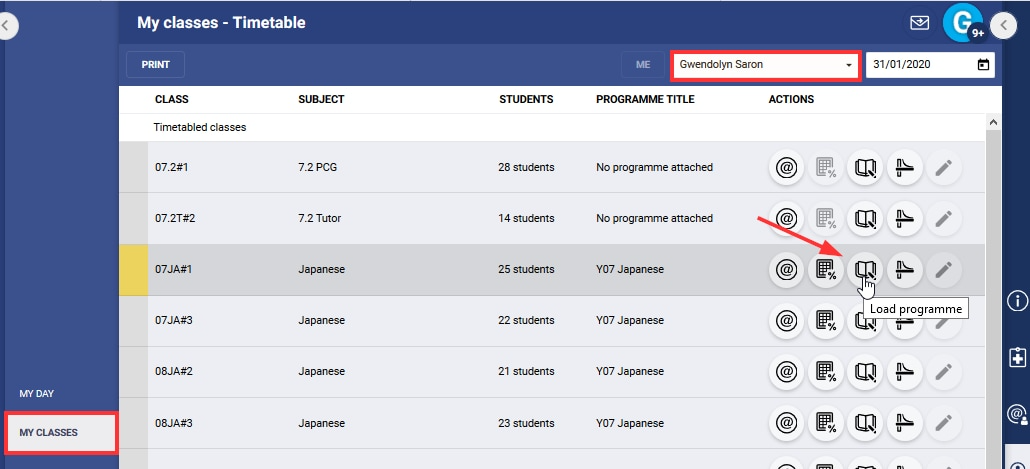
- Go to the Teaching workspace>Timetable>My Classes/Traditional view/Calendar
- If working on behalf of a teacher, select their name in the top-right corner.
- Click the Load programme icon for the class. If the class is not a current class, change the date to a point when the class was held.
- Click the Collaboration button.
- Under Collaborate further select the timetable period for the class then type in the class code in the search box.
- Select the class or classes you would like to share the programme with.
- If there is an asterisk (*) next to the class this indicate a programme is already attached. Click cancel then check the programme attached to the class.
- Click Share > Yes > OK
Step 3 (Optional): Setup or assign Pathways if teachers need the option to work independently
This step is only required if teachers would like to manage course content independently of other teachers sharing the programme. Please refer to the following articles for guidance before setting up pathways:
- Creating and Managing Pathways
- When to Setup Pathways
- Creating Pathways with Shared Lessons
- Understanding Pathways
Related Articles
Was this article helpful?
That’s Great!
Thank you for your feedback
Sorry! We couldn't be helpful
Thank you for your feedback
Feedback sent
We appreciate your effort and will try to fix the article