Assessments cannot be created unless the class has a programme attached. Assessments can be created from three locations within the Programme page, but all locations link to the same sub-page. Regardless of how the assessment is created, each assessment has settings that give teachers full control to manage the assessment and feedback visibility, assessment due dates, submission methods and more.
The three locations are:
- The Add assessment... button in the toolbar of the Planner sub-page. This will automatically open the Overview of assessments sub-page.
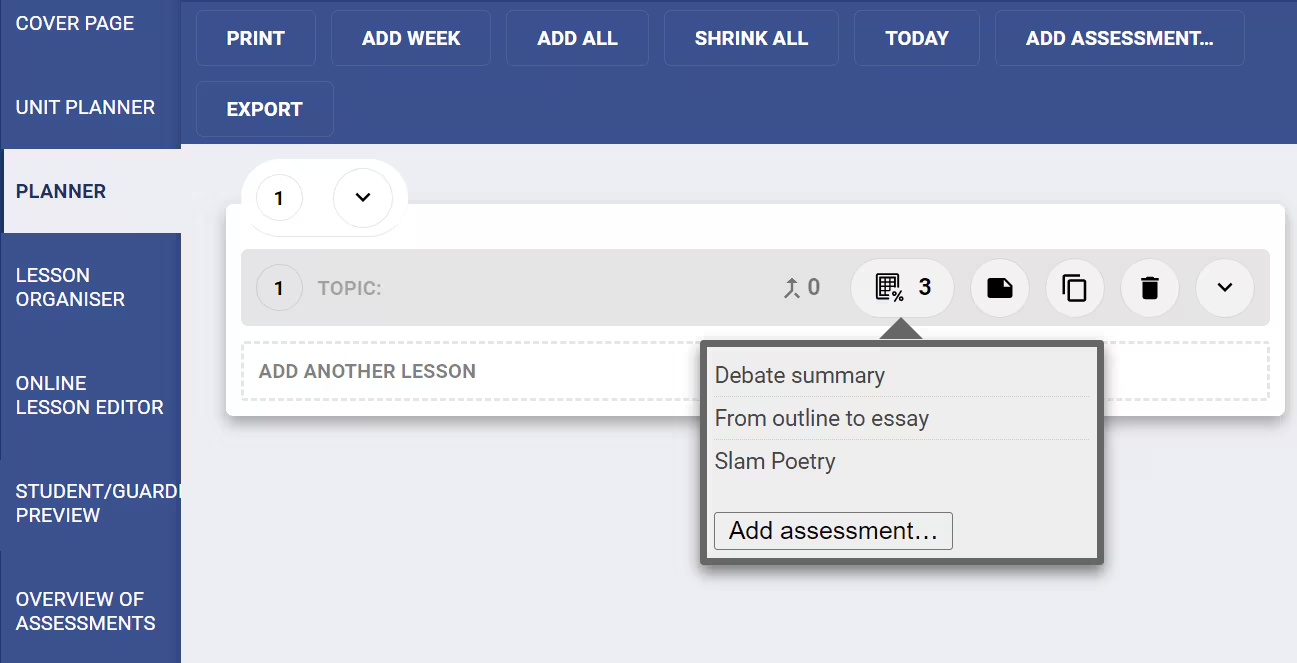
- Assessments icon (
 ) in the lesson bar on the Planner sub-page. This drop-down will show the current assessments, and also shows an "Add assessment" button. Clicking the button will open the Overview of assessments sub-page and create and save a new, default assessment.
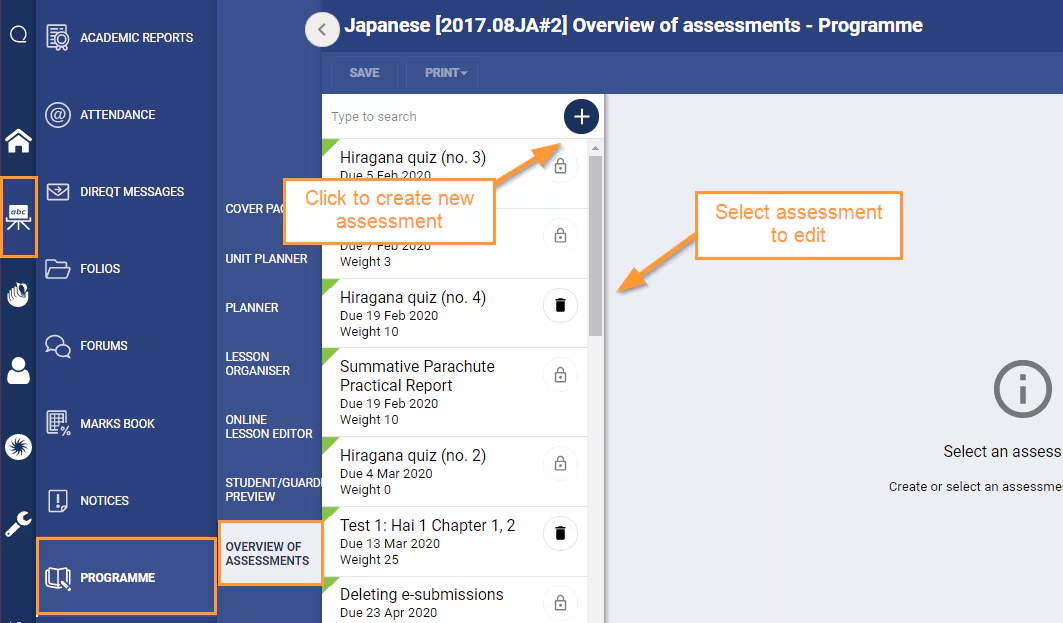
 - Overview of assessments sub-page. Click on the (
 ) icon at the top of the list of assessments column to create a new, unsaved, assessment.
Add an assessment
- Go to the Teaching Workspace > Timetable then choose My Classes, Traditional view or Calendar.
- Click on the class. If the class does not have an attached programme, select New Programme or Load the List of Programmes.
- Click on the Load Programme icon (
 ) for the class.
 - Select Overview of Assessments.
- Click the "+" icon at the top of the assessment pane to add a new assessment. Alternatively, click an existing assessment to edit.
- Set the assessment up as required:
- Set the Title for the assessment.
- Set the assessment Assessment group , and Weighting
- Set the Marking type to Marks (numbers) or Graded (letters). (This setting does not show unless the Course type selected for the programme is Mixed-Mode).
- Set the availability of the Custom text column as required. (This will only appear if enabled in the Marksbook settings).
- Add the criterion Label and Description. If required add additional criteria.
- For each criterion, optionally link a syllabus Outcome (NOTE: syllabus must have been added to the programme for it to appear in this drop-down. See the related article link below).
- If required select or create a Rubric
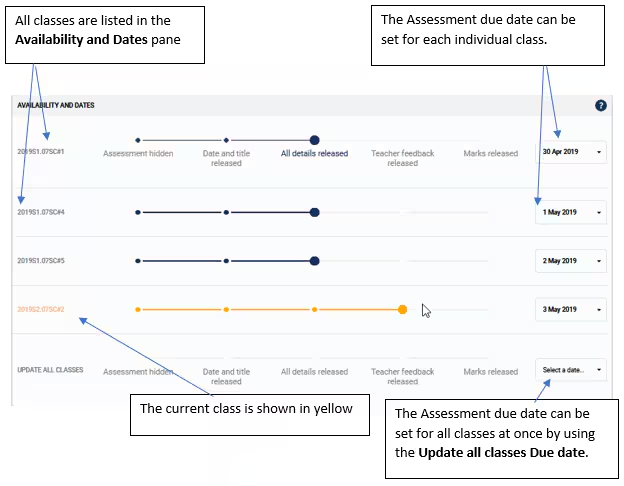
- Set the Availability and due date. This can be done globally for all classes that share this programme, or for each class individually.
- Set the Expectations and Reflection Feedback option to Whole Assessment. (overall) or Individual Criteria.
- Configure the Student Expectations (PRE) and Student Reflection (POST).
- Select the Submission settings.
- Set the Reporting Options. If unsure leave these enabled.
- Add the Checklist Items, if required, to guide the students in their response. Click the Add checklist item button (+) to enter a checklist item, then type in the item name/description. Repeat to add additional items.
- Add any available assessment resources. To do this click on the + button to Add resource. Enter a name for the resource, then select either Name Only, Web Link (to add a URL) or File (to select a file to upload). If File resources don't need to be separately named they can be added directly using drag and drop onto the Add files area.
- Select Add linked forum to create a Forum for discussions about the assessment.
- Enter the Assessment overview using the editor. This may be used for the assessment description, expected outcome and guidance notes for the student.
- Customise the Cutoffs / Grading scale for this individual assessment. Changes made here will take precedence over other cutoff settings. (See related articles below). NOTE: This option will only be available if it has been selected in the Course type that is set for this programme).
- Click Save to keep the changes.
Related articles:
Was this article helpful?
That’s Great!
Thank you for your feedback
Sorry! We couldn't be helpful
Thank you for your feedback
Feedback sent
We appreciate your effort and will try to fix the article